
Special reminder:
Activation steps:
1、After double-clicking to install Paragon NTFS,Open the Activation Tool and click Step 1。
2、Return to the ParagonNTFS software interface and click Trial。
3、Return to the Activation Tool and click Step 2。
Please follow the steps,there will be no problem,Can be used normally。
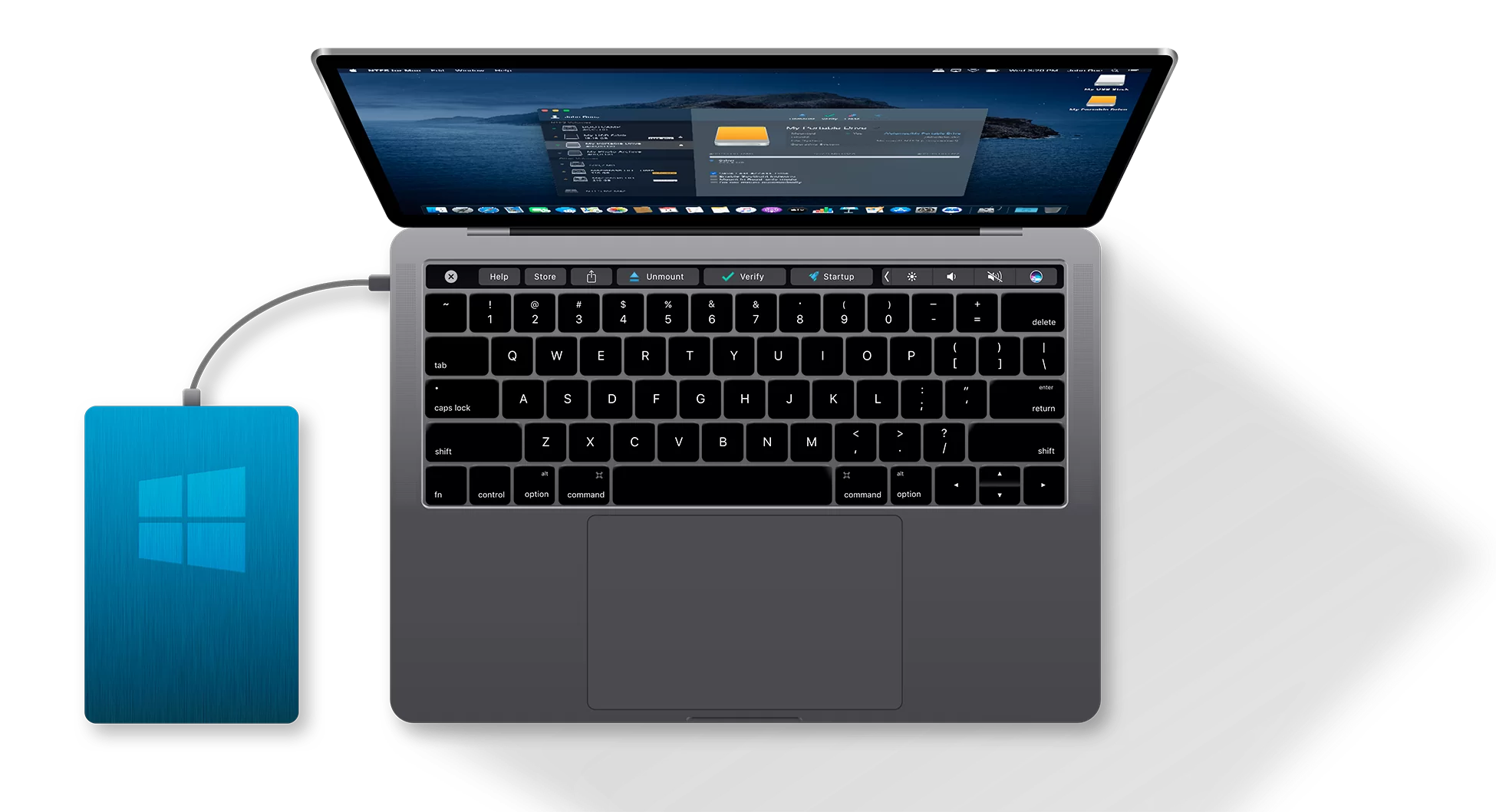
Paragon NTFS for Mac cracked version is a powerful ntfs disk reading and writing tool。By default, NTFS partitioned disks cannot be created in macOS.、Delete or modify files,can only read。Paragon NTFS is used to solve the problem of Mac not recognizing Windows NTFS hard drive.。By Paragon NTFS,You can have full read/write access to any partition of NTFS under mac。
statement:All articles on this site,If there is no special instructions or markings,All are originally published by this site。any person or organization,Without the consent of this website,Reproduction prohibited、Misappropriate、collection、Publish content from this site to any website、Books and other media platforms。If the content on this site infringes upon the legitimate rights and interests of the original author,You can contact us for processing。
Can free downloads or VIP membership resources be used directly for commercial use?
The copyright of all resources on this site belongs to the original author,The resources provided here are for reference and study purposes only.,Please do not use it directly for commercial use。If copyright disputes arise due to commercial use,All responsibility lies with the user。For more instructions, please refer to VIP introduction。
It prompts that the download is complete but cannot be decompressed or opened?
The most common situation is an incomplete download: You can compare the capacity of the downloaded compressed package with the capacity on the network disk,If it is less than the capacity prompted by the network disk, this is the reason。This is a browser download bug,It is recommended to download using Baidu Netdisk software or Thunder。 If this situation is excluded,You can leave a message at the bottom of the corresponding resource,or contact us。
Can't find the sample image in the material resource introduction article?
For members only、Whole site source code、Program plug-in、website template、Web page templates and other types of materials,The pictures used for introduction in the article are usually not included in the corresponding downloadable material package.。These related commercial images need to be purchased separately,And this site is not responsible for(There is no way)find source。 The same is true for some font files,However, some materials will have a list of font download links in the material package.。
The download address cannot be displayed or the content cannot be viewed after payment?
If you have successfully paid but the website does not pop up a success prompt,Please contact the webmaster to provide payment information for you to process
After purchasing this resource,Can I get a refund?
Source code materials are virtual goods,replicable,Transmissibility,once granted,No refunds of any kind will be accepted、Exchange request。Please confirm before purchasing to obtain the resources you need.
Comments (1)
Note: Please be respectful and civil in your comments Cancel reply
How to completely uninstall AutoCAD 2019:Tutorial for uninstalling CAD on Mac. Many Mac users find that after installing AutoCAD,Found that all files cannot be completely cleared during uninstallation,Especially if you want to update to a new version of AutoCAD。This tutorial details how to completely uninstall AutoCAD 2019。 1. Use the software’s built-in uninstaller •Click Launchpad to enter the software menu,Find and click "Remove AutoCAD 2019"。 2. Continue the uninstall process •Click “Continue” to continue uninstalling AutoCAD 2019 Cracked version。 3. Enter your administrator password •After entering your Mac password,Click "OK" to agree to uninstall AutoCAD 2019。 4. Complete the initial uninstall •After canceling the "OK" option,Click "Close"。 5. Check for residual files •Open Launchpad to check if there are still any residual files。 6. Manually delete residual files •Go to the Applications folder,turn up...
Firewall can effectively protect your Mac computer from unauthorized network access。Here are the steps to turn on and configure the firewall on your Mac computer。 step one:Open System Preferences 1. Click the Apple icon in the upper left corner of the screen,Select "System Preferences"。 Step 2:Go to Security & Privacy 2. In System Preferences,Click "Security & Privacy"。 Step 3:Unlock settings 3. Click the lock icon in the lower left corner,and enter the administrator password to unlock settings。 Step 4:Open the firewall 4. Select the "Firewall" tab,Click the "Turn on firewall" button。 Step 5:Configure the firewall 5. Click the "Firewall Options..." button,Make further configuration。You can choose to allow or block network connections for specific applications。 Step 6:Complete the settings 6. After the configuration is completed,Click "OK" to save settings。 Summary Through the above steps,You can easily turn on and configure your Mac computer’s firewall,Enhance system security。
Many users who are new to using MacOS system,I feel that Mac computers have no obvious advantages over Windows computers.,I don’t understand why everyone praises Mac so much。Actually the problem is not that Mac is not easy to use,It’s because novice users won’t be able to use it。 This article introduces 12 essential tips for Mac,I hope that friends who are just starting to use Mac can feel its superiority! 1. screenshot • cmd + shift + 3: Take a screenshot of the entire screen •cmd + shift + 4: Take a screenshot of an area of your choice • cmd + shift + 4 + space (space bar): Take a screenshot of a selected application interface window. You can also use Snip to scroll through the screenshot.,Take a long screenshot of a web page。 2. Automatically hide the Dock if you are a severe computer mysophobia patient,I think the Dock is unsightly,Or you want to hide the dock to save space?,You can follow these steps: •Open System Preferences •Select the Dock •Click "Automatically show and hide the Dock" after setting,The Dock will only be brought up when the mouse touches the bottom,If you are not used to it,You can return to the original path to cancel the settings.。 3. Split-screen function The split-screen function allows us to arrange the application windows more reasonably and effectively.,Improve work efficiency。 • Press and hold the green full-screen button in the upper left corner of any open window • The window will shrink while you hold the button,You can drag it to the left or right side of the screen • Release the button,Then click on another window,You can use the two windows side by side,You can also adjust the proportion of the two pages if you have an idle iPad,You can use Duet...
Optimize content:Sometimes problems occur in macOS or computer components,as time goes by,they may gradually worsen,or suddenly。 Sometimes before these problems become major issues,Your Mac will send out warning signs 。You need to pay close attention to the operation of the system。We'll show you some common warning signs ,and discuss how to solve these problems in the following sections。 1.Mac won't turn on when you press the power button on your Mac,nothing happened。No power light,no sound,And the screen is completely black。 don't panic,Just try the following steps to diagnose the problem: • Check power connection,Make sure both ends are secure。Next,Check the wires for damage,Then try using a different charger or outlet。 • Check the video output cable connection to the external monitor (if applicable)。Also try increasing the brightness of your monitor,to ensure that its brightness is not too low。 • There may be something wrong with your accessory。Unplug all peripherals except keyboard and mouse,Then try to start。Plug in peripherals after reboot,see if everything is normal。 • Restart power。On a modern MacBook,Press and hold the power button for 10 seconds。If your Mac is running,It will cut power and force it to reboot。On a desktop Mac,Unplug the cable,Then wait ten seconds。Then plug in and reboot。 2.Mac gray screen during startup after turning on the power of Mac,A series of startup events will occur,until the login screen or desktop appears。But if the startup process gets stuck,no matter how long you wait,will only see a solid gray screen or a screen with symbols。 based on what you see,Follow the instructions below。 Normal gray screen If there is only a simple gray screen at startup,Please do the following: • Peripheral failure is the main cause of gray screen problem。therefore,You should remove all wired accessories,Then hold down the power button to shut down your Mac。Plug in a peripheral after every reboot to find the culprit。 • Try booting in safe mode。If your Mac completes the startup process here,Please reboot in normal mode and verify that the boot drive is functioning properly。 • If safe mode startup fails or gets stuck,then reset the NVRAM and SMC settings as previously described。 • RAM with incorrect specifications can also cause the screen to turn gray。Remove any RAM you recently added,then restart。 • Hold down Cmd on startup + R key,Restart your Mac in recovery mode。Then,Repair your boot drive using Disk Repair Utility。 gray screen,No disk icon If there is a folder with a flashing question mark on the gray screen,It means that your Mac cannot find a valid boot volume.。but,When it displays the "Do Not Enter" symbol,Indicates that your macOS installation is corrupted。 To resolve this issue: • Sometimes your Mac forgets the boot volume,and temporarily display a flashing question mark。To resolve this issue,Go to the Startup Disk pane in System Preferences,Then reselect the boot volume。 • Start your Mac in recovery mode。In the Apple menu,Check if you can see the boot volume。if not,There is probably a problem with the boot disk。Run a disk repair utility to resolve this issue。 •...
1. Show or hide the menu bar If the menu bar is not displayed,You can display it by following these steps: 1. Open system preferences:Click the Apple icon in the upper right corner of the screen,Select "System Preferences"。 2. Go to general settings:In the System Preferences window,Click "General"。 3. Adjust menu bar settings: •In general settings,Find and check the "Automatically hide and show menu bar" option。 After setting this,The menu bar will automatically hide and show,Display based on your mouse movement or window operation。 2. Adjust menu bar icons •Rearrange icons:Command-drag an icon on the menu bar,Their positions can be rearranged。 •Remove menu bar icon:Hold down the Command key,Then click on the icon you want to delete and drag,until a delete sign appears at the top of the screen。Release the mouse to delete the icon。 please note,The icons of some software may not be removed from the menu bar,This depends on the settings of the software itself。 With these simple steps,You can easily manage and adjust the display and icons of your Mac's top menu bar。
WiFiSpoof is a wifi address modifier for Mac systems,Users only need to install WiFiSpoof for mac,Click to open and you can modify the Mac address intuitively,Very easy to operate。 MAC Address Modifier is a compact tool,In daily network applications,Due to various reasons, the mac address of the computer sometimes needs to be modified.,If the network card address is blocked, etc.,Need to change to a new mac address。 Using this software allows you to skip the trouble of "how to modify the mac address"。Easily enter new MAC address、One-click setting。And supports one-click restoration of the original hardware MAC address,Simple and clear operation。 Installation activation method 3.x.x Directly install 2.x.x Drag WiFiSpoof.app to the application directory Open WiFiSpoof 2.x [SP].app,Select /Applications/WiFiSpoof.app,activation
Antivirus Zap is a malware finding and removing software for MAC,Helps users quickly scan and remove malware from Mac,Supports finding and removing malware、Adware, spyware, etc.,Block problematic pop-ups and restore your browser。 Antivirus Zap is a comprehensive solution for system security,Scans and removes malware and other malware from your Mac。It can detect threats or suspicious files that are already present on your Mac,and protect you from future exposure。 characteristic: Detect and remove malware and viruses to protect your Mac。 Check the most likely locations of malware and adware。 Depending on the number of files,The scan takes approximately 5-15 minutes to complete。 Check an expanded list of most likely locations,Includes apps,download,desktop,Email download and other folders。 Depending on the number of files,The scan takes approximately an hour or more to complete。 full scan,Check the entire system。 According to the number of files,Complete an hour or more,Suitable for overnight scanning。 Select any specific file or folder to scan。 Suitable for suspicious files,Folders and USB drives。 Same as quick scan,and by removing the extension,Cookies and cache to recover Internet browsers。 Depending on the number of files,The scan takes approximately 10-30 minutes to complete。 Scan all applications and processes currently in memory。 Scan all programs automatically started by the system。 Not only detects macOS,Also detects Windows and Linux threats。You can scan Windows operating systems,Malware in external and network drives。 Choose to exclude certain file types that are unlikely to pose a threat,For example image,Movie and audio files。 Still in the archive (zip,pkg, etc.),and search various types of files,Such as pdf,pkg,zip etc.。 Easy to use user interface。 Daily database updates。
Edraw Max is a powerful cross-platform professional drawing software,It integrates rich drawing tools,Adaptable to many professional fields,Allows users to easily create flowcharts、network diagram、organizational chart、Market analysis chart、Building plan、mind map、fashion design drawings、UML diagram、workflow diagram、Web design drawing、electrical engineering drawings、Directional diagrams and database charts, etc.。The software provides a user-friendly interface and a large number of templates、Shapes and over 26,000 vector symbols,Support effective data visualization and brainstorming,Suitable for both professionals,It also allows beginners to easily create professional-looking graphs and charts.,Greatly facilitates the expression and communication of data。 Features Special functions Full Chinese interface,Have desktop version、Web version allows you to easily draw more than 260 drawing types, including a large number of professional templates and 26,000+ vector symbol materials and intelligent wizards.,Combine graphics and data. Support batch import and export of Visio format. Support output in multiple formats.,As picture、PDF、Office、Html, etc. One-click sharing link、Share to social platforms Office drawing + AI,Improve your drawing efficiency. Edraw AI can optimize graphic charts and text creation scenarios.,For example, enter a sentence to generate a flow chart/mind map/list、Continue writing text with one click、One-click layout and beautification、OCR text extraction is easy to operate,Even novices in drawing can get started easily. Edraw icons make complex drawings simple and easy to use.,No need to master complex professional knowledge,Full drag-and-drop operation,Ready to use,regardless of background,Easy to get started。 Massive materials,To meet multi-scenario drawing needs, Edraw has 210+ graphics solutions,17500+drawing symbols,1100+Built-in templates,One software can take care of your daily drawing。 Collaboration and sharing,Share your visual works anytime, anywhere. Edraw web version supports online collaboration.,Share easily、Manage team files;It also supports one-click sharing to WeChat、Weibo、QQ and other social platforms,Make communication more convenient。 Strong compatibility,Commonly used formats can be imported and exported with one click. Edraw icons support the import of Visio common formats VSD.、VSDX,You can export EPS with one click、Word、PPT、PDF、SVG and common image formats。 Enterprise-grade security,Protect your privacy in Edraw icon,Your data is private、safe and reliable。All information and file transfers are protected by a high level of professional encryption,without permission,No one can access your data。 Business Office Don’t know how to make PPT? Copy template using Edraw icon,Quickly output beautiful charts、business canvas、analysis report。 Project Management Is project management complicated? Use Edraw icons,Get the flow chart done in one go、Gantt chart、Checklist diagram、funnel chart、fishbone diagram。 Science education: Text-only teaching is too monotonous? Use Edraw icons,Present boring knowledge points in a visual way,Stimulate children's interest in learning。 Software Development Don’t have a clear idea for software development? Draw architecture diagram using Edraw icons,Sort out the underlying logic,Improve business understanding。 Knowledge Summary Is studying for a long time too inefficient? Use Edraw icons to create mind maps,Organize knowledge points,Build a structured knowledge system。
For novice users,Familiarity with various operating techniques of Finder can significantly improve work efficiency。The following is a summary of some commonly used Finder shortcut keys: copy:Command-C Paste:Command-V Select All:Command-A New Program Window:Command-N creates a new program tab window:Command-T switches input method:Ctrl-Space (hold down Ctrl to select the input method) Hide the current window:Command-H (different from minimize) closes the current window of the program:Command-W (without exiting the program) Exit the current program:Command-Q (completely exit the program) Quick access to directories: Open desktop directory:Command-Shift-D Open application directory:Command-Shift-A screenshot operation: Capture full screen:Command-Shift-3 capture area of screen:Command-Shift-4,Then press the space bar to select window capture。 Hold down the Control key while taking a screenshot,Save screenshot to clipboard instead of generating desktop screenshot file。 Force shutdown and restart: Force shutdown:Press and hold the power button in the upper right corner of the keyboard for 5 seconds。 force restart:Command-Control-Power key The above shortcut keys and operation tips can help you use the Finder function in Mac more efficiently。
SecureFX 9.1.1 for mac is a software that supports SFTP client,it is easy to use,Has an operation interface similar to Windows Explorer。 SecureFX gives you the tools you need to make your file transfer operations and site synchronization more secure and efficient。SecureFX’s user-friendly interface makes it easy to learn,Support for multiple platforms allows you to apply the Secure Shell protocol’s powerful encryption and authentication mechanisms to your data transfers。 SecureFX 8.7.3 supports three file transfer protocols:FTP、SFTP 和 FTP over SSH2。It can provide secure file transfer。No matter which operating system you are connected to the server,It can provide secure transmission services。 The downloaded compressed package contains DMG files suitable for both ARM and INTEL platforms.。Please download and unzip the compressed package and select the corresponding DMG installation according to your Mac system.。
System Toolkit is an all-in-one information and maintenance application designed for MacOS。 System Toolkit provides system maintenance、Privacy protection、disk cleanup、Battery maintenance、Network status monitoring、Practical functions such as network traffic monitoring。 System Toolkit can retrieve the latest technical data at any time,For example, process load,CPU temperature,Main memory consumption,storage space,disk activity,Communication on network interfaces, etc.。The program continuously monitors your system,and be available when needed。
Virtual Keyboard is a accessibility keyboard in macOS,It not only provides advanced typing features such as typing suggestions,Also has navigation function。So,How to enable the on-screen virtual keyboard on a Mac computer? 1. In the menu bar in the upper right corner of the screen,Tap the input method menu icon。 2.Select "Show keyboard display program"。 so,A white virtual keyboard window will appear on the screen。You can enter text by clicking on this keyboard。 If you need to close the virtual keyboard window,Just click the red close button in the upper left corner of your keyboard。
Comments (1)

