

Adobe Illustrator 2020 Is the industry standard tool for vector graphic design,Widely used in brand design、UI/UX、Printing and publishing、Packaging design and other fields。Its core lies in based on mathematical formulasvector path,Supports infinite scaling without distortion 。
one、Core functionality overview
- vector drawing:Use the pen tool、Shape tools and more to create infinitely scalable graphics。
- Path editing:through anchor point、Direction lines precisely control curves and straight lines。
- Color and stroke management:Support CMYK、RGB、Gradient、Pattern fill and custom stroke settings。
- Text layout:Professional-grade text processing,Include paragraph styles、character style、path text etc.。
- Layer and object management:Achieve hierarchical control of complex artwork through the layer panel。
- Drawing board system:Support multi-artboard documents,Convenient for multi-page or responsive design 。
- Custom workspace:Depending on the task (such as painting、typesetting、Web Design) Switch or create your own workspace 。
two、Main interface components
-
menu bar
include files、edit、object、character、choose、Effect、view、window etc.,Covers most operation commands 。 -
Control Panel
at the top of the document window,Dynamically display relevant properties of the selected object or tool (such as color filling、Stroke、font、transformation, etc.)。 -
Tools Panel
Docked to the left by default,Group by function (e.g. select tools、shape tool、pen tool、text tools, etc.)。The tool group can be expanded by long pressing or right-clicking 。 -
Panels
The right side contains layers by default、color、Stroke、property、Pathfinder and other panels,Available via window > [Panel name] Show/Hide 。 -
status bar
The current zoom ratio is displayed in the lower left corner、Artboard information、Tool name, etc. 。 -
Artboard area (Artboard)
main work area,Multiple artboards can be created for multi-page designs 。
three、Key operating functions
-
Object selection and editing
- useSelect tool (V) Select the entire object。
- useDirect Selection Tool (A) Edit anchor points or path segments。
- supportLasso Tool (Q)、Magic Wand Tool (Y) Make area or attribute selections 。
-
path operations
- split path:Cut manually using the Scissors Tool or Utility Knife Tool 。
- divided into grids:passobject > path > divided into grids Split the object into a row-row matrix 。
- pathfinder:merge、minus、Shape operations such as intersection 。
-
Artboard management
- Artboard tool (Shift+O):create、Adjustment、Rename artboard。
- Artboard panel (window > artboard):Batch manage multi-artboard documents 。
- Content aware cropping(New in 2020):Automatically resize artboard to artwork boundaries 。
-
Customize toolbar
Available via window > tool > New tool panel Create your own tool set,Improve efficiency 。 -
Hide/show panel shortcut keys
- Tab key:Hide/show all panels (including toolbars)。
- Shift+Tab:Hide/show all panels except toolbar 。
Four、2020 New features in v24.3 version (as of that time)
- Free Gradient Tool:Control gradient direction and range more intuitively 。
- Global editing:Batch modify similar objects (such as color、Stroke)。
- Enhanced visual font browsing:Display text effects in real time when previewing fonts 。
- Cloud document integration:Sync and collaborate across devices 。
- Performance optimization:Open large files、keep、Smoother operation 。
Detailed steps to install Adobe Illustrator 2020
1.Download ready installation package
➡️ Installation package download:First put Adobe Illustrator 2020 Download the software ZIP package to your Mac,Usually found in the "Downloads" folder。
➡️ Make sure the file is not damaged,The sizes are almost right (don’t let the lower half break)。
➡️ Unzip the ZIP compressed file to obtain the DMG installation file and other related files,If you don’t have decompression software on your MAC computer,You can install this KeKa 1.4.3 Chinese cracked version(Simple and powerful decompression tool) Decompression software,relatively easy to use,Commonly used compression formats are supported。
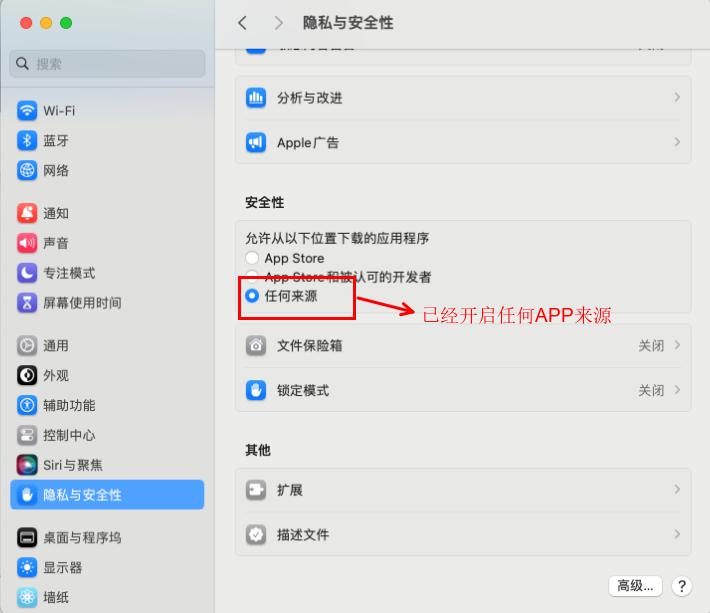
2.Enable software installation that allows [all sources]
➡️ Find the terminal in the MAC launcher and open it,Enter in the terminal:sudo spctl --master-disable,Enter to run,We will be asked to enter our password,Just enter the power-on password directly.,It will not be displayed when typing.,Leave it alone,After typing, press Enter,If there is no prompt,It means the operation is successful.。
➡️ Now we open the settings,In the general tab of Security and Privacy, you can see an additional option of "Any Source",and has locked the selection。In this way, we have completed the preliminary preparations for the installation of the Apple version of Adobe Illustrator software.。
3.Start installing the AntiCC program
➡️ Double-click to open the AntiCC.dmg file,Find the AntiCC.dmg file in the ZIP archive,double click on it,A window will pop up,In the pop-up window we will see an AntiCC.pkg file,Double click this file,Start installation,Then click Continue in the window that appears,Then click the Install button in the next window,Enter the power-on password in the pop-up window,Then click the Install Software button,Wait for installation to complete,Click the Close button,The Anticc program is installed。
4.Start installing Adobe Illustrator 2020 software
➡️ In the ZIP archive we will see a folder named Installation Files,Double click to open this folder,Then we will find that there is an install file in the opened directory,at this step,Be especially careful not to double-click this install,Just remember not to double-click it! ! ! We right-click to install,Select Show package contents in the pop-up window menu,Go inside the installation file。As shown below:
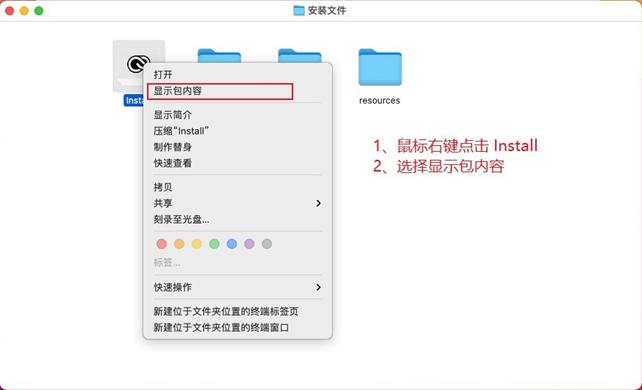
Open the Contents folder。Then enter the MacOS folder,Then double-click the install file to run,You can start installing adobe Illustrator。System prompts come from network downloads,Ask if you are sure to open it,Let's click open。This step is similar to installing an APP from an unknown source on your mobile phone.。will ask us to allow this operation,After entering the password,Click OK。wait a moment,The installation interface for the MAC version of Adobe Illustrator software will appear.,Let's just click continue。
➡️ Wait for installation to complete,Wait a little longer,Installation completed,Click the Close button,Installation completed。
5.Register to activate Adobe Illustrator 2020
➡️ Return to the previous ZIP compressed package,This will be used to activate the .pkg file.,Double-click to activate the .pkg file,Click the Continue button,Click the Install button in the pop-up window,Then enter the power-on password,Click the Install Software button,Installation successful,Click Close,Our adobe Illustrator software has been activated。
➡️ Now we start Adobe Illustrator,It can be used normally。
Most of the download resources on this site are collected from the Internet,Only for learning and communication purposes,Copyright belongs to the original author。If you need to use non-free software or services,Please purchase genuine licenses and use them legally。If the content published on this site infringes upon your rights,Please contact the webmaster to delete,We will handle it promptly。
If the download address is invalid,You can leave me a message,The editor saw the news,Will update the link as soon as possible! Thanks!


