
Secret Folder helps you hide folders and their contents。If you have private and sensitive information that you don’t want others to see、Modify and delete,Then just a few clicks of the mouse,Just enter the password and you're done.。
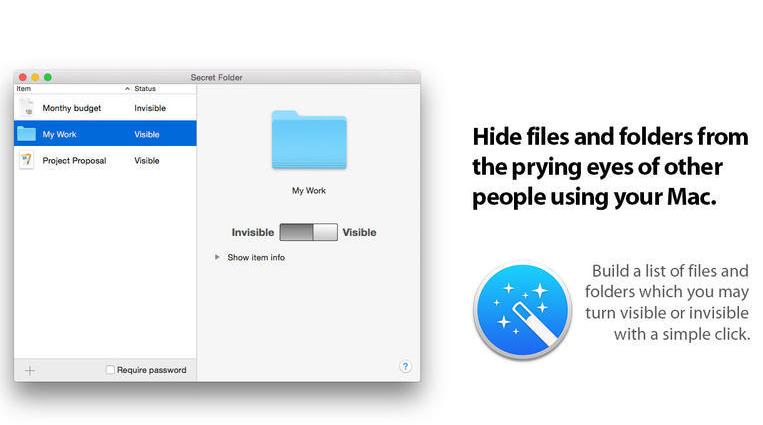
Secret Folder does not modify your original data,I just tried to hide the folder,So its encryption speed is extremely fast,Even if the folder contains a large number of files, it will not be affected。After Secret Folder works,It will protect itself from being uninstalled by others at will,You cannot access your encrypted folder through the command line.。
Although Secret Folder does not encrypt data,Just hide the folder,But I believe this is enough for most people,After all, many people just hope so。
statement:All articles on this site,If there is no special instructions or markings,All are originally published by this site。any person or organization,Without the consent of this website,Reproduction prohibited、Misappropriate、collection、Publish content from this site to any website、Books and other media platforms。If the content on this site infringes upon the legitimate rights and interests of the original author,You can contact us for processing。
Can free downloads or VIP membership resources be used directly for commercial use?
The copyright of all resources on this site belongs to the original author,The resources provided here are for reference and study purposes only.,Please do not use it directly for commercial use。If copyright disputes arise due to commercial use,All responsibility lies with the user。For more instructions, please refer to VIP introduction。
It prompts that the download is complete but cannot be decompressed or opened?
The most common situation is an incomplete download: You can compare the capacity of the downloaded compressed package with the capacity on the network disk,If it is less than the capacity prompted by the network disk, this is the reason。This is a browser download bug,It is recommended to download using Baidu Netdisk software or Thunder。 If this situation is excluded,You can leave a message at the bottom of the corresponding resource,or contact us。
Can't find the sample image in the material resource introduction article?
For members only、Whole site source code、Program plug-in、website template、Web page templates and other types of materials,The pictures used for introduction in the article are usually not included in the corresponding downloadable material package.。These related commercial images need to be purchased separately,And this site is not responsible for(There is no way)find source。 The same is true for some font files,However, some materials will have a list of font download links in the material package.。
The download address cannot be displayed or the content cannot be viewed after payment?
If you have successfully paid but the website does not pop up a success prompt,Please contact the webmaster to provide payment information for you to process
After purchasing this resource,Can I get a refund?
Source code materials are virtual goods,replicable,Transmissibility,once granted,No refunds of any kind will be accepted、Exchange request。Please confirm before purchasing to obtain the resources you need.
Comments (0)
Note: Please be respectful and civil in your comments Cancel reply
When installing or running software on a Mac computer,Have you ever encountered the prompt "The image is damaged?",Please move to Trash" issue? This may be because your computer system has the "Any Source" option turned off in System Preferences。How to enable this option? This article brings you a detailed tutorial,Let’s take a look! How to check if the "Any Source" option is turned on Click the Apple icon in the upper left corner,Select "System Preferences"。 Select "Security & Privacy"。 Click on the "General" tab,Check to see if the "Any Source" option is available。 How to turn on the "Any Source" option Turn on Spotlight,Type "terminal",Then press Enter key。 Copy the following command and paste it into the terminal: shell Copy the code sudo spctl --master-disable Press Enter after pasting,Then enter your computer power-on password,Press Enter again。 If the password is entered incorrectly,The terminal will display an error message。Just re-enter。If you enter twice incorrectly,Please close the terminal,Open it again,Re-operate。 hint: In the process of entering password,Terminal does not display entered characters,Just enter normally。 Code needs to be copied and pasted,Do not enter manually,Because it involves space symbols。 Go through the above steps,You can turn on the "Any Source" option on your Mac,And successfully installed external software from non-App Store。
Microsoft Remote Desktop helps you quickly connect to your Windows-based computer,to use its programs and files,Access data etc.。When configuring the connection,Microsoft Remote Connection Tool allows you to decide which resolution should be used,color quality,full screen mode,Whether to start the session in full screen,Whether to use all monitors,Or the content should be scaled。and you can choose to,Play sound on remote PC,Or don't play the sound at all,Manage sessions with connections,Forward printing device,Swap mouse buttons or enable folder redirection。
Many new Mac computer users don’t know where the tutorials for using touch gestures are.,I don’t know how to set up my Mac’s trackpad either.。Today I will introduce you to a tutorial on how to use touch gestures on Mac.,Hope it helps everyone。 step one:Open System Preferences 1. Click the Apple icon in the upper left corner of the screen,Select "System Preferences"。 Step 2:Find the trackpad option 1. In the System Preferences pane,Find and click "Touchpad"。 Step 3:View the touch gesture tutorial 1. On the touchpad settings page,Apple will list tutorials for using different gestures。You can click on each gesture to view detailed instructions and demonstration videos。 Step 4:Change multi-gesture settings 1. Click the "More Gestures" option at the top of the trackpad settings page。 2.in the left sidebar,Multi-gesture settings can be changed according to personal needs。 Go through the above steps,You can easily view and set up your Mac's touch gestures。Hope this information is helpful to you。
I like to keep a clean and organized desktop,But sometimes it's really hard to keep。fortunately,MacOS Mojave introduces new stacking feature,Allows me to manage my desktop quickly and easily。 Use Stacking Enable Stacking: Just right click on the desktop,Then select "Use Stacking"。Stacking automatically groups all files on your desktop by type,and stacked neatly on the right side of the screen。 Unstack: If stacking starts to worry you about hiding needed files,Or maybe you want to go back to the chaotic and organized desktop view you're used to,Just right click on the desktop again,Then select "Unuse Stacking"。 Sorting options Custom sorting: Overlay organizes files by file type by default,But you can also go by the last modified date、Add date、Modification date、Sort by creation date, tag, etc.。Right click on the desktop,Select "View display options",Then select the sort method。 View and manage stacks View stacks: Click on Stack,It expands to show thumbnails of each file group。You can click on any file to open it,Or click the stack icon to close the expanded stack。 Using MacOS’s stacking feature allows me to quickly scan and manage files on my desktop,Although it sometimes makes me lazier。But at least,It allows me to easily find files I hide out of sight。
WiFiSpoof is a wifi address modifier for Mac systems,Users only need to install WiFiSpoof for mac,Click to open and you can modify the Mac address intuitively,Very easy to operate。 MAC Address Modifier is a compact tool,In daily network applications,Due to various reasons, the mac address of the computer sometimes needs to be modified.,If the network card address is blocked, etc.,Need to change to a new mac address。 Using this software allows you to skip the trouble of "how to modify the mac address"。Easily enter new MAC address、One-click setting。And supports one-click restoration of the original hardware MAC address,Simple and clear operation。 Installation activation method 3.x.x Directly install 2.x.x Drag WiFiSpoof.app to the application directory Open WiFiSpoof 2.x [SP].app,Select /Applications/WiFiSpoof.app,activation
Excel 2019 for Mac is a powerful spreadsheet software,Mastering these keyboard shortcuts can significantly improve your work efficiency: 1. F2 / Control + U: Enter the cell editing state (touch bar Mac needs to adjust the fn function commonly used) 2. Command + C: Copy selected content 3. Command + V: Paste copied content 4. Command + X: Cut selected content 5. Command + Z: Undo the previous action 6. Command + A: Select all content in the current worksheet 7. Shift + click: Continuously select data within a range 8. Command + click: Radio select the cell clicked 9. Command...
QuickRecorder is a versatile、Lightweight and high-performance open source macOS screen recording tool。It focuses on screen recording,Provide sophisticated but not excessive functionality,Just to give you the best experience。Based on ScreenCapture Kit interface,QuickRecorder supports multiple recording modes,including screen、application、window etc.。It can also perfectly record system sounds without driver.,No need to rely on third-party drivers (the driver-free audio internal recording function is only available for macOS 13 and above systems)。QuickRecorder fully supports the "speaker front" feature set,You can enjoy system-level real-time camera keying overlay and special effects processing (this feature is only available for macOS 14.2 and above systems)。Behind every small function, there are ingenious thoughts specially considered for you.,Everything is designed to make screen recording easier。please note,This tool only supports macOS 12.3 and above systems。 Features Focus on screen recording QuickRecorder is inherently simple and pure, Concentrate on screen recording. Expensive functions but not too expensive, Only the best is given to you. Record whatever you want. Based on the powerful functions provided by the ScreenCapture Kit interface., QuickRecorder supports multiple recording modes such as screen/application/window, etc. You can capture the sound and picture with both hands and enjoy the perfect driver-free internal recording system sound., Say goodbye to third-party drivers. (The driver-free audio internal recording function only supports macOS 13 and above systems) The focus of the audience, Appear at any time QuickRecorder is now fully supported [speaker front] feature set, Enjoy system-level real-time camera keying overlay and special effects processing. (Speaker front-facing feature only supports macOS 14.2 and above systems) It’s all about the details. Behind every small function, there is an ingenuity specially considered for you., Everything is just to make screen recording easier
If you want to test network speed on Mac,To ensure the performance of your network connection or to diagnose network problems,The following methods can be used: Use the built-in Network Utilities 1. Open "Network Utilities" •Click on the Apple icon in the upper left corner of the desktop,Select "System Preferences"。 •In System Preferences,Select "Network"。 •In the Network window,Click the "Advanced" button in the lower left corner,Then select the Network Utilities tab。 2.Test your network speed •In the Network Utilities window,Select the "Information" tab。 •View network connection details,including signal strength、Connection speed etc.。 Use an online internet speed test tool 1. Visit the Internet speed test website •Open Safari or other browsers。 •Visit a popular internet speed test website,For example Speedtest.net or Fast.com。 2.Run the test •Click the "Start Test" or similar button on the website。 •Wait until the test is complete,You will see the download speed of your network、Upload speed and latency (ping) and other information。 Use the terminal command line tool 1. Install speedtest-cli • Open the Terminal application (this can be done by clicking on the magnifying glass icon on the desktop,Type "terminal" and press Enter to find)。 •Install the speedtest-cli tool,Enter the following command and press Enter: brew install speedtest-cli if Homebrew is not installed,You need to install Homebrew first。 2.Run the test •In the terminal,Enter the following command and press Enter: speedtest This will show your network download speed、Upload speed and latency information。 Through the above methods,You can easily test network speed on your Mac system,Ensure network connection stability and performance。
MacCleaner Pro is a professional Mac cleaning tool suite software,Keep your Mac fast、clean and orderly,Helps you see what's taking up the most space on your Mac,Unnecessary files found,and reclaim hard drive space。It can clean junk files in one click、Optimize RAM、Manage extensions and fix issues,Make your Mac run faster。MacCleaner Pro is packed with features,For example cleaning invalid RAM memory、Disable startup programs、Reindex Spotlight and Mail、Remove unnecessary plugins and extensions、Close memory-intensive apps、clear cache、Delete installation files and unnecessary localization files, etc.。also,MacCleaner Pro also offers several additional tools,Such as App Cleaner & Uninstaller、Duplicate File Finder和Disk Space Analyzer,Help you perform deep cleaning。MacCleaner Pro user feedback is positive,Recommended by many users。
Possible reasons why external disks are not displayed: 1.connection problem: •Make sure the cables are connected correctly。The USB or HDMI connection should be plugged securely into your Mac and external drive ports。 •Try changing to a different cable,To rule out the possibility of cable failure。 2.Port problem: •If you have multiple USB ports,Try connecting the external drive to another port,Check if it is displayed on the desktop。There may be a hardware problem with the currently connected port.。 3.System problem: •Restart your Mac,to clear possible temporary data corruption。Select Apple menu > Restart or hold the power button,Then press R key to restart。 •Reset NVRAM (Non-Volatile Random Access Memory Parameter Memory),The method is to shut down your Mac,Reopen and immediately hold down Option、Command、P and R keys for at least 20 seconds,Until you hear the second startup sound。 4. drive format: • Make sure the external drive is formatted to a Mac-compatible format,Such as ExFAT or Mac OS extended format。Some Windows formats (such as NTFS) may require additional drivers to be installed to work properly on Mac。 5. Show on desktop: •If the external drive is recognized but not displayed on the desktop,Please go to the Finder menu > Preferences (Cmd + comma),Check "External Disk" in the "General" tab,Make sure it shows up on the desktop。 6. Use disk utility: •Open Disk Utility (located under Applications > in "Utilities"),Check to see if the external drive is shown。You can try to mount it,Make it visible in Finder and desktop。 How to show connected devices in Finder: •Go to Finder menu,Then select Preferences (Cmd + comma)。 •In the "General" tab,Make sure "External Disk" is checked,This way they will appear on the desktop。 How to add cloud storage to Finder: •You can install applications such as CloudMounter,so that Google Drive、Dropbox or Amazon cloud drive added to Finder as local drive,To more conveniently access and manage cloud storage files。 go through these steps,You should be able to resolve most external disk not showing up issues on Mac,and make sure they work properly。If you have any other questions or need further help,Please keep us informed!
Desktop Mac or MacBook won't turn on,Or maybe it can't be launched via the Apple icon? Don't worry,Although it makes people irritated,But it's usually fixable。 Here are all the steps you need to take to restart your Mac。Follow the steps in order,until the problem is solved,Or jump to the applicable step。 1. Check the power connection • Make sure your Mac is plugged into the power adapter,and the adapter is connected well。For desktop Mac,Make sure the power cord is also connected to the electrical outlet。 2. Power cycle •For the latest MacBooks,Disconnect the power cord,Then press and hold the power button for 10 seconds。 •For older MacBooks,Disconnect the power cord and remove the battery for at least 10 seconds。 •For desktop Mac,Disconnect the power cord for at least 10 seconds。 3. Boot in safe mode •Press the power button,Then immediately hold down the Shift key until you see the login screen。 4. Reset the System Management Controller (SMC) Desktop Mac: Unplug the power cord,wait 15 seconds,then reinsert,Wait another five seconds before restarting。 •2018 MacBook Pro and MacBook with T2 chip: Hold down the right Shift key、Left Option key and left control key for seven seconds,Then press and hold the power button for seven seconds。 • MacBook without removable battery: Hold left Shift、Option、Control and power (or Touch ID) buttons,Lasts 10 seconds。 5. Reset NVRAM or PRAM • Hold Option while booting、Command、P and R keys,Don't let go until you hear the startup sound。 6. Run Apple Diagnostics • Press the power button,Then hold down the D key until you see the language selection screen。After selecting language,Start running tests。 7. Using Recovery Mode Tools • Hold the Command and R keys to boot into Recovery Mode。Repair your hard drive or SSD using Disk Utility。 8. Reinstall macOS in recovery mode • If none of the above fixes the issue,Choose to reinstall macOS。Select Reinstall macOS from the menu,and follow the on-screen instructions。 Go through the above steps,You should be able to fix most Mac won’t turn on issues。If the problem is still not resolved,May require further hardware checks or professional support。
BetterDisplay Pro is a powerful display management tool,Not only does it transform your monitor into a fully scalable screen,Also allows you to override display configuration、Control brightness and color、Provides XDR/HDR brightness enhancement (over 100% additional brightness on compatible XDR or HDR displays,Available for Apple Silicon and Intel Macs,Provides multiple methods)、Achieve all-black dimming、Helps you create and manage virtual screens for Mac、Create a picture-in-picture window for your monitor,and provides many other features,Allows you to easily manage monitor settings from the menu bar。
Comments (0)

