
Cisdem AppCrypt is an encryption software on the Mac OS platform,You can set a secure password for your Mac app to protect your iPhoto,iTunes,Contacts etc.。
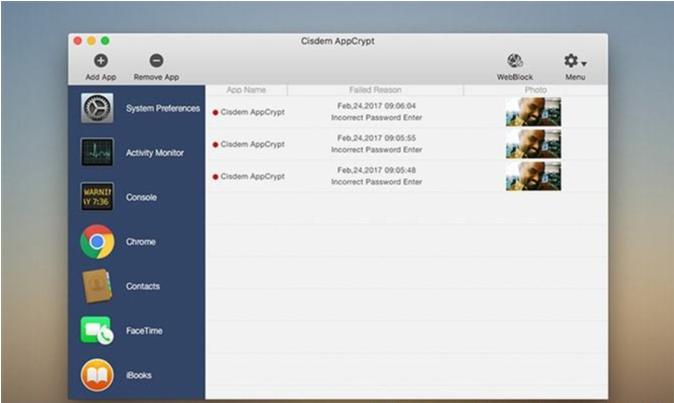
Cisdem AppCrypt is also very simple to use,Just set a password,Add the apps you want to lock,No one will be able to access the protected application,Unless they have the correct password。Cisdem AppCrypt adds the ability for users to lock Mac apps at specific dates and times。For example:After school (3:00-5:00) but not at 10:00。at the same time,Its setup time is easy,Because it's a you set your alarm。
Think of it, make a cup of coffee,And your personal chat window is on the screen? no problem。Cisdem AppCrypt will intelligently terminate programs not previously running when your Mac goes into hibernation or standby。Cisdem AppCrypt automatically password protects some important system applications,Includes Activity Monitor,System settings,Host and terminal。You can also remove them from the blocked apps list manually。
statement:All articles on this site,If there is no special instructions or markings,All are originally published by this site。any person or organization,Without the consent of this website,Reproduction prohibited、Misappropriate、collection、Publish content from this site to any website、Books and other media platforms。If the content on this site infringes upon the legitimate rights and interests of the original author,You can contact us for processing。
Can free downloads or VIP membership resources be used directly for commercial use?
The copyright of all resources on this site belongs to the original author,The resources provided here are for reference and study purposes only.,Please do not use it directly for commercial use。If copyright disputes arise due to commercial use,All responsibility lies with the user。For more instructions, please refer to VIP introduction。
It prompts that the download is complete but cannot be decompressed or opened?
The most common situation is an incomplete download: You can compare the capacity of the downloaded compressed package with the capacity on the network disk,If it is less than the capacity prompted by the network disk, this is the reason。This is a browser download bug,It is recommended to download using Baidu Netdisk software or Thunder。 If this situation is excluded,You can leave a message at the bottom of the corresponding resource,or contact us。
Can't find the sample image in the material resource introduction article?
For members only、Whole site source code、Program plug-in、website template、Web page templates and other types of materials,The pictures used for introduction in the article are usually not included in the corresponding downloadable material package.。These related commercial images need to be purchased separately,And this site is not responsible for(There is no way)find source。 The same is true for some font files,However, some materials will have a list of font download links in the material package.。
The download address cannot be displayed or the content cannot be viewed after payment?
If you have successfully paid but the website does not pop up a success prompt,Please contact the webmaster to provide payment information for you to process
After purchasing this resource,Can I get a refund?
Source code materials are virtual goods,replicable,Transmissibility,once granted,No refunds of any kind will be accepted、Exchange request。Please confirm before purchasing to obtain the resources you need.
Comments (0)
Note: Please be respectful and civil in your comments Cancel reply
Sometimes your computer runs slow,Lack of storage space may be one of the main reasons。At this time,You may be wondering how much storage space you have left on your Mac。Ideally,There should always be about ten percent of storage space available on your Mac,To ensure that the computer can run smoothly。Here are the effective ways to check storage space and delete apps on Mac。 How to Check Storage on Mac Checking your device’s memory is actually pretty simple,Here are the steps: 1.on the menu bar,Click the Apple logo in the upper left。 2.Select "About This Mac"。 3.Select "Storage"。 This is the easiest way to view storage on your Mac,But you can go further。If you need to take a closer look at your Mac's memory usage,There are several solutions。 In the Storage screen,You can select "Manage",This will take you to a new window。app、document、Photos and other sections can be found on the left side of this window,And a detailed view of these files is shown on the right。 You can also use Finder to check the storage status: 1.Open Finder,Go to the "View" menu item in the menu bar。 2.Select "Show Toolbar"。At the bottom of the Finder window,You will see a new column,Shows the number of the item you selected for this section in the left pane and the total amount of storage available on your Mac。 Disk Utility is another resource。Open Disk Utility,It will show the view of the volume on your Mac,It also shows used space and free space。 How to Manage Storage in macOS Here are some easy ways to manage files or apps taking up space on your Mac: 1.In Finder,Select a category from the left pane,Then select the app or file you want to delete。 2.Right-click the file or app,Select "Move to Trash",to delete the file or application。 A smart way to better manage storage on your Mac is to use iCloud、Dropbox、Cloud storage options like Google Drive and OneDrive。Apple's iCloud integrated into your Apple ID,It's a very simple way to use it,and will be automatically added to your Mac’s storage options。 CloudMounter is the easiest way to manage all cloud storage containers、best approach。It is located in the menu bar for easy access,and show all cloud storage options in Finder。It helps Mac treat cloud storage as local disk,This makes accessing and managing files very simple。The most important thing is,CloudMounter uses 256-bit encryption,So your documents are always safe。 iStat Menus is an easy-to-use application,The application is also located in the menu bar,and provide a graphical overview of real-time usage of CPU and GPU、Network connections and memory usage。You don't have to click and navigate Apple's layered menus,Just click on the iStat menu to get the same information in a better interface。 The best (and certainly the most powerful) option for managing Mac memory is CleanMyMacX。Like iStat Menus,It has a drop down window in the menu bar,Show details such as CPU or memory usage,And which apps might be sending your Mac into overload?。The application scans your system and identifies unused files、Random system junk、Email attachment,and manage your trash。It can scan for malware,Check for privacy leaks,Optimize your system for fast performance,and perform routine maintenance。 Keep your Mac in tip-top shape Checking and managing storage on your Mac is easy。Although it’s easy to view your Mac’s storage space without a separate app,But there are good reasons to have features for managing your Mac's memory that Apple itself couldn't choose。 Applications often embed files and folders in your Mac's memory,When you delete an app from the Apple menu,These files and folders don't always disappear。Many applications have nasty files,These files persist long after the app is deleted。same,Moving an app to the Trash doesn't actually delete it,This requires some powerful uninstall software to help。
The Dock is the taskbar on your Mac that holds shortcuts to frequently used applications and folders,Gives you easy access to frequently used features and files。Mastering the setting skills of the Dock bar can significantly improve work efficiency。The following is a comprehensive explanation of the Dock bar setting techniques.: Change size and position 1. Open system preferences: •Click on the Apple icon on the desktop,Select "System Preferences",Then click "Dock"。 2. Adjust size and position: •Move the mouse to the dividing line of the Dock bar,Do the following: •Click and drag to resize the Dock。 •Shift-click-drag to change the position of the Dock。 •Right-click an empty area in the Dock,You can choose to show or hide、Turn off options such as magnification effects。 Add applications and folders 1. Add application: •Open the Applications folder,Find the app you want to add。 •Tap the application icon,Drag it to the Dock to add。Folders can be added to the right of the dividing line。 •Drag application icons to rearrange their order in the Dock。 2. Keep apps in use: •If the application is using,Right-click on its icon in the Dock,Select "Keep in Dock"。 Remove applications and folders...
Virtual Keyboard is a accessibility keyboard in macOS,It not only provides advanced typing features such as typing suggestions,Also has navigation function。So,How to enable the on-screen virtual keyboard on a Mac computer? 1. In the menu bar in the upper right corner of the screen,Tap the input method menu icon。 2.Select "Show keyboard display program"。 so,A white virtual keyboard window will appear on the screen。You can enter text by clicking on this keyboard。 If you need to close the virtual keyboard window,Just click the red close button in the upper left corner of your keyboard。
Money Pro is a very useful financial management software on Mac,More than two million customers around the world currently use it to manage their personal finances。It's a true all-in-one app,Can plan bills for you、Arrange budget、Track transactions,And all operations can be performed synchronously。 Money Pro offers a one-stop bill plan、Budget management and account tracking。 This app features easy sync。 Money Pro is ideal for home budgeting and even business applications。 Features Calendar Mark the days when bills are due in the large calendar。 Set up recurring bills with customizable periods。 Filter transactions by selecting a date in the calendar。 Today View Quickly view due bills。 Quickly approve transactions as they occur。 Money Pro can predict transactions that have not been manually scheduled for the day。 Bill Due Notification Comprehensive reminder system reminds you of upcoming bills due。 Quick rescheduling options can help you deal with (tomorrow、3 Within the day、Bills due next week)。 Budget Create budget entries for income and expenses,and specify budget limits for each item。 You can set different budget limits for each time period。If you plan to reduce your expenses month by month,This feature is very useful。 Start adding each of your transactions,See the growth of each category and overall growth。 Visual indicator for monitoring budget overruns Select categories to analyze and instantly view the resulting budget trend graph Budget rollover You can set up budget balances from the current period to be carried forward to the next budget period。 If you overspent in a previous time period,Budget rollover automatically limits your spending。 Checking account You can open an unlimited number of accounts (checking accounts) at the same time、savings、credit card, etc.)。 Make a transaction recurring or one-time。 Balance change history Additional fields for management records,include payee、illustrate、Check number、Classification (Personal Expenses/Business Travel Expenses)。 Receipt photo attachments Account reconciliation...
In MacOS,The AirPlay function allows users to stream audio via Wi-Fi networks、Video and screen content from an Apple device such as iPhone、iPad、Mac) to another compatible device (such as Apple TV、Smart TV、sound system)。The following is a detailed explanation and requirements for Mac AirPlay function: Detailed explanation of AirPlay function on Mac AirPlay function enables watching movies on Mac、Presentations or music can be more easily transferred to other supported devices,No need for traditional cables or plug-ins。 Main features and benefits: 1. multimedia sharing: •Can stream audio and video content from your Mac to AirPlay-enabled devices in real time,Such as Apple TV or compatible smart TV。 2.screen mirroring: •Supports mirroring your Mac’s screen content to a display device that supports AirPlay,Convenient for presentation、Show content or watch a movie。 3.audio extension: •In some cases,You can also extend your Mac’s audio output to multiple AirPlay devices,Create multi-room audio experiences。 Equipment requirements: To use AirPlay on Mac,Need to meet the following basic requirements: •Hardware requirements:Mac must be an AirPlay-enabled device,Typically Mac models from 2011 onwards support AirPlay。 •Software requirements:Requires the latest version of macOS operating system to be installed,and make sure the system and all related applications are up to date。 •Network requirements:Mac and AirPlay device must be connected to the same Wi-Fi network。Stable Wi-Fi connection ensures smooth media transfer and screen mirroring experience。 Usage steps: 1.Connect devices: • Make sure your Mac and target AirPlay device are connected to the same Wi-Fi network。 2. Enable AirPlay: •In your Mac’s menu bar or Control Center,Find the AirPlay icon or option,and select the device to connect to。 3. Select content to play: •Turn on audio、Video file or display screen content,Then choose to transfer it to the target device。
Infuse Pro is a powerful Mac video player。It can eat all your video files in one go – Infuse will free you from tedious video conversion,Beautifully watch almost any video format on your Mac。Infuse is adapted for macOS 11 and add more powerful online video,Trakt sync,AirPlay and subtitle functionality。Everything is under your control。 Play more types of videos Infuse supports standard MP4、M4V and MOV – plus MKV、AVI、WMV、MTS、ISO、VIDEO_TS、FLV、GMO、OGV、ASF、3GP、DVR-MS、WebM and WTV。Includes support for Dolby® Digital Plus (AC3/E-AC3)、DTS® and DTS-HD® audio support。 Receive media streams from other devices Browse and play files stored on your Mac、PC、NAS、A Wi-Fi enabled hard drive and a program like Plex、Emby、Jellyfish and Kodi(XBMC)videos in。Dropbox、Google Drive、OneDrive、Box、pCloud、Yandex.Disk and MEGA are also supported - no synchronization required。 TRAKT.TV sync...
Wondershare Recoverit is a very reliable data recovery tool,It can recover data from any storage media。No matter where your data is lost from,Where can it help you find it?,Include deleted files,recycle bin,Format disk,Partition lost,external device,Virus attack data, etc.。 WonderShare Recoverit is a comprehensive data recovery suite,Used to recover due to accidental deletion、format、viral infection、Improper operation、Mac data lost due to unexpected power outage and other reasons。it can be lost from、delete、Logically corrupted and formatted Mac hard drive、iPod、USB drive、SD card、digital camera、mobile phone、Recover Mac data from MP3 and MP4 players。Compatible with HFS,FAT 16/32 and NTFS file system volumes,This lossless Mac file recovery software ensures safe recovery of Mac files,Without modifying the original data saved on your Mac machine or any other storage media。Versatile preview allows you to enjoy Mac data recovery in advance。 Function safety first: Read-only and risk-free MAC data recovery program。 No writing operations to the original data。 Multifunctional preview function: for images,Displays real-time and direct scan results during the scan process,to make the user stop scanning after finding the target image。 For other Mac files such as videos、audio file、Archives and documentation),They are displayed as text in hex mode for preview,So that users can enjoy file recovery on Mac in advance。 Accurate file recovery for Mac: Before doing data recovery on Mac,You can select the target file types to scan,This will save you a lot of time,Especially when you have a lot of files on your Mac computer。 Use original file name、Recover deleted files from Mac with shooting date and storage path。 Support file name search scan results,Provides you with precise MAC file recovery。 Easy to use and clean interface: Complete wizard and easy-to-use interface let you perform MAC data recovery in a breeze。
EndNote 21 is hailed as the world's best reference manager,It is designed to help users save time、Stay organized and collaborate with colleagues,ultimately achieve the goal of publishing research results。 This means you can focus more on what matters most:your ideas。 EndNote 21 makes organizing、Managing and citing diverse academic literature becomes a breeze,Whether it's a book、Journal articles or online resources。 Its powerful search function allows you to quickly find the information you need among millions of research resources,And can be seamlessly integrated with a variety of word processing software,Simplifies the process of citing and generating bibliographies when writing a paper or report,Greatly improve writing efficiency。 EndNote 21 is not just for researchers、engineer、Strong support from inventors and cataloging experts,Tag management is also introduced、Data recovery and other new features,and improved writing processes with Google Docs tools。 New EndNote web interface and support for Google Docs,Enables users to access research materials anytime, anywhere,Improved ease of research and collaboration。
FastScripts is a script calling tool on the Mac OS platform,Let users quickly execute AppleScript or shell scripts through menus in any application,Users can customize shortcut keys for any script in the menu and edit scripts through convenient shortcut keys.。 FastScripts is a quick script calling tool,Placed on Menubar,The submenu contains various types of scripts,FastScripts loads all Scripts in the Library/Scripts directory by default,Select “Create xxx Scripts Folder” to create a script folder named after the current program.,You can put the script in it and call it at any time,also,FastScripts can also set shortcut keys for each script。
The startup screen may vary depending on your Mac model、Varies depending on factors such as operating system (macOS)。Some screens, such as the ban sign or question mark, mean you need to solve a problem first,Then the Mac can complete booting。For all Mac models,When you see the Finder menu bar、Desktop and Dock,This means that the startup is complete。today,The editor of MacW will take you to understand what the various interfaces displayed when Mac starts up represent.。 1. Forbidden symbol A circle crossed by a line or slash means that the selected startup disk contains a Mac operating system,But it's not macOS for your Mac。You should reinstall macOS on this disk。 2. Question mark A folder with a question mark means that the selected startup disk is not available,or does not include Mac OS。Learn how to fix problems with flashing question marks。 3. Blank Screen It is normal to have one or more blank screens during startup.。it may be black、grey、blue,It could also be a desktop picture。If no image appears on the screen after a while,Make sure your display is on、Connected and brightness turned up。 4. Apple Logo Your Mac displays the Apple logo after finding the local startup disk,This disk is the Mac's built-in startup disk or is directly connected to the Mac's startup disk。If your Mac cannot find your local startup disk,then it will try to use a network boot disk if one is available。As the boot process continues,You should see a progress bar or indicator showing the circle (which may or may not contain the Apple logo)。This screen may alternate with a blank screen multiple times。 If you're updating or reinstalling macOS,then this stage may take longer to complete。As the installation continues,The progress bar may move slowly and pause for a long time。Find out if your Mac seems to be stuck on this screen during the installation process or just after the installation is complete,what to do。 5. Rotating Earth When using a network boot disk,Your Mac displays a spinning globe instead of the Apple logo。When launching from macOS recovery function over the Internet,There will also be a rotating earth。As the boot process continues,You should see a progress bar,It may alternate with a blank screen multiple times。 6. Earth with warning symbol when your Mac tries to boot from macOS Recovery over the Internet and fails,You may see a globe with an exclamation mark。Your Mac may not be able to connect to the internet,Or it might be using a network configuration that's incompatible with macOS recovery features。Please try the following solutions: – Use Command-R on startup to try to use the built-in macOS recovery system,Rather than booting from macOS recovery over the Internet。 – Connect to the Internet using Ethernet instead of Wi-Fi,vice versa。 – Connect to the Internet from another network。 – Please try again later,Because the problem may be temporary。 7. Lock icon If your Mac uses a firmware password,then when you try to download a file from another disk or volume such as,external drive or macOS recovery) a lock icon appears when starting。Please enter your firmware password to continue。 8. PIN code to lock your system if your Mac is locked remotely via the Find My feature,then your Mac will ask for a PIN。Please enter a four-digit or six-digit password to continue。 9. Login window In the login window,Enter your user account password,to log into your Mac。If FileVault is open,then this action will also unlock your disk。You may see the default desktop picture in the background,After you select your account,This image may be changed to a desktop image of your choice。 By understanding these launch screens,You can better solve problems you encounter when your Mac starts up,Make sure your Mac starts up smoothly and works normally。
Mac computers are our commonly used Internet tools,Sometimes we need to take a break but don’t want to interrupt our current work,So how to lock the screen quickly? Here’s how to quickly lock the screen on your Mac computer,Hope it helps everyone。 Setup steps: 1. Open System Preferences •Click on the Apple icon in the upper left corner of the desktop,Select "System Preferences" from the drop-down menu。 2. Go to Security & Privacy • In the System Preferences screen,Click "Security & Privacy"。 3.Unlock Settings •Click the “General” tab above,Then click the lock icon at the bottom left of the interface。 •Enter the password in the pop-up dialog box and select "Unlock"。 4. Set a password requirement • Select "Require password now" in the "Enter sleep or start screen saver" section,Close the page when finished。 5. Set a screen saver •Return to System Preferences,Click on "Desktop & Screensavers"。 •Select the "Screensaver" tab above,Then click "Trigger Corner" at the bottom right of the interface。 6. Set the trigger angle •In the pop-up trigger angle setting interface,Select a corner as the corner to trigger the screensaver,After the settings are completed, click "OK" on the lower right。 •Now,Move the mouse to the corner you just set to complete the quick lock screen。
Adobe Photoshop 2020 is Adobe in 2019 Important releases at the end of the year,Marks Photoshop’s official farewell to the “CC” naming system,Comprehensive shift to modern workflows based on artificial intelligence (AI) and cloud services。This version is available in image selector、Editing efficiency、Cross-platform collaboration and user interface have been significantly improved.。 one、AI-driven intelligent image processing One-click subject selection (Subject Selection) Automatically identify and select people in photos through AI、animal or subject,Supports fine edges (such as hair),Complete cutout with one click 。 Content-Aware Fill Enhancement You can fill different areas multiple times in the "Content-Aware Fill" workspace,No need to open tools again 。 Support sampling pixels from all visible layers,Improve filling naturalness 。 Automatic coloring and restoration can automatically colorize old black and white photos,Powered by Adobe Sensei AI 。 Delete unwanted objects (such as wires) with one click、pedestrian),And intelligently fill the background 。 Skin Smoothing provides AI-driven beauty features,Automatically recognizes faces and smoothes skin,Support slider to adjust intensity 。 two、Selection and Masking Tool Optimization Object Selection Tool (Object Selection...
Comments (0)

