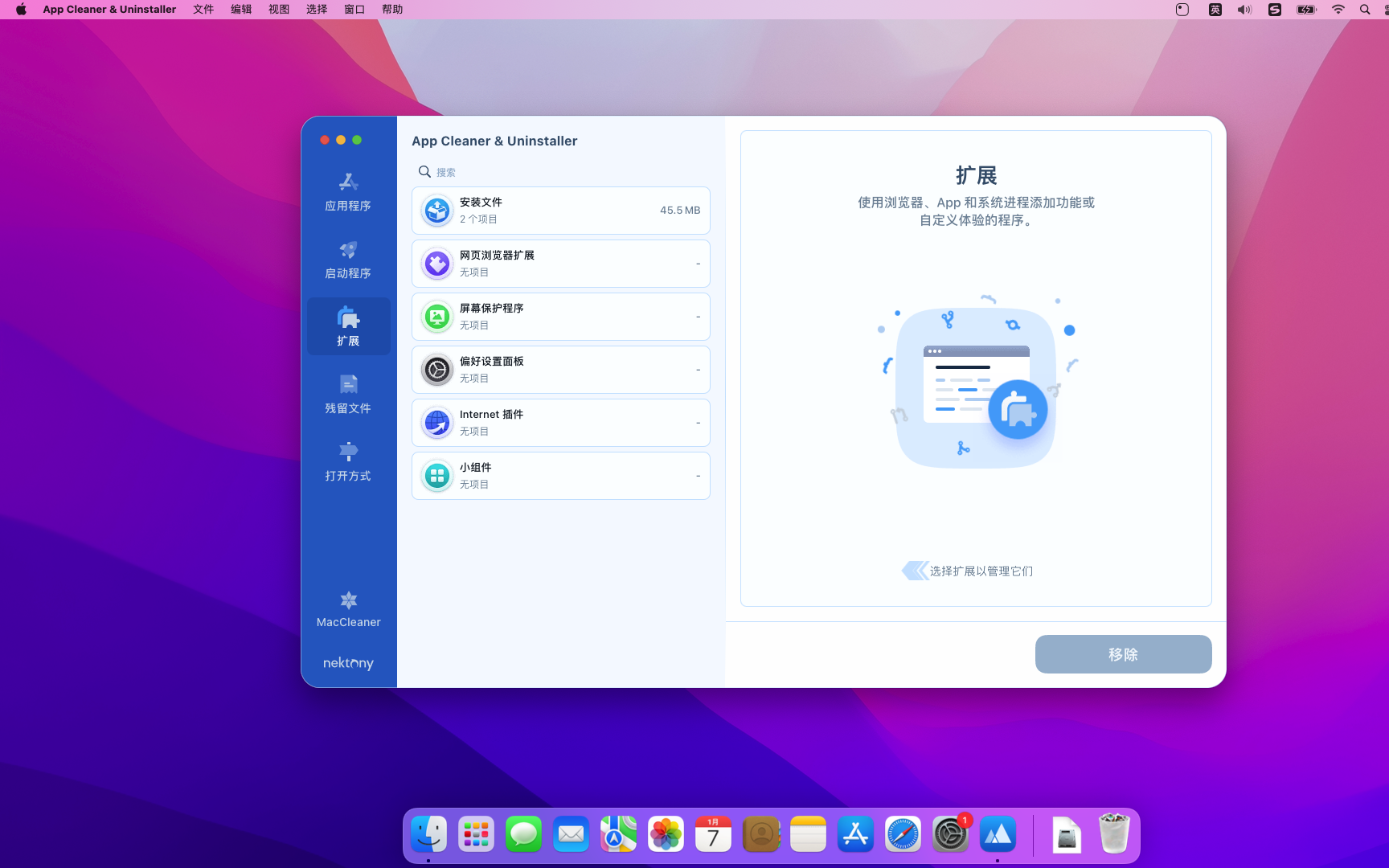
App Cleaner & Uninstaller is a mac application cleaner、mac application uninstall tool,It can help you deeply clean application residues,Completely uninstall mac apps。
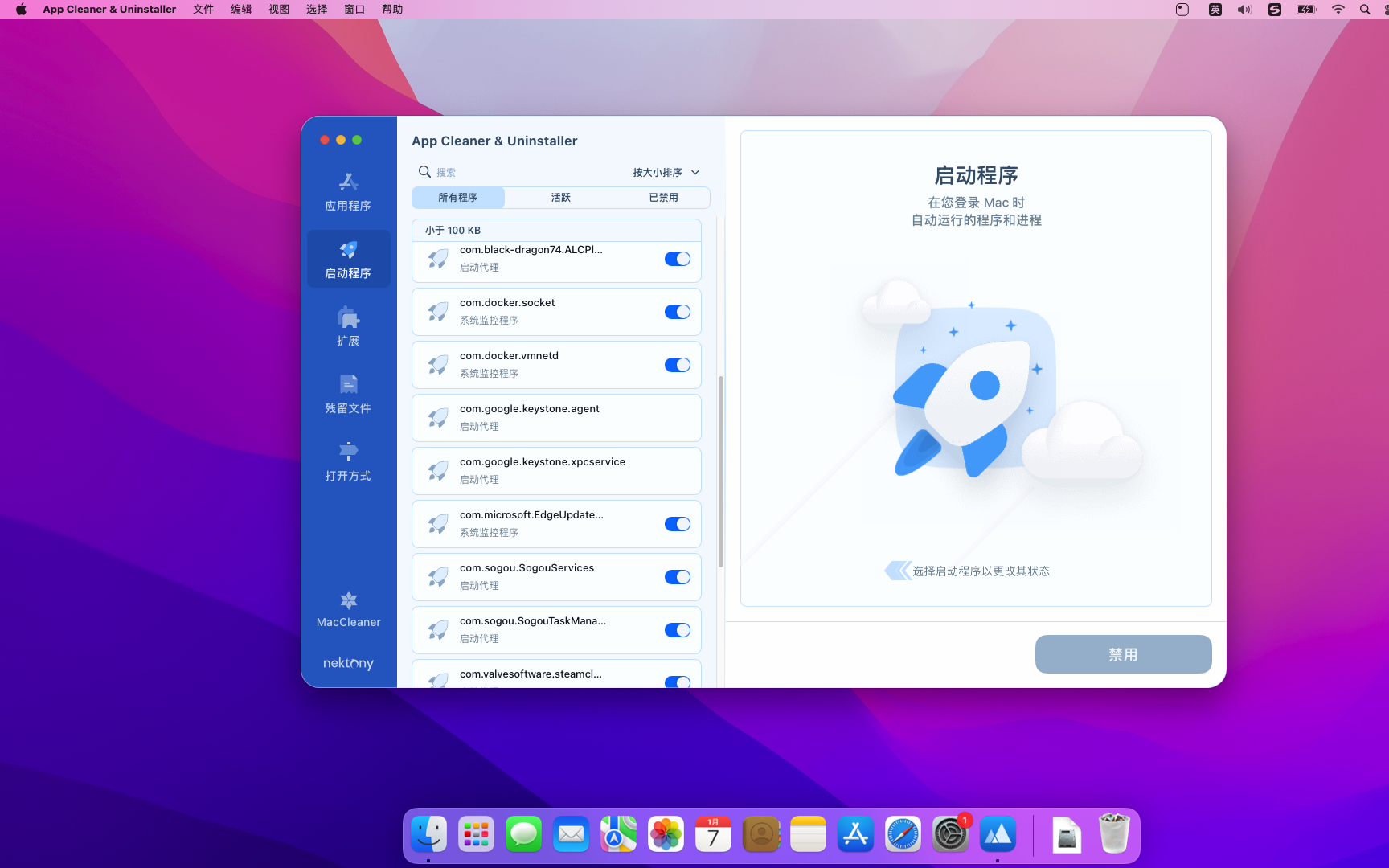
App Cleaner & Uninstaller Pro
超赞的应用清理和完全卸载工具,App Cleaner & Uninstaller Pro is the best and cleanest tool for uninstalling applications on the macOS platform.。
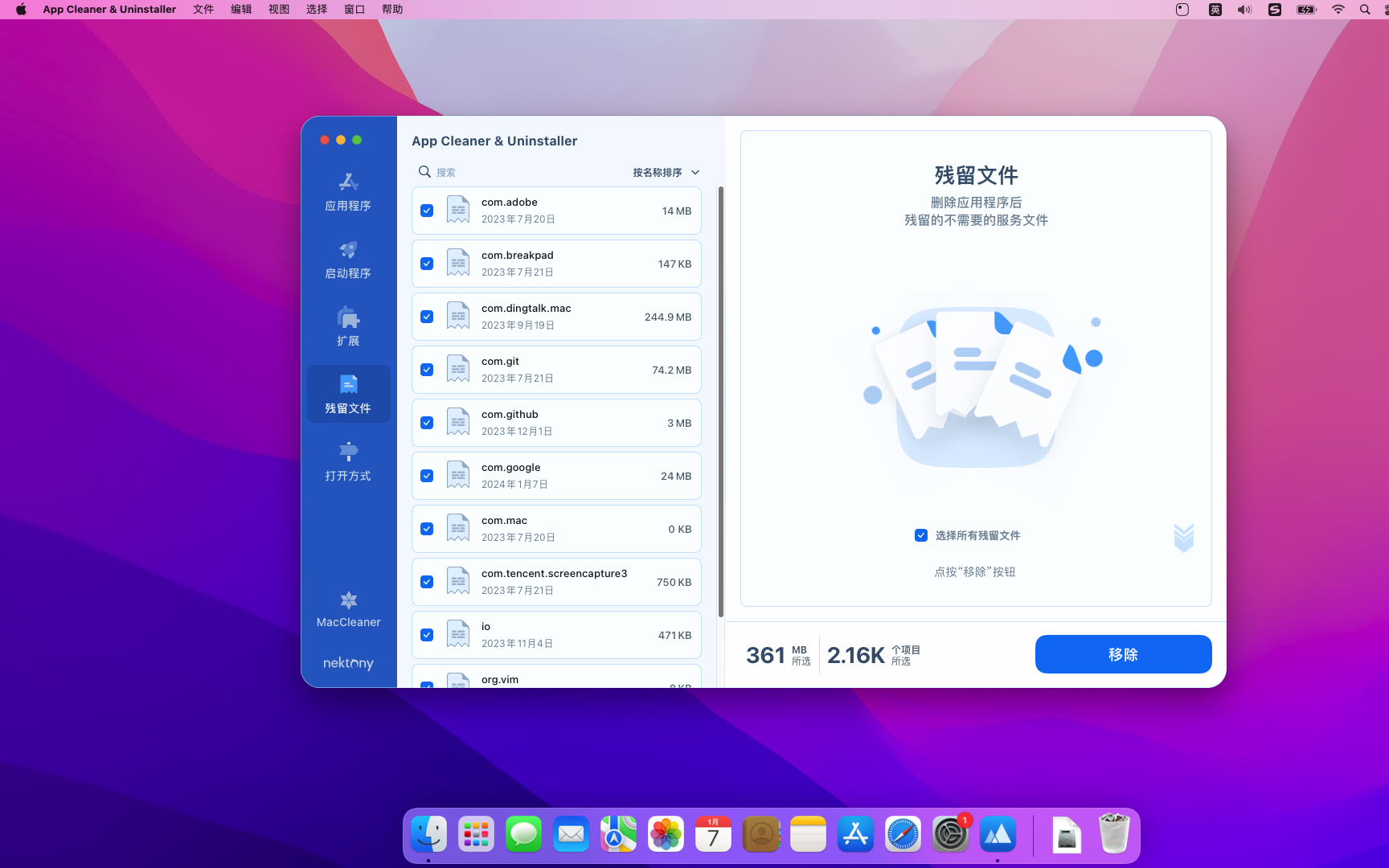
如果你不是使用App Cleaner & Uninstaller Pro uninstalls apps,It is very likely that the application will not be completely uninstalled.,This leaves a lot of residual items (junk files),Use Residue Cleaner to help you completely clean up Mac application residue。
开机启动管理
可以管理启动应用、Start the agent and system startup monitoring program。
默认应用管理
可以设置某些格式的文件使用指定的应用打开。
statement:All articles on this site,If there is no special instructions or markings,All are originally published by this site。any person or organization,Without the consent of this website,Reproduction prohibited、Misappropriate、collection、Publish content from this site to any website、Books and other media platforms。If the content on this site infringes upon the legitimate rights and interests of the original author,You can contact us for processing。
Can free downloads or VIP membership resources be used directly for commercial use?
The copyright of all resources on this site belongs to the original author,The resources provided here are for reference and study purposes only.,Please do not use it directly for commercial use。If copyright disputes arise due to commercial use,All responsibility lies with the user。For more instructions, please refer to VIP introduction。
It prompts that the download is complete but cannot be decompressed or opened?
The most common situation is an incomplete download: You can compare the capacity of the downloaded compressed package with the capacity on the network disk,If it is less than the capacity prompted by the network disk, this is the reason。This is a browser download bug,It is recommended to download using Baidu Netdisk software or Thunder。 If this situation is excluded,You can leave a message at the bottom of the corresponding resource,or contact us。
Can't find the sample image in the material resource introduction article?
For members only、Whole site source code、Program plug-in、website template、Web page templates and other types of materials,The pictures used for introduction in the article are usually not included in the corresponding downloadable material package.。These related commercial images need to be purchased separately,And this site is not responsible for(There is no way)find source。 The same is true for some font files,However, some materials will have a list of font download links in the material package.。
The download address cannot be displayed or the content cannot be viewed after payment?
If you have successfully paid but the website does not pop up a success prompt,Please contact the webmaster to provide payment information for you to process
After purchasing this resource,Can I get a refund?
Source code materials are virtual goods,replicable,Transmissibility,once granted,No refunds of any kind will be accepted、Exchange request。Please confirm before purchasing to obtain the resources you need.
Comments (2)
Note: Please be respectful and civil in your comments Cancel reply
Topaz Gigapixel is a lossless image enlargement tool on the Mac platform,is the first and only app to use artificial intelligence capabilities to expand images,Also add natural details for stunning results。 Topaz Gigapixel uses deep learning technology,Can enlarge images and fill in details missed by other resize products。These traditional methods produce blurry images,unrealistic,and lack the detail present in real high-resolution images。Using Topaz Gigapixel AI,You can crop your photo,Then just enlarge it to the size you want。 Need to do large printing,But can only small images be used? Do not want to lose image quality when increasing image size。Now,Using Topaz Gigapixel AI ,You can print photos up to 6 feet (1.8 meters) tall at 300DPI。
Just got a MacBook not long ago,You may find that your computer’s startup items are messy and disorganized。Some programs are set to start at startup by default after installation.,But the program you want does not start。Next,Let’s take a look at how to add and delete MacBook startup items。 How to set startup items: Open System Preferences and click the Apple logo in the upper left corner,Select "System Preferences"。 Go to Users & Groups Find and click "Users & Groups" in System Preferences。 Select Administrator Account Select your administrator account in the list on the left,Then click the "Login Items" tab on the right。 Manage login items on the Login Items page,You will see a list of programs that have been set to start at startup,and related adjustment buttons。 Delete a startup program To delete a program from startup,Click on the program,Then click the minus sign "-" below。 Add a startup program To add a program to the startup items,Click the plus sign "+" below,Then select the program in "Applications",Click "Add"。 Unlocking and Modifications If certain programs are locked and cannot be removed,Click the unlock button in the lower left corner of the window,Enter your computer password,Then you can follow the steps above。 Go through the above steps,You can easily manage MacBook startup items,Make sure only the programs you need start automatically at boot。
MacOS and Windows are two completely different operating systems,For those who are using Mac computers for the first time,You may feel a little uncomfortable。But in fact,Mac computers have many hidden magical features,Once you use it in depth,You will like it more and more! Let’s share 8 magical hidden functions of Mac computers,Every one of them is useful,Be sure to collect it! Instantly hide the Dock using the shortcut key Command + Option + D can help you quickly hide or restore the application icon bar (Dock) under the desktop。 Invert screen colors using shortcut Command + Option + Control + 8 Can invert screen colors,Particularly suitable for reducing eye irritation in nighttime environments,Also provides convenience for visually impaired users。 Quickly view and manage running applications Want to quickly view currently running applications? Hold down the Command key and hit the Tab key to quickly switch and manage running applications。Under the application interface,Press Command + Q Quickly exit the program,Press Command + H Minimize the current application window。 Display the Apple Logo anytime,Hold down Option + Shift + K can quickly type the Apple Logo ()。 Trash Operation Command + Delete moves the selected files to the trash。 Shift + Command + Delete clears all files in the trash。 View folder properties using the shortcut Command + I can quickly display the properties of a selected file or folder。 Use your Mac as a USB hard drive at startup,Hold down the T key to put your Mac into target disk mode,Connect it to other computers as a USB hard drive。 Turn on incognito mode in the Notifications option in System Preferences,You can set your Mac to enter Do Not Disturb mode,To avoid pop-up notifications during presentations or other situations that require concentration。 These features not only improve the ease of use of Mac,It also helps you complete your work and daily tasks more efficiently。Come and try it!
Typora is a simple、Efficient and very elegant Markdown editor,It provides a new Markdown writing experience where what you see is what you get。Typora combines source code editing and effect preview into one,Instantly generate preview effects when entering Markdown code。Typora is one of the most popular Markdown editors on the Internet.。 one、Main Features What you see is what you get:Typora uses a unique What You See Is What You Get (WYSIWYG) model,Allows users to view the rendering effect of Markdown code in real time,No need to enter text and then go to preview mode,Improved writing efficiency。 Simple interface:Typora’s user interface is very simple,No redundant menus and toolbars,Leave only a sidebar and an editing area,Allow users to focus more on writing。 Markdown syntax support:Typora supports most Markdown syntax,include links、picture、sheet、code block、dividing line、emphasize、Paragraph etc.,Meet various writing needs of users。 Custom theme:Users can choose different fonts according to their preferences、background color、line spacing、Title etc.,to create your own exclusive editing style。 Cross-platform compatible:Typora is not only available on the Mac platform,Also supports Windows and Linux。Documents can be seamlessly switched between different platforms,and keep the same format。 two、Interface and functions Editing area and sidebar:Typora's main interface consists of the editing area and sidebar。The editing area is on the left,Is an area where users can enter Markdown code,It is also the display area for WYSIWYG mode.。The sidebar is on the right,is a hidden panel,Users can open or hide the sidebar toggle button by clicking on it。in sidebar,Users can access Typora’s settings、theme、Print、File browser、outline、Directory and other functions。 Text editing mode:Typora has two different text editing modes: WYSIWYG and source code.。Users can switch between these two modes by clicking the "Code" button in the upper right corner of the window or using the shortcut key "cmd+/"。 Shortcut key operation:Typora provides a large number of shortcut keys to improve users' writing efficiency。For example,"cmd+b" can make the selected text bold,"cmd+i" can italicize the selected text,"cmd+k" can add links, etc.。 Automatic save and restore:Typora has the feature to automatically save documents,Documents can be automatically saved to the local hard drive as the user enters text。If the user accidentally closes Typora or the computer suddenly loses power,Typora can automatically restore the document last edited by the user。 three、Advanced features Live preview:Typora supports real-time preview of Markdown text,Allows users to simultaneously edit and view the rendering of a document。so,when user writes,can instantly see how their text will look on screen,and can be adjusted at any time。 full screen mode:Typora offers a "full screen" mode,The editor and preview area can be displayed full screen,Eliminate other distracting elements,Allow users to focus more on writing。 Outline view:Typora’s outline view feature can add hierarchical structure to documents,So that users can better organize and manage documents。in outline view,Users can see the document's title and sections,and easily navigate between chapters。 File export:Typora supports exporting Markdown documents to PDF、HTML、DOCX、ODT and other file formats,Enables users to seamlessly switch and edit between different document types。
IINA is an online mac video player with modern design and streamlined features,Can watch video,Manage playlists,Process media content or load subtitles for movies and more。IINA mac can load local files or provide video URLs,IINA mac can use all popular media formats。And you can quickly change the interface theme,Adjust default behavior and user interface,Decide whether to load subtitles automatically,Configure new keybindings, etc.。This is a Github open source application,Thanks to the developers for their hard work。 IINA based on mpv,Built for the latest Mac systems,Support Touch Bar、Compatible with MPV scripts、Supports almost all formats、network play,It is a video player with elegant appearance。 IINA supports almost all popular formats,Its functions are not inferior to the old players on Windows.。 IINA uses mpv as its own playback kernel,He inherited extremely powerful decoding ability from his bloodline.,And compared to MPlayerX which also uses mvp,IINA adopts a more efficient model,and render using the original screen resolution,With faster and more stable decoding effect。And another benefit is,Advanced users who are familiar with and like mpv can directly adjust or load mpv configurations,Achieve advanced customization。 IINA completely modern media player,From media format support/interface UI/encoding/subtitles (default + manual + automatic network download) and flexible and powerful customization and other functions,It’s enough to suit any playback scenario you have。 Before IINA appeared, I used MPlayerX,During playback, the screen may freeze due to encoding and resolution issues.,Huaping problem;But after replacing IINA, the problem was solved comfortably.。 Install IINA 1.3.5 video player Detailed instructions 1. Download the ready installation package ➡️ Download the installation package:First download the IINA 1.3.5.dmg file to your Mac...
Many friends don’t know much about how to import presets in Lightroom.。Today, the editor brings you a detailed tutorial on batch importing Lightroom presets.,Let’s learn together! step one:Preparation first,Make sure you have the preset folder or preset file ready to import。 Method one:Import presets via the Import function Open Lightroom Import an image into Lightroom,Click the Import button。 Edit Photo Click "Edit Photo"。 Import presets Click the "+" button on the left panel,Select "Import Preset"。 Browse and select the preset file to install,Click "Import"。 Done The newly installed Lightroom presets can be found under "User Presets",Click on a preset to apply the effect。 Method two:Import presets via Preferences Open Lightroom Select "Preferences" in Lightroom。 Select a preset in the Preferences dialog,Select the "Presets" tab。 Open the Lightroom Presets folder and click "Show Lightroom Presets Folder"。 Import preset files Find and open the "Develop presets" folder。 Drag and drop the preset folder. Drag and drop the preset folder to be imported directly into the "Develop presets" folder.。 Complete After the import is successful,You can find your newly imported Lightroom presets in the left panel,Click on the preset to use it。 Through the above two methods,You can easily import presets into Lightroom,Improve photo editing efficiency and quality。Hope this tutorial can help you!
PDF Expert is a powerful, efficient and beautiful PDF editing tool,Ability to scroll smoothly and quickly search the first document of your choice。PDF opens instantly,Whether they are small email attachments or 2,000 page reports。 Professional annotation tools from simple change marathon editing sessions,PDF Expert lives up to its name。Powerful yet easy-to-use tools are just a click away,So you can make your mark in record time。 Read an award-winning,Lightning-fast tabbed document viewer will get you through multiple PDFs faster than ever。 Great for form filling PDF Expert provides the best experience for filling PDF forms。text field,checkbox,Radio buttons and other form elements work as you expect,and all the information you enter is saved in the form。Works well even with complex interactive forms using Javascript An easy way to sign files Signing files on Mac is easy。Just enter your name on the keyboard,PDF Expert will convert it into beautiful handwriting。Or use your Macbook’s trackpad and write with your fingers。You can even use signatures you have already created in PDF Expert for iOS。 Extensive sharing options so you don't work alone,Not PDF Expert either。When documents need to be sent to clients,colleagues and others,PDF Expert offers best-in-class support for Mac system-wide share sheets and other applications。If the application accepts PDF files,PDF Expert can put them there。 Works on all devices on any Apple device Mac,Use PDF Expert on iPad and iPhone。Use Apple's Continuity and Switching features to seamlessly transfer documents from one device to another,and continue editing where you left off。
iShot Pro is an excellent Mac、Fully functional area screenshots、Window screenshot、Multi-window screenshot、long screenshot、Screenshot with shell、Time-lapse screenshot、Quick annotation、stickers、Toriiro、screen recording、recording、OCR、Screenshot translation tool。 Function 1、Screenshot area screenshot、Window screenshots support frame selection screenshots、Smart recognition window screenshot,Customize screenshot shortcut keys。 Multi-window screenshot Press the screenshot shortcut key,Add Shift,Click multiple windows,Take multi-window screenshots。 Time-lapse full-screen screenshot Time-lapse full-screen screenshot,Support countdown sound playback,Used to capture windows that are difficult to select。 Take a screenshot of the last screenshot area using shortcut keys,Quickly take a screenshot of the last selected screenshot area。 Take a screenshot of the window under the cursor using shortcut keys,Directly screenshot the window under the current mouse,No need to activate this window。 Screenshot guide rounded corners、Shadow effect supports automatic rounding of corners in screenshots、Screenshot shadow can be colored、Size adjustment,Make your screenshots more elegant。 Quickly open the screenshot. After completing the screenshot, you can double-click Option.,Open pictures using a custom app,make your screenshot、Edit seamlessly。 The default is to use "Preview" to open the image,You can also set it to open using other apps;in addition,When selecting Finder,Is to open the Finder location where the screenshot was saved。 Save/Storage Supports saving to clipboard、Save to local. Supports saving to clipboard and local at the same time. Supports single save as.,Custom storage name and format supports HD、Two image qualities, standard definition and jpg supported、png、tiff screenshot saving format supports outputting color standard pictures 2、Long screenshot scrolling、Screenshot Select the scrolling screenshot area,Then press the "S" shortcut key,Slide up the screenshot area,Start taking long screenshots,There is no limit to the length of long screenshots。 Support automatic scrolling of long screenshots。 three、Screenshot with shell After screenshot of full screen,Match your pictures with beautiful Mac case mockups,High-end elegance。 Four、After the map supports frame selection area,Click the sticker button to sticker; The texture library will store the texture records,Supports using the shortcut key "option+s" to open the texture library,Select pictures from the sticker library for stickers; Supports right-clicking after mapping,mark、Modify sticker image。 Supports texture adjustment for transparency,Rounded corners. Supports hiding/displaying all texture windows by pressing shortcut keys. Supports fixing textures/following desktop settings. Five、Quick annotation annotation function:...
How to check the password of a connected WiFi on Mac? sometimes,We may need to check the password for the connected WiFi on the Mac,For example, connecting to the same network on a new device。Here's an easy way to check your connected WiFi password on your Mac。 View WiFi passwords using Keychain Access 1. Open the Keychain Access app: •In Finder,Open the Applications folder。 •Go to the "Utilities" folder,Double-click the Keychain Access app。 2. Find a WiFi network: •In the category list on the left side of the Keychain Access window,Select the "System" keychain,Then select the "Password" category。 •Enter the WiFi network name (SSID) for which you want to view the password in the search bar on the right。 3.View password: •Double click on the corresponding WiFi network name,Open properties window。 •In the pop-up window,Check the "Show password" option。 • You will be prompted for your administrator username and password。 •After entering administrator credentials,The WiFi password will appear in the text box next to "Show password"。 Use Terminal to View WiFi Password...
Dash is a document browser and code snippet management tool for macOS,It allows users to access more than 200 APIs offline、100Rich documentation resources such as multiple cheat sheets。Users can download the required documentation set,Dash will automatically manage and update these document sets。In addition to using the built-in documentation,Users can also create their own document sets、Request a new documentation set or download from a third-party resource。Dash supports documentation sets generated using tools like Appledoc and Doxygen,Provide convenient content retrieval、Save page bookmarks、Features such as search profile creation and quick searches for specific document sets。It also integrates a variety of development tool plug-ins,Such as Xcode、Alfred et al.,Support via "dash://” URL scheme or system service for integration。also,Dash provides code snippet management functions,Supports over 80 types of syntax highlighting,Can be synchronized and stored in Dropbox,Support for editing variable placeholders and expanded abbreviations before pasting。Dash also includes some special fragment placeholders,Such as @clipboard、@cursor、@date and @time etc.,And supports Retina display、Multi-touch gestures and other features。Dash doubles as a document browser,Can also be used just as a snippet manager,Meet the needs of different users。
Many friends who often use PS know that,PS brushes can be added by yourself。After you download some beautiful brush materials from the Internet,,How to import them into PS? The following is a detailed introduction to several methods of importing and installing PS brushes.。 Method one:Double-click to install Double-click to install: Download and save the brush file in “.abr” format。Then,Double-click the downloaded .abr brush file,can be automatically imported into Photoshop。 Method two:Drag and drop installation Drag and drop installation: Drag the downloaded ".abr" brush file directly into the open Photoshop window,Quickly install and import。 Method three:Import into the brush and open the brush panel: in Photoshop,Click "Window" on the top menu bar,Then select Brushes to open the Brushes panel。 Import brushes: Click the "≡" icon in the upper right corner of the brush panel,Select Import Brushes。 Select brush file: In the pop-up dialog box,Find and select the ".abr" brush file you downloaded earlier,Then click Open,can be successfully imported into Photoshop。 Through the above simple methods,You can easily import the downloaded brush materials into Photoshop for Mac,Have fun creating!
Adobe Illustrator 2020 Is the industry standard tool for vector graphic design,Widely used in brand design、UI/UX、Printing and publishing、Packaging design and other fields。Its core lies in the vector path based on mathematical formulas,Supports infinite scaling without distortion 。 one、Core Features Overview Vector Drawing:Use the pen tool、Shape tools and more to create infinitely scalable graphics。 Path Edit:through anchor point、Direction lines precisely control curves and straight lines。 Color and stroke management:Support CMYK、RGB、Gradient、Pattern fill and custom stroke settings。 Text layout:Professional-grade text processing,Include paragraph styles、character style、path text etc.。 Layer and Object Management:Achieve hierarchical control of complex artwork through the layer panel。 Artboard System:Support multi-artboard documents,Convenient for multi-page or responsive design 。 Customize your workspace:Depending on the task (such as painting、typesetting、Web Design) Switch or create your own workspace 。 two、Main interface components Menu bar Contains files、edit、object、character、choose、Effect、view、window etc.,Covers most operation commands 。 Control Panel is located at the top of the document window,Dynamically display relevant properties of the selected object or tool (such as color filling、Stroke、font、transformation, etc.)。 Tools Panel is docked to the left by default,Group by function (e.g. select tools、shape tool、pen tool、text tools, etc.)。The tool group can be expanded by long pressing or right-clicking 。 Panels The right side contains layers by default、color、Stroke、property、Pathfinder and other panels,Available via Window > [Panel name] Show/Hide 。 Status Bar The lower left corner displays the current zoom ratio、Artboard information、Tool name, etc. 。 Artboard Main work area,Multiple artboards can be created for multi-page designs...
Comments (2)