
Rectangle is a window management application on the Mac platform,Windows can be moved and resized in macOS using keyboard shortcuts。
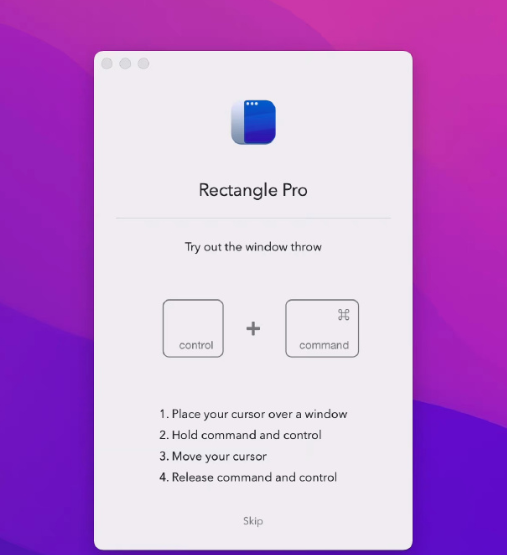
Rectangle is a window manager,Based on Spectacle application,Written in Swift,Allows users to move and resize windows using keyboard shortcuts。
Window management and resizing are very useful when used in development,When your desktop is cluttered,When the window is open a lot,Necessary adjustments can improve your productivity。Window resizing for individual apps,To get the best experience。
statement:All articles on this site,If there is no special instructions or markings,All are originally published by this site。any person or organization,Without the consent of this website,Reproduction prohibited、Misappropriate、collection、Publish content from this site to any website、Books and other media platforms。If the content on this site infringes upon the legitimate rights and interests of the original author,You can contact us for processing。
Can free downloads or VIP membership resources be used directly for commercial use?
The copyright of all resources on this site belongs to the original author,The resources provided here are for reference and study purposes only.,Please do not use it directly for commercial use。If copyright disputes arise due to commercial use,All responsibility lies with the user。For more instructions, please refer to VIP introduction。
It prompts that the download is complete but cannot be decompressed or opened?
The most common situation is an incomplete download: You can compare the capacity of the downloaded compressed package with the capacity on the network disk,If it is less than the capacity prompted by the network disk, this is the reason。This is a browser download bug,It is recommended to download using Baidu Netdisk software or Thunder。 If this situation is excluded,You can leave a message at the bottom of the corresponding resource,or contact us。
Can't find the sample image in the material resource introduction article?
For members only、Whole site source code、Program plug-in、website template、Web page templates and other types of materials,The pictures used for introduction in the article are usually not included in the corresponding downloadable material package.。These related commercial images need to be purchased separately,And this site is not responsible for(There is no way)find source。 The same is true for some font files,However, some materials will have a list of font download links in the material package.。
The download address cannot be displayed or the content cannot be viewed after payment?
If you have successfully paid but the website does not pop up a success prompt,Please contact the webmaster to provide payment information for you to process
After purchasing this resource,Can I get a refund?
Source code materials are virtual goods,replicable,Transmissibility,once granted,No refunds of any kind will be accepted、Exchange request。Please confirm before purchasing to obtain the resources you need.
Comments (0)
Note: Please be respectful and civil in your comments Cancel reply
In our daily design work,such as advertising、Photography watermark、quotation、album cover、book cover、product design、sign、business card、logo、brand、Magazine and social media copywriting, etc.,Choosing the right font is crucial。Let’s learn how to install fonts on Mac。 Mac font installation tutorial Download font files: First make sure you have downloaded the required OTF (OpenType Font) or TTF (TrueType Font) font file。 Method one:Install using Font Book Open "Font Book" on your Mac: Find and click the "Font Book" app in the launcher。 Add font: In the menu bar of the font book,Select "File" > "Add font"。 Or directly click the "+" button above the font book window。 Navigate to the font file location: Find the font file you downloaded,and click "Open"。 Complete installation: Mac automatically installs selected font files,After the installation is complete, the font can be used in the application.。 Method two:Double-click to install. Double-click the downloaded font file directly.。 In the font preview window that opens,Click "Install Fonts"。 Follow the simple steps above,You can easily install and use your favorite fonts on your Mac,to highlight your design style。
Alfred is an app called a Mac productivity tool,With Alfred, you can perform various operations without even using a mouse.,Its UI interface is easy to use,And it is not achieved through commands,It is an artifact for developers and keyboard hackers.,Compared with the previous similar software - Pack and Power, it is completely a flash sale.。 This is the most basic,After option+space is activated,Enter keywords to start searching,By default, it will match installed applications,I also set up Search Safari bookmarks。If cannot match,Then there will be options such as searching google,Directly trigger opening of browser to search engine。 Different from Spotlight’s direct search of various types,Alfred needs to type an extra space or single quote to instruct it to search for file names.。In actual use,I think this is more convenient and faster,Alfred gets results almost instantly,While spotlight quickly feeds back the results,,There is a gradual increase process。As far as the actual search effect of files is concerned,,alfred's fuzzy search for file names is OK,But it’s not as powerful as Devonthink, which kills even the contents of files.。certainly,DT's strength is also the result after you index it.,Everyone has their own expertise。Spotlight feels centered,Support file content search,But still not as thorough as DT。By the way,DT is on sale these days,You can see it here。 I guess there are many so-called geeks in the keyboard stream.,So alfred supports a direct ">"back,Open the terminal and execute the command line。 Alfred also thoughtfully supports the integration with 1password。 Installation activation method Other Install V3.x directly Use CORE Keygen.app or keygen.app to activate V2.x Drag Alfred.app to the /Applications folder Open Alfred 2 2.x [SP].app,Select /Applications/Alfred.app to activate successfully。
Excel 2019 for Mac is a powerful spreadsheet software,Mastering these keyboard shortcuts can significantly improve your work efficiency: 1. F2 / Control + U: Enter the cell editing state (touch bar Mac needs to adjust the fn function commonly used) 2. Command + C: Copy selected content 3. Command + V: Paste copied content 4. Command + X: Cut selected content 5. Command + Z: Undo the previous action 6. Command + A: Select all content in the current worksheet 7. Shift + click: Continuously select data within a range 8. Command + click: Radio select the cell clicked 9. Command...
Desktop Mac or MacBook won't turn on,Or maybe it can't be launched via the Apple icon? Don't worry,Although it makes people irritated,But it's usually fixable。 Here are all the steps you need to take to restart your Mac。Follow the steps in order,until the problem is solved,Or jump to the applicable step。 1. Check the power connection • Make sure your Mac is plugged into the power adapter,and the adapter is connected well。For desktop Mac,Make sure the power cord is also connected to the electrical outlet。 2. Power cycle •For the latest MacBooks,Disconnect the power cord,Then press and hold the power button for 10 seconds。 •For older MacBooks,Disconnect the power cord and remove the battery for at least 10 seconds。 •For desktop Mac,Disconnect the power cord for at least 10 seconds。 3. Boot in safe mode •Press the power button,Then immediately hold down the Shift key until you see the login screen。 4. Reset the System Management Controller (SMC) Desktop Mac: Unplug the power cord,wait 15 seconds,then reinsert,Wait another five seconds before restarting。 •2018 MacBook Pro and MacBook with T2 chip: Hold down the right Shift key、Left Option key and left control key for seven seconds,Then press and hold the power button for seven seconds。 • MacBook without removable battery: Hold left Shift、Option、Control and power (or Touch ID) buttons,Lasts 10 seconds。 5. Reset NVRAM or PRAM • Hold Option while booting、Command、P and R keys,Don't let go until you hear the startup sound。 6. Run Apple Diagnostics • Press the power button,Then hold down the D key until you see the language selection screen。After selecting language,Start running tests。 7. Using Recovery Mode Tools • Hold the Command and R keys to boot into Recovery Mode。Repair your hard drive or SSD using Disk Utility。 8. Reinstall macOS in recovery mode • If none of the above fixes the issue,Choose to reinstall macOS。Select Reinstall macOS from the menu,and follow the on-screen instructions。 Go through the above steps,You should be able to fix most Mac won’t turn on issues。If the problem is still not resolved,May require further hardware checks or professional support。
iMazing 3 is the ultimate iPhone management software trusted since 2008,Supports Mac and PC platforms,Provides fast transfer including、Seamless backup and recovery、A powerful set of features including efficient media and information management。Users can quickly transfer files from computers to iOS/iPadOS apps through drag-and-drop operations,Achieve faster speeds than file sharing or AirDrop,Also supports scheduled automatic backup,As well as store backups on any local storage device。 iMazing also specially optimizes the management of media files and information,Not only supports copying between music files in various formats,Quickly export and import photos,Save or share important conversations。For business users and legal professionals,iMazing provides services such as configuring and deploying Apple mobile devices、Automatically back up device data、Install and manage applications and other automated and scaled device management solutions。With its user-friendly interface、High security standards and comprehensive management capabilities,iMazing has won the trust and praise of millions of users around the world。 Use iMazing,Users can use simple drag-and-drop operations,Quickly transfer files from computer to iOS/iPadOS apps,Even faster than file sharing or AirDrop。It also allows users to automatically back up their devices on a scheduled basis,Connect via Wi-Fi or USB,Store backups on any local storage device,Includes external hard drives and NAS。 iMazing is also particularly good at managing media files and information.,Supports copying music files between any Apple device and computer,Supports all media types,Includes FLAC format;Quickly export and import photos,Save or share important conversations,Includes iMessage、SMS and WhatsApp messages。
SnapMotion can quickly capture pictures from videos,and supports batch processing,Supports exporting to GIF and other formats,Simple and easy to use。 SnapMotion is the most innovative in extracting images from video,and use the most common tools。This application allows users to accurately and losslessly extract image frames from videos。 Two modes are provided: Manual mode allows you to extract images precisely at a specific time。 Batch mode allows you to extract thousands of images simultaneously。 SnapMotion is designed to support large video files like 4K movies and extract every frame from the media when necessary。This app can play all video formats natively supported by macOS。and,It can also export images to industry standard formats,For example PNG、JPEG、TIFF and HEIC。 Other features: Share images on social networks (Facebook、Twitter …) Drag and drop images to export Create animated GIFs from grabbed images Rotate videos directly in the player Copy extracted images to the clipboard Customize the file name of the output Support notifications and touch bar This version is optimized for macOS High Sierra and above。also,The app is also available in seven languages (English、French、German、spanish、Italian、Japanese and Chinese)。 Send us feedback directly from the app。so,You can tell us your suggestions and feedback for improvements in just a few taps。 SnapMotion now has other apps attached。 GlueMotion: Edit the image、deblink,And compile them into time-lapse MetaImage: Edit image metadata and geotags
Some friends cannot install Apple developer tools command line tools,When installing, it will prompt "The software cannot be installed.,Because it is currently unavailable from the software update server",Let me teach you how to install it manually。 What are command line tools? Command Line Tools is a small standalone package from Apple,Available for macOS,Expanded the terminal with additional functionality。including but not limited to:svn、git、make、GCC、clang、perl、size、strip、strings、libtool、cpp、what、codesign and many other commands found in Linux。 For ordinary users of macOS,Mainly use its signature function,It is to sign unsigned applications/applications with invalid signatures.。Because Apple’s apps are not signed or have invalid signatures, they will basically crash and fail to run.。 Generally speaking,All you need to do is open the terminal,Then execute xcode-select --install in the terminal and the installer will open.,Then follow the prompts to install it。However, some users will report an error if their network cannot connect to the Apple server.:The software cannot be installed,Because it is currently unavailable from the software update server。 Solved once prompted:The software cannot be installed,Because it is currently unavailable from the software update server,You need to manually go to the Apple Developer Download Center to download the offline installation package of command line tools.。 Open the Apple Developer Center:https://developer.apple.com(The server of Apple Developer Center is not in China,So it will be very slow to open,wait patiently) Click Account on the far right side of the top navigation,Then log in to your Apple ID and open the Developer Download Center:https://developer.apple.com/download/more/ Search for command line tools (press the Enter key after typing in the search box) Select the version suitable for your macOS system。 10.15.x Command Line can be downloaded...
In macOS 10.15 (Catalina) and below,The system restricts the installation of non-App Store downloaded applications by default to improve security.。If you need to install third-party software from non-App Store,You can follow the steps below: How to install non-App Store software Note:The following steps only work on macOS 10.15 and below 1. Open "System Preferences" and click the Apple icon in the upper left corner of the screen,Then select "System Preferences"。 2. Go to Security & Privacy settings in the System Preferences window,Click "Security & Privacy"。 3.Unlock Settings In the lower left corner of the Security & Privacy window,Click the lock icon to unlock settings。You will be prompted to enter your administrator password。After entering the password,Click "Unlock"。 4. Allow apps from any source In the "Allow apps downloaded from" section,You will see three options:App Store、App Store and identified developers。Select "Any Source"。(Notice:In macOS 10.15 and above,There may not be this option。If this option is not available,Other solutions you can try,To bypass this restriction, use right-click on a file。) 5. Re-lock settings Click the lock icon in the lower left corner,to lock settings and protect your security settings。 6.Install software now,You can double-click and run apps downloaded from other sources。If you encounter the "Cannot open the application" prompt,Please right click on the application icon,Select "Open",Then click "Open" to confirm you trust the app。 go through these steps,You can install software from non-App Store in macOS 10.15 and below。
PDF Expert is a powerful, efficient and beautiful PDF editing tool,Ability to scroll smoothly and quickly search the first document of your choice。PDF opens instantly,Whether they are small email attachments or 2,000 page reports。 Professional annotation tools from simple change marathon editing sessions,PDF Expert lives up to its name。Powerful yet easy-to-use tools are just a click away,So you can make your mark in record time。 Read an award-winning,Lightning-fast tabbed document viewer will get you through multiple PDFs faster than ever。 Great for form filling PDF Expert provides the best experience for filling PDF forms。text field,checkbox,Radio buttons and other form elements work as you expect,and all the information you enter is saved in the form。Works well even with complex interactive forms using Javascript An easy way to sign files Signing files on Mac is easy。Just enter your name on the keyboard,PDF Expert will convert it into beautiful handwriting。Or use your Macbook’s trackpad and write with your fingers。You can even use signatures you have already created in PDF Expert for iOS。 Extensive sharing options so you don't work alone,Not PDF Expert either。When documents need to be sent to clients,colleagues and others,PDF Expert offers best-in-class support for Mac system-wide share sheets and other applications。If the application accepts PDF files,PDF Expert can put them there。 Works on all devices on any Apple device Mac,Use PDF Expert on iPad and iPhone。Use Apple's Continuity and Switching features to seamlessly transfer documents from one device to another,and continue editing where you left off。
Edraw Max is a powerful cross-platform professional drawing software,It integrates rich drawing tools,Adaptable to many professional fields,Allows users to easily create flowcharts、network diagram、organizational chart、Market analysis chart、Building plan、mind map、fashion design drawings、UML diagram、workflow diagram、Web design drawing、electrical engineering drawings、Directional diagrams and database charts, etc.。The software provides a user-friendly interface and a large number of templates、Shapes and over 26,000 vector symbols,Support effective data visualization and brainstorming,Suitable for both professionals,It also allows beginners to easily create professional-looking graphs and charts.,Greatly facilitates the expression and communication of data。 Features Special functions Full Chinese interface,Have desktop version、Web version allows you to easily draw more than 260 drawing types, including a large number of professional templates and 26,000+ vector symbol materials and intelligent wizards.,Combine graphics and data. Support batch import and export of Visio format. Support output in multiple formats.,As picture、PDF、Office、Html, etc. One-click sharing link、Share to social platforms Office drawing + AI,Improve your drawing efficiency. Edraw AI can optimize graphic charts and text creation scenarios.,For example, enter a sentence to generate a flow chart/mind map/list、Continue writing text with one click、One-click layout and beautification、OCR text extraction is easy to operate,Even novices in drawing can get started easily. Edraw icons make complex drawings simple and easy to use.,No need to master complex professional knowledge,Full drag-and-drop operation,Ready to use,regardless of background,Easy to get started。 Massive materials,To meet multi-scenario drawing needs, Edraw has 210+ graphics solutions,17500+drawing symbols,1100+Built-in templates,One software can take care of your daily drawing。 Collaboration and sharing,Share your visual works anytime, anywhere. Edraw web version supports online collaboration.,Share easily、Manage team files;It also supports one-click sharing to WeChat、Weibo、QQ and other social platforms,Make communication more convenient。 Strong compatibility,Commonly used formats can be imported and exported with one click. Edraw icons support the import of Visio common formats VSD.、VSDX,You can export EPS with one click、Word、PPT、PDF、SVG and common image formats。 Enterprise-grade security,Protect your privacy in Edraw icon,Your data is private、safe and reliable。All information and file transfers are protected by a high level of professional encryption,without permission,No one can access your data。 Business Office Don’t know how to make PPT? Copy template using Edraw icon,Quickly output beautiful charts、business canvas、analysis report。 Project Management Is project management complicated? Use Edraw icons,Get the flow chart done in one go、Gantt chart、Checklist diagram、funnel chart、fishbone diagram。 Science education: Text-only teaching is too monotonous? Use Edraw icons,Present boring knowledge points in a visual way,Stimulate children's interest in learning。 Software Development Don’t have a clear idea for software development? Draw architecture diagram using Edraw icons,Sort out the underlying logic,Improve business understanding。 Knowledge Summary Is studying for a long time too inefficient? Use Edraw icons to create mind maps,Organize knowledge points,Build a structured knowledge system。
in Photoshop,Many plug-ins and actions can help us achieve various creative effects。PS’s own action effects sometimes fail to meet users’ needs,At this time, you need to import external PS actions。Here is a detailed tutorial on how to import actions in Photoshop。 Modify Photoshop language settings PS actions need to be run in the English version of Photoshop。The following is a detailed tutorial on how to convert the Chinese version of Adobe Photoshop Mac to the English version: 1.Open Photoshop。 2.Select "Preferences" in the top menu bar。 3.Select "Interface"。 4.Select "English" in the "UI Language" drop-down menu。 5.Restart Photoshop。 Import PS actions 1. Download the action file first,Download the PS action files you need,and put it on the desktop。 2. Open Photoshop Open Photoshop (take the 2019 version as an example),Find the "Window" option in the top menu bar。 3. Select the Actions panel in the Window menu,Select Actions。The action dialog box will appear.。 4. Open the Settings option in the Actions dialog box,Find the settings option in the upper right corner (little gear icon)。 5.Load Action Click Settings Options,Find and select "Load Actions" in its drop-down menu。 6. Select the action file and the loading dialog box will pop up.,Find the action file that was previously downloaded and stored on the desktop,Click to open。 7.Confirm loading after clicking "Load",The actions you imported will appear in the Actions panel。 8. Autoload action like this,The actions you import will be saved in the action library。The next time you launch Photoshop,These actions will be loaded automatically。 Go through the above steps,You can easily import external actions in Photoshop,Enrich your arsenal of creative tools。Hope this information is helpful!
Many Mac users think Office 365 and Office 2019 are the same,In fact, there is a clear difference between the two。Below we will introduce in detail the differences between them。 Microsoft Office 2019 Microsoft Office 2019 for Mac is an Office office software suite for Mac released by Microsoft。It contains the new version of Word、Excel、PowerPoint、Components such as OneNote and Outlook。Office 2019 is a comprehensive、Easy-to-use office software,Suitable for various office needs。This version supports one-click activation,Can be used permanently after activation。 size:2.05 GB release time:2023-11-01 System requirements:MacOS 13.x Office 365 Office 365 is a subscription service,Make sure you always have the latest Microsoft productivity tools。it has multiple versions,Suitable for families、personal、Small and medium enterprises、large enterprise、Schools and Nonprofits。All Office 365 plans for home and personal include familiar Word、Desktop applications such as PowerPoint and Excel,Also provides additional network disk and cloud connection functions,Collaborate on files in real time。 Subscription service:Pay a monthly or annual subscription fee Multi-device support:Family plan allows up to 6 family members to share the subscription,on multiple computers、Mac、Use the app on tablets and phones Continuously updated:Contains the latest features、hotfix、Security Updates and Technical Support Summary of Differences How to Buy: Office 2019:one time purchase,Get Office apps on one computer for a one-time fee。No upgrade option,Need to buy new version at full price。 Office 365:Subscription service,Pay monthly or annually,Always have the latest versions and features。 Updates and support: Office 2019:No ongoing updates and support,Only the version purchased。 Office 365:Contains the latest features、hotfix、Security updates and ongoing technical support。 Use equipment: Office 2019:Can only be used on a single device purchased。 Office...
Comments (0)

