
Ghost Buster Pro is a powerful Mac cleaning tool,Can help you free up disk space、Improve computer performance and protect your privacy。
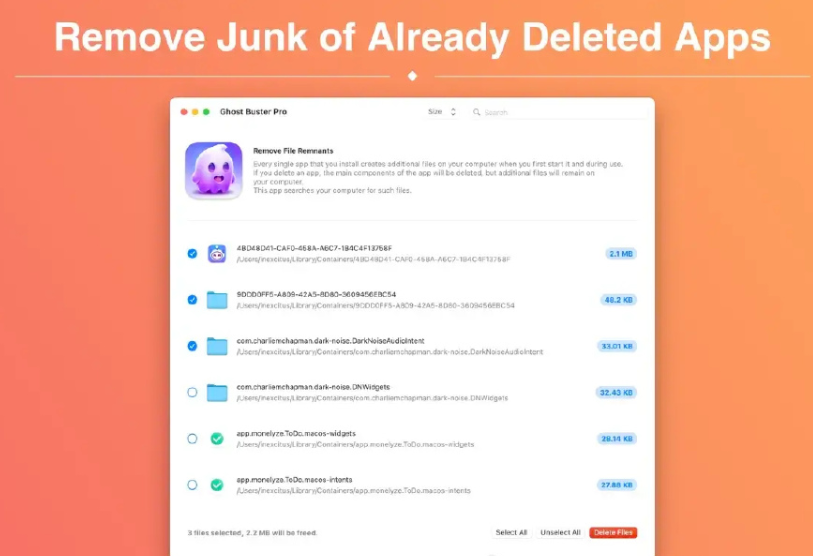
Ghost Buster Pro is an app for cleaning up your Mac computer。It can scan your computer,Find and delete unused files、cache、Temporary files and other junk files。Ghost Buster Pro can help you free up disk space、Improve computer performance and protect your privacy。
Main functions:
Scan and delete junk files: Ghost Buster Pro can scan your computer,Find and delete all kinds of junk files,include: 不使用的应用程序 缓存文件 临时文件 旧的下载文件 日志文件 系统垃圾 Free up disk space: Ghost Buster Pro can help you free up a lot of disk space,Gives you more space to store important files。 Improve computer performance: Deleting junk files can improve your computer's performance and speed。 protect privacy: Ghost Buster Pro can delete sensitive files,Protect your privacy。
statement:All articles on this site,If there is no special instructions or markings,All are originally published by this site。any person or organization,Without the consent of this website,Reproduction prohibited、Misappropriate、collection、Publish content from this site to any website、Books and other media platforms。If the content on this site infringes upon the legitimate rights and interests of the original author,You can contact us for processing。
Can free downloads or VIP membership resources be used directly for commercial use?
The copyright of all resources on this site belongs to the original author,The resources provided here are for reference and study purposes only.,Please do not use it directly for commercial use。If copyright disputes arise due to commercial use,All responsibility lies with the user。For more instructions, please refer to VIP introduction。
It prompts that the download is complete but cannot be decompressed or opened?
The most common situation is an incomplete download: You can compare the capacity of the downloaded compressed package with the capacity on the network disk,If it is less than the capacity prompted by the network disk, this is the reason。This is a browser download bug,It is recommended to download using Baidu Netdisk software or Thunder。 If this situation is excluded,You can leave a message at the bottom of the corresponding resource,or contact us。
Can't find the sample image in the material resource introduction article?
For members only、Whole site source code、Program plug-in、website template、Web page templates and other types of materials,The pictures used for introduction in the article are usually not included in the corresponding downloadable material package.。These related commercial images need to be purchased separately,And this site is not responsible for(There is no way)find source。 The same is true for some font files,However, some materials will have a list of font download links in the material package.。
The download address cannot be displayed or the content cannot be viewed after payment?
If you have successfully paid but the website does not pop up a success prompt,Please contact the webmaster to provide payment information for you to process
After purchasing this resource,Can I get a refund?
Source code materials are virtual goods,replicable,Transmissibility,once granted,No refunds of any kind will be accepted、Exchange request。Please confirm before purchasing to obtain the resources you need.
Comments (0)
Note: Please be respectful and civil in your comments Cancel reply
Sketch is the most powerful vector drawing design tool for mobile applications,For web and mobile designers,N times easier to use than PhotoShop! Especially when it comes to mobile app design,The advantage of Sketch is that it is easy to use,low learning curve,And the function is more powerful and easier to use,Support automatic picture cutting,and has mobile design templates,Can greatly save designers time and workload,Great for website design、mobile app design、Icon design etc.。 Sketch supports multiple fills per layer、Borders and shadows;Powerful non-destructive Boolean operations;Smart pixel alignment;And make exporting a breeze with automatic slicing and multi-resolution export。 Vector tools and basic shapes are the foundation;Whether you are designing icons、website、Interface or anything else。Combine these with non-destructive Boolean operations into complex shapes,giving you the freedom to edit them in the future,Then apply advanced layer style options,like multiple shadows、filling、Gradient、noise、mix、Background blur etc.。 certainly,Sketch is not just about making shapes。Imported images can be rotated、Zoom、Crop and mask。Best-in-class text tools let you add beautiful typography to your designs using native font rendering,So you can make sure the text always looks 100% precise! Sketch 3 new features,Symbols allow you to reuse entire content groups in multiple locations within your design。think button、Interface elements such as headers and footers。change once,They update everywhere in your document。 Made for Mac,Sketch supports OS X versions and auto-saves,Let you focus on your work,Instead of hitting CMD+S。Use iCloud to securely sync your work across multiple Mac computers。and make Sketch full screen to maximize your canvas size。 All of these features fit perfectly into Sketch’s single-window interface。everything is there,hide,until you need it。Simple interface with powerful tools。 Detailed instructions for installing Sketch version 100.2 1. Download and prepare the installation package ➡️ Download the installation package:First download the Sketch 100.2_ronnabox.cn.dmg file to your Mac,Usually found in the "Downloads" folder。 ➡️...
The slide layout in every Keynote theme is based on the master slide。When you need to add a specific element such as a title、subtitle、when you slide a bulleted list or image),You can select the master slide that best meets your needs for modification.。so,Slides in the presentation will be changed,while the master slide will retain its original state。 Add a master slide 1. Click "Display" in the toolbar,Then select "Edit Master Slide"。 2.Do any of the following: •Click the Add button in the toolbar,Select a master slide。 •In the slide navigator,Choose a slide that is similar to the layout you want,Then press Return。 3.Double-click the name of the master slide in the slide navigator,Enter a new name。 4.Add text as needed、image、shape、placeholder or other object,and make modifications。If you want objects in a slide based on this master to be overlaid on the master object,Select "Allow layering" in the Format sidebar。 5.After finishing editing,Click Done at the bottom of the slide canvas or Show in the toolbar,Then select "Exit Master Slideshow"。 Add text、Image and shape placeholders 1. Click View in the toolbar,Then select "Edit Master Slide"。 2.Select the master slide to edit。 3.Change the text box、image、Add videos or shapes to slides,and change its appearance as needed,Then drag it to the appropriate location。 4.Select the object to add,Then in the "Format" sidebar,Select Define as text placeholder (for a text box or shape) or Define as media placeholder (for an image or video)。 5.If you want objects in a slide based on this master to be overlaid on the master object,Please select "Allow layering"。 6.After finishing editing,Click Done at the bottom of the slide canvas or Show in the toolbar,Then select "Exit Master Slideshow"。 Add object placeholders to tables and charts 1. Placeholders for tables or charts are called object placeholders。There can only be one object placeholder per master slide。 2.Click Show in the toolbar,Then select "Edit Master Slide"。 3.Select the master slide to edit。 4.In the Format sidebar,Select the Object Placeholder checkbox。 5.Resize and place the placeholder where you want it。on any slide based on this master,Tables and charts added to this slide will be of this size and position。 6.If you want objects in a slide based on this master to be overlaid on the master object,Please select the "Allow layering" checkbox。 7.After finishing editing,Click Done at the bottom of the slide canvas or Show in the toolbar,Then select "Exit Master Slideshow"。 Go through the above steps,You can easily add and edit master slides in Keynote,Make your presentations more professional and beautiful。Hope this tutorial is helpful!
In Mac OS,You may want to view hidden files or file extensions,for file management or troubleshooting。Here's how to show or hide these in Mac OS: Show or hide hidden files 1. Use shortcut keys •Open the Finder。 •Press Command + Shift + .(period) key。 •This will toggle showing or hiding hidden files。If hidden files show,You can hide it by pressing the same shortcut key。 2. Via Terminal Commands •Open Terminal,You can click on the magnifying glass icon on the desktop,Type "terminal" and press Enter to find。 •Enter the following command and press enter: defaults write com.apple.finder AppleShowAllFiles -bool true •Then enter: killall Finder This will restart the Finder and show all hidden files。 If you want to hide these files,Enter again: defaults write com.apple.finder AppleShowAllFiles -bool false killall Finder Show or hide file extensions 1. Settings via Finder •Open Finder。 •In the menu bar,Click Finder and select Preferences。 •In the Preferences window,Select the Advanced tab。 • Check "Show all filename extensions" to display file extensions。 •If you want to hide file extensions,Uncheck this option。 2. From the file information panel •In the Finder,Select a file。 •Right click on the file,Select Show Info or press Command + I。 •In the Info panel,Expand the "Names and Extensions" section,You can manually adjust the display of extensions。...
Apple's new MacBook series notebooks are equipped with keyboard backlights,Can provide lighting when light is low。However,Sometimes you may encounter a situation where the Mac keyboard light cannot be adjusted。Here are the steps on how to adjust MacBook keyboard backlight brightness: 1. Open System Preferences and click the Apple icon in the upper left corner of the screen,Select "System Preferences"。 2. Enter the keyboard settings in the pop-up interface,Click "Keyboard"。 3. Adjust keyboard backlight settings under the "Keyboard" tab,Uncheck the "Automatically adjust keyboard brightness in low light" option。so,You can manually adjust the brightness of the keyboard light。 Go through the above steps,You can freely adjust the brightness of MacBook keyboard backlight。
Screen Studio makes your mouse movements smoother,Automatically enlarge the clicked area,Apply a cinematic motion blur effect to all animations,and add a beautiful background around your recording。Turn your recording into a high-quality promotional video in just one minute。 Features High quality video - no editing skills required in Screen Studio,Everything you have to do in video software is done automatically。 Smooth cursor movement All jitter of the mouse cursor is eliminated,Instantly delivers studio-level quality。 Zoom and follow mouse clicks Select the part of the video you want to focus on with mouse movements,Screen Studio will create all animations。 Cinematic Motion Blur Motion blur will be applied to every moving part of the animation,Make videos feel smoother,Higher perceived frame rate。 Wallpapers and Window Frames Background padding can add width to your videos。When posting to social media,Video will feel less busy and noisy。 Change layout and cursor。 Record the iPhone Simulator on your Mac and crop it - all animations will be automatically adjusted。Change cursor,Your mobile app demo is ready。 Selfie Camera Support Screen Studio will automatically animate the position and size of your webcam video。For example,when zooming,It moves slightly away to avoid covering the mouse pointer。 The downloaded compressed package contains DMG files suitable for both ARM and INTEL platforms.。Please download the compressed package and unzip it to select the corresponding DMG installation according to your Mac system.。 The whole process of installing Screen Studio on Mac computer: one、Prepare the files first and download the installation package:First download Screen Studio 2.20.4 cracked version.dmg to your Mac,Usually found in the "Downloads" folder。 Make sure the file is not damaged,The sizes are almost right (don’t let the lower half break)。 two、Start installation Double-click to open .dmg...
Termius usage tutorial:How to connect to the server through SSH [XShell alternative artifact] Termius is a very easy-to-use and beautiful SSH client,Ability to quickly remotely control servers,You can also customize your favorite themes。It not only supports Windows、Linux、macOS,Also supports Android and iOS,Allow programmers to troubleshoot online problems anytime and anywhere,Greatly facilitates work。 Software features •Free •Supports username, password and key mode •Common script snippets (can be sent to multiple hosts at the same time) •Full platform support •Cloud synchronization (just register an account) •Split-screen mode (no setting method has been found yet) Software environment •One Mac •Termius client •One remote server Software configuration •Terminal (theme)、color matching、Fonts, etc.) •Shortcuts (shortcut keys) •Known Hosts (host address management) •Keychain (login information management) •Profile (account information) Configuring keys Today we mainly learn how to configure login information (key mode)。Follow these steps: 1.Click the downward arrow in the upper right corner,Select Keychain。 2. Click ADD KEY (ADD IDENTITY...
Special reminder: 1、Be sure to completely uninstall the previous version before installation。 2、Do not open CrossOver after installation。 3、First run CrossOver crack in DMG to activate it.。 CrossOver Mac offers a treat for users familiar with Wine,Allows them to run programs made for Microsoft Windows without actually having to install the Windows operating system。This application contains software libraries optimized for Windows programs,in it,You can run e.g. Microsoft Word、Excel、Many common applications such as Quick and Windows Media Player,But you need to configure the program yourself to install any application。It creates a Windows runtime environment called a "bottle" for installed programs,Including their respective C drives、Subdirectories and registries。Since CrossOver Mac is not a true virtual environment,So you can run your application faster,But it cannot provide a real Windows experience,And software that is not supported by Wine may not be able to run or may run unstable.。 Features Support for a wide range of Windows applications CrossOver can run many commonly used Windows applications,Includes Microsoft Office、Photoshop、Steam etc.。And it doesn’t require a Windows operating system to be installed,Therefore, many tedious operations can be saved。 Automatically Set Up Applications CrossOver automatically sets up applications,Make it run correctly on macOS。It automatically installs required Windows components and libraries,to ensure the application runs smoothly。This eliminates the need for users to worry about whether the application will run correctly。 Fully supports macOS system CrossOver fully supports macOS system,Including the latest....
What to do if PS freezes? Solve the problem easily in a few steps Photoshop (PS) is a powerful image processing software,However, sometimes lag may occur during use.,Even if your computer configuration is not low。generally,This situation is related to the settings of PS。Here are some effective solutions,Help you improve the running speed of PS: 1. Disable the Home screen •Actions:Open PS,Go to Preferences > "conventional",Check "Use the old 'New Document' interface"。 •reason:The home screen of the new version of PS will take up additional resources,Turning it off can lighten the load。 2. Disable less commonly used functions •Operations:Disable less commonly used features under the Tools tab。 •reason:Reducing infrequently used functions can improve the overall running speed of PS。 3. Turn off "Backend Storage" •Operation:Go to Preferences > "File processing",Turn off the "Auto-save recovery information" option。 •reason:Background storage may cause PS to freeze,Especially when working with complex files,Turning it off reduces the burden。 4. Properly set up the scratch disk •Operation:Go to Preferences > "scratch disk",Select SSD as scratch disk,Set up multiple scratch disks (if possible)。 •reason:SSD is faster,Can significantly improve the performance of PS。 5. Adjust graphics processor settings •Action:Go to Preferences > "performance",Choose "Advanced" or "Basic" based on graphics card performance。 •hint:Try turning off the "Use graphics processor" option,See if there is any improvement。 6. Optimize history and cache •Operations:Go to Preferences > "performance",Adjust History and Cache settings。Adjust the cache level (such as 1 or 2) based on the type of image being processed。 •hint:Choose the default settings that suit your type of work (WEB/UI design、Default/Photo、Extra large pixel size)。 7. Optimize layer structure •Operation:Use adjustment layers instead of duplicating layers,Rasterize the smart object after processing is complete。 •reason:Reduce the number of layers and image size,Reduce the operating burden of PS。 8. Adjust text preview settings •Action:Click on the "Text" menu > "Font preview size" > "Small",and in "Preferences" >...
iShot Pro is an excellent Mac、Fully functional area screenshots、Window screenshot、Multi-window screenshot、long screenshot、Screenshot with shell、Time-lapse screenshot、Quick annotation、stickers、Toriiro、screen recording、recording、OCR、Screenshot translation tool。 Function 1、Screenshot area screenshot、Window screenshots support frame selection screenshots、Smart recognition window screenshot,Customize screenshot shortcut keys。 Multi-window screenshot Press the screenshot shortcut key,Add Shift,Click multiple windows,Take multi-window screenshots。 Time-lapse full-screen screenshot Time-lapse full-screen screenshot,Support countdown sound playback,Used to capture windows that are difficult to select。 Take a screenshot of the last screenshot area using shortcut keys,Quickly take a screenshot of the last selected screenshot area。 Take a screenshot of the window under the cursor using shortcut keys,Directly screenshot the window under the current mouse,No need to activate this window。 Screenshot guide rounded corners、Shadow effect supports automatic rounding of corners in screenshots、Screenshot shadow can be colored、Size adjustment,Make your screenshots more elegant。 Quickly open the screenshot. After completing the screenshot, you can double-click Option.,Open pictures using a custom app,make your screenshot、Edit seamlessly。 The default is to use "Preview" to open the image,You can also set it to open using other apps;in addition,When selecting Finder,Is to open the Finder location where the screenshot was saved。 Save/Storage Supports saving to clipboard、Save to local. Supports saving to clipboard and local at the same time. Supports single save as.,Custom storage name and format supports HD、Two image qualities, standard definition and jpg supported、png、tiff screenshot saving format supports outputting color standard pictures 2、Long screenshot scrolling、Screenshot Select the scrolling screenshot area,Then press the "S" shortcut key,Slide up the screenshot area,Start taking long screenshots,There is no limit to the length of long screenshots。 Support automatic scrolling of long screenshots。 three、Screenshot with shell After screenshot of full screen,Match your pictures with beautiful Mac case mockups,High-end elegance。 Four、After the map supports frame selection area,Click the sticker button to sticker; The texture library will store the texture records,Supports using the shortcut key "option+s" to open the texture library,Select pictures from the sticker library for stickers; Supports right-clicking after mapping,mark、Modify sticker image。 Supports texture adjustment for transparency,Rounded corners. Supports hiding/displaying all texture windows by pressing shortcut keys. Supports fixing textures/following desktop settings. Five、Quick annotation annotation function:...
Cisdem AppCrypt is an encryption software on the Mac OS platform,You can set a secure password for your Mac app to protect your iPhoto,iTunes,Contacts etc.。 Cisdem AppCrypt is also very simple to use,Just set a password,Add the apps you want to lock,No one will be able to access the protected application,Unless they have the correct password。Cisdem AppCrypt adds the ability for users to lock Mac apps at specific dates and times。For example:After school (3:00-5:00) but not at 10:00。at the same time,Its setup time is easy,Because it's a you set your alarm。 Think of it, make a cup of coffee,And your personal chat window is on the screen? no problem。Cisdem AppCrypt will intelligently terminate programs not previously running when your Mac goes into hibernation or standby。Cisdem AppCrypt automatically password protects some important system applications,Includes Activity Monitor,System settings,Host and terminal。You can also remove them from the blocked apps list manually。
Excel 2019 for Mac is a powerful spreadsheet software,Mastering these keyboard shortcuts can significantly improve your work efficiency: 1. F2 / Control + U: Enter the cell editing state (touch bar Mac needs to adjust the fn function commonly used) 2. Command + C: Copy selected content 3. Command + V: Paste copied content 4. Command + X: Cut selected content 5. Command + Z: Undo the previous action 6. Command + A: Select all content in the current worksheet 7. Shift + click: Continuously select data within a range 8. Command + click: Radio select the cell clicked 9. Command...
Dynamic Wallpaper Engine(Live wallpaper engine)It is a dynamic wallpaper tool carefully built for Mac users.,Let users say goodbye to the single static wallpaper of the past,Experience vibrant live wallpapers。This program provides ready-made video materials for users to choose from,It also supports importing local videos。The most convenient thing is that users can set the selected video as desktop wallpaper,You can also freely set it as a screen saver for your computer,Make your desktop come alive、interesting。 feature: 2000+Exquisite video material,Continuous updates,You don’t have to spend time finding material。 Video material classification:4K ultra clear、cartoon animation、natural humanities、Cute pets、game world、creative video、Pleasant beauty、antique style、Movie stars, etc.,There is always a style that suits you。 Support "keyword search",Search for your favorite live wallpaper。 Support "add playlist",single cycle、List loop、Shuffle mode。 Support scheduled switching,Automatically switch live wallpaper every half hour/hour/daily。 Support dynamic screensaver,Personalized lock screen,Full of style。 Support "break reminder",Custom reminder time,Avoid eye and brain fatigue。 Import local videos with one click,Convenient and fast。 Supports multiple screen aspect ratios and native resolutions,Support fish screen。 Support multiple monitors,Different dynamic wallpapers for different monitors。 Turn on smart control,Automatically pause when using other apps,Work without being disturbed。 Automatically pause when power is not connected,Save power。 Support hiding desktop icons,Immersive experience。 Support "global shortcut keys",Switch wallpapers with one click、Hide desktop icons、display saver。 one time purchase,Valid permanently,There are no charging points in the software。 Zero App learning cost,Simple interaction,Pursue the best experience。 Dynamic Wallpaper is designed to provide a fun experience,while occupying as little system resources as possible。
Comments (0)

