
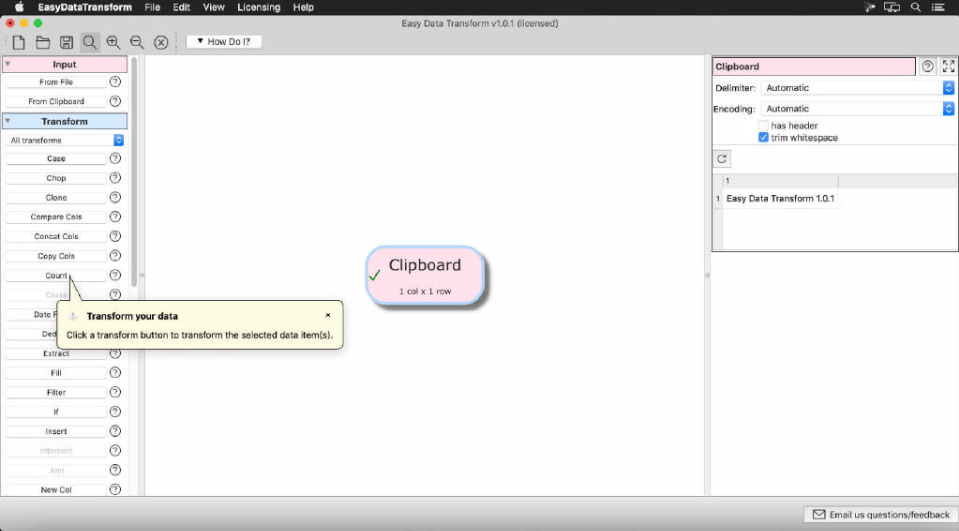
EasyDataTransform is a powerful Excel and CSV file conversion tool,Allows you to quickly convert table and list data into new,more useful form。
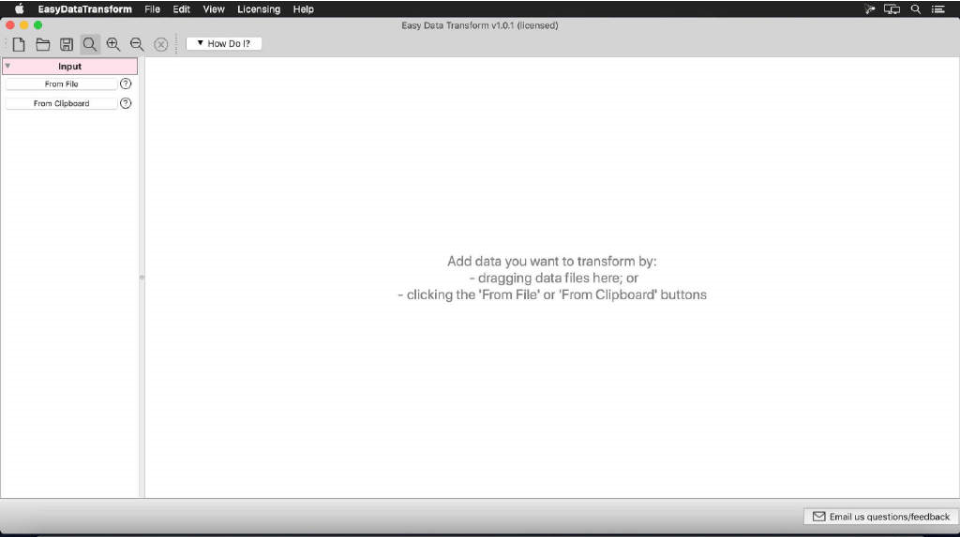
compared to other methods,EasyDataTransform's visual transformation is faster,More interactive,More repeatable and less error-prone。And very fast,Able to process approximately 100,000 rows of data in seconds。It’s also very simple to use,Just drag and drop files into the file area,Just add a conversion。
No coding required,Merge easily、Split、clean up、Deduplication、Reformatting, etc.,Get your data in the form you need in just a few clicks!
statement:All articles on this site,If there is no special instructions or markings,All are originally published by this site。any person or organization,Without the consent of this website,Reproduction prohibited、Misappropriate、collection、Publish content from this site to any website、Books and other media platforms。If the content on this site infringes upon the legitimate rights and interests of the original author,You can contact us for processing。
Can free downloads or VIP membership resources be used directly for commercial use?
The copyright of all resources on this site belongs to the original author,The resources provided here are for reference and study purposes only.,Please do not use it directly for commercial use。If copyright disputes arise due to commercial use,All responsibility lies with the user。For more instructions, please refer to VIP introduction。
It prompts that the download is complete but cannot be decompressed or opened?
The most common situation is an incomplete download: You can compare the capacity of the downloaded compressed package with the capacity on the network disk,If it is less than the capacity prompted by the network disk, this is the reason。This is a browser download bug,It is recommended to download using Baidu Netdisk software or Thunder。 If this situation is excluded,You can leave a message at the bottom of the corresponding resource,or contact us。
Can't find the sample image in the material resource introduction article?
For members only、Whole site source code、Program plug-in、website template、Web page templates and other types of materials,The pictures used for introduction in the article are usually not included in the corresponding downloadable material package.。These related commercial images need to be purchased separately,And this site is not responsible for(There is no way)find source。 The same is true for some font files,However, some materials will have a list of font download links in the material package.。
The download address cannot be displayed or the content cannot be viewed after payment?
If you have successfully paid but the website does not pop up a success prompt,Please contact the webmaster to provide payment information for you to process
After purchasing this resource,Can I get a refund?
Source code materials are virtual goods,replicable,Transmissibility,once granted,No refunds of any kind will be accepted、Exchange request。Please confirm before purchasing to obtain the resources you need.
Comments (0)
Note: Please be respectful and civil in your comments Cancel reply
Where are the files backed up by Mac iTunes? Many Mac users don’t know the location of their iTunes backup files after backing up! today,The editor teaches you two methods to find the Mac iTunes backup file path,It is convenient for everyone to directly manage their own iTunes backup folder。 Method one: 1.Open Finder,Click the "Go" option in the menu bar,Hold down the Option key to display "Library",Click to enter。 2.in database,Find the "Application Support" folder。 3.Go to the lower-level "MobileSync" folder,The "Backup" inside is where the backup file is located.。 Method two: 1.Click Finder at the bottom of the screen。 2.Use the shortcut key Command+Shift+G in the Finder to open "Go to Folder"。 3. Directly copy the following path:~/Library/Application Support/MobileSync,Then click "Go",Open the "Backup" folder,Inside is the backup file。 Through the above two methods,You can easily find and manage iTunes backup files on Mac。
Logic Pro for Mac is a powerful, full-featured music app,Comes with all the tools you need to create professional-quality music。you can record、Arrange and edit audio and MIDI regions,Add high-quality effects,Mix music into stereo or surround sound,The final mix is then exported to various formats for distribution。 You can create many different types of projects using Logic Pro,Suitable for everything from simple music to complex ensemble arrangements。Logic Pro for Mac gives you the flexibility to customize the app to fit the way you work。 Functions that Logic Pro can implement include: Record vocals、Instruments or any sound that can be captured by a microphone,Includes recorded footage and composition。 Use a USB keyboard or other MIDI controller,Play and record software instruments included with Logic Pro for Mac。You can also play and record third-party audio unit software instruments。 Add virtual drummer to project,to create detailed、Realistic virtual drum performance,and according to genre、Dynamically adjust project content and other parameters。 Add Apple Loops and other media files to your project。 Arrange regions containing musical material in the Tracks area。You can also define parts of your project and use arrangement markers to quickly rearrange them。 Use a set of editors optimized for different tasks and clip types,Edit audio and MIDI regions。 Edit audio clip、single note、Timing and pitch of chords and sounds。 Mix your project in the mixer,where you can view and edit channel strip controls,Custom sending options,and add and edit plugins。 Using Holistic Recovery Mix Automation,make mix、Effect and plug-in settings change automatically over time。You can record automation changes in real time,and edit them later。 Controls include speed、Transposition and global settings including time signature and key signature to adjust the entire project。Use markers to define and quickly move to different parts of your project。 View MIDI regions in your project as scores,Add and edit notes and other musical symbols,and print the finished score as well as individual parts。
USBclean is a powerful U disk virus scanning tool on the Mac platform,USBclean can help you remove all those nasty junk files quickly and easily and also format your USB drive.,You can easily launch USBclean from the system menu bar and run it directly。 The unique classification and killing engine can detect and kill more than 470 kinds of U disk viruses. U disk virus broad-spectrum scanning,U disk virus immunity,Fix display of hidden files and system files,Safely uninstall mobile disk drive letter and other functions,Comprehensive integrated repair and removal of U disk viruses。 At the same time, USBCleaner can quickly handle new U disk viruses.。
Desktop Mac or MacBook won't turn on,Or maybe it can't be launched via the Apple icon? Don't worry,Although it makes people irritated,But it's usually fixable。 Here are all the steps you need to take to restart your Mac。Follow the steps in order,until the problem is solved,Or jump to the applicable step。 1. Check the power connection • Make sure your Mac is plugged into the power adapter,and the adapter is connected well。For desktop Mac,Make sure the power cord is also connected to the electrical outlet。 2. Power cycle •For the latest MacBooks,Disconnect the power cord,Then press and hold the power button for 10 seconds。 •For older MacBooks,Disconnect the power cord and remove the battery for at least 10 seconds。 •For desktop Mac,Disconnect the power cord for at least 10 seconds。 3. Boot in safe mode •Press the power button,Then immediately hold down the Shift key until you see the login screen。 4. Reset the System Management Controller (SMC) Desktop Mac: Unplug the power cord,wait 15 seconds,then reinsert,Wait another five seconds before restarting。 •2018 MacBook Pro and MacBook with T2 chip: Hold down the right Shift key、Left Option key and left control key for seven seconds,Then press and hold the power button for seven seconds。 • MacBook without removable battery: Hold left Shift、Option、Control and power (or Touch ID) buttons,Lasts 10 seconds。 5. Reset NVRAM or PRAM • Hold Option while booting、Command、P and R keys,Don't let go until you hear the startup sound。 6. Run Apple Diagnostics • Press the power button,Then hold down the D key until you see the language selection screen。After selecting language,Start running tests。 7. Using Recovery Mode Tools • Hold the Command and R keys to boot into Recovery Mode。Repair your hard drive or SSD using Disk Utility。 8. Reinstall macOS in recovery mode • If none of the above fixes the issue,Choose to reinstall macOS。Select Reinstall macOS from the menu,and follow the on-screen instructions。 Go through the above steps,You should be able to fix most Mac won’t turn on issues。If the problem is still not resolved,May require further hardware checks or professional support。
AnyMP4 Video Converter Ultimate (Mac)It is a set of video conversion、edit、compression、All-in-one video converter with playback and other functions。It can convert 8K/5K/4K/1080p HD videos and DVDs to MP4、MP3、GIFs and over 500 digital formats,Its conversion speed is 70 times faster than ordinary converters。also,It can also use AI technology to edit、Compress and enhance video,Built-in media player can play any video file。The comprehensive functionality of this software makes it ideal for handling a variety of video needs。
MacCleaner Pro is a professional Mac cleaning tool suite software,Keep your Mac fast、clean and orderly,Helps you see what's taking up the most space on your Mac,Unnecessary files found,and reclaim hard drive space。It can clean junk files in one click、Optimize RAM、Manage extensions and fix issues,Make your Mac run faster。MacCleaner Pro is packed with features,For example cleaning invalid RAM memory、Disable startup programs、Reindex Spotlight and Mail、Remove unnecessary plugins and extensions、Close memory-intensive apps、clear cache、Delete installation files and unnecessary localization files, etc.。also,MacCleaner Pro also offers several additional tools,Such as App Cleaner & Uninstaller、Duplicate File Finder和Disk Space Analyzer,Help you perform deep cleaning。MacCleaner Pro user feedback is positive,Recommended by many users。
Bob is a free and open source Mac translation software,Provide word translation、Screenshot translation and manual input translation function。It supports Youdao translation、Baidu Translate and Google Translate three translation engines,Very convenient to use。 before first use,Users need to obtain accessibility permissions and screen recording permissions。 Main functions: •Word translation: After selecting the text, press the shortcut key (default ⌥ + D) can be translated。 •Screenshot translation: Press the shortcut key (default ⌥ + S),Intercept the area that needs to be translated to translate it。 •Enter translation: Press the shortcut key (default ⌥ + A),Enter text and press Enter to translate。 Translation engine comparison: •Baidu Translate and Google Translate can recognize sentences in camel case,如 “WhatAreYouDoing”。 •OCR interface used for screenshot translation: Use Youdao's OCR interface for image recognition,Then call the Google Translate interface to translate。 •Domestic Google Translate: Can be used directly,No need for scientific Internet access。 Bob is a feature-rich and easy-to-use translation tool for Mac,Suitable for users who need fast and accurate translation。
In Mac system,You can easily unzip ZIP files,But for other compression formats such as RAR,The system cannot decompress directly by default。Here's how to unzip RAR on Mac、Methods for files in various formats such as ZIP: Decompress files such as RAR and ZIP Method 1:Using "The Unarchiver" software 1. Download and install "The Unarchiver" Open the App Store,Type "The Unarchiver" into the search box,Click "Get" and install the software。(if already installed,button says "Open") 2. Open The Unarchiver after installation is complete,You can find The Unarchiver icon in the Dock。Click to open the software。 3. Set up file associations after starting The Unarchiver,You can view supported compressed file formats in the app。You can also set The Unarchiver as the default decompression tool。 4.Unzip the file Find the RAR or ZIP file that needs to be unzipped,Right click on the file,Select "Open with",Then select "The Unarchiver"。The software will automatically start decompression。 5. View decompression results After decompression is complete,You can find the extracted files in the same location as the file。The contents of the folder will be displayed where the original file is located。 Method two:Through other decompression tools except The Unarchiver,You can also use other third-party decompression tools,Such as Keka or WinZip for Mac。These tools also support multiple compression formats,And the operation method is similar: 1. Download and install the required tools. Download and install the required decompression tools from the App Store or official website.。 2. Unzip the file using the tool Launch the tool,Usually you just drag and drop the compressed file into the tool window,Or right-click the file and select the appropriate tool to decompress it。 Through the above methods,You can easily unzip RAR on Mac、ZIP and other compressed files,Manage files conveniently and efficiently。
In XMind: ZEN medium,Shortcut keys are an important tool for improving drawing efficiency。Master these commonly used shortcut key combinations,It allows you to flow freely on the keyboard,Quickly draw mind maps。 document (File) File shortcut keys are used to operate on the entire file,Common functions include saving、Open、Close and create new etc.。 •Save the current mind map •Shortcut keys:Command ⌘ + S (Mac),Ctrl + S (Win) •usage:Directly press the key to save the current file,Avoid unexpected file loss。 •Create a new mind map •Shortcut keys:Command ⌘ + N (Mac),Ctrl + N (Win) •usage:Quickly create new mind map files,Choose from a built-in theme or create one from the gallery。 insert (Insert) Insert shortcut keys for adding rich theme elements,as marked、Label、hyperlink、Accessories, etc.,to express complex logic and rich ideas。 •Insert subtopic •Shortcut keys:Tab (Mac/Win) •usage:Press the Tab key after selecting the topic,Quickly insert subtopics。With the Enter key (Return(Mac)/Enter(Win)) to quickly enter content。 •Insert contact •Shortcut keys:Shift ⇧+ Command...
The following are some commonly used tips and practical functions about Word Mac: one、Commonly used techniques 1. Remove spaces with one click •Use shortcut keys or find and replace function to delete spaces in documents in batches,For example: •shortcut key:Ctrl + H,Then enter "^w" in the Find what box,Click "Replace All"。 2. Delete blank lines with one click •Delete blank lines in the document,The steps are as follows: •shortcut key:Ctrl + H,Enter "^p^p" in the Find what box,Replace it with "^p",Click "Replace All"。 two、Practical Tips 1. Delete headers with one click •Use shortcut keys to quickly delete headers,For example: • shortcut key:Ctrl + Shift + N。 2.One-click cutout •Perform image processing and cutout operations in Word: •After inserting a picture,Select the "Format" tab,Then click "Remove Background",Select the parts you want to keep or delete,Press Enter to complete the operation。 3. Split text with one click • Split text into columns to improve layout: •After selecting text,Go to the "Page Layout" tab,Select "Column",Then select "Two Columns"。 With these tips and features,You can process and manage your documents more efficiently,Improve work efficiency。Remember to save documents regularly,And keep your documents safe with password protection。
You can use keyboard shortcuts in Sketch to speed up your design process。To use keyboard shortcuts,Please press all the keys in the following list at the same time。Some commands are only enabled based on what you are doing or what you selected,All the commands are divided into the following different parts。 Commonly used shortcuts ⌘ C copy ⌘ + Zoom in ⌘ – Zoom out ⌃ R Show/hide rulers ⌃ P Show/hide pixels...
Dash is a document browser and code snippet management tool for macOS,It allows users to access more than 200 APIs offline、100Rich documentation resources such as multiple cheat sheets。Users can download the required documentation set,Dash will automatically manage and update these document sets。In addition to using the built-in documentation,Users can also create their own document sets、Request a new documentation set or download from a third-party resource。Dash supports documentation sets generated using tools like Appledoc and Doxygen,Provide convenient content retrieval、Save page bookmarks、Features such as search profile creation and quick searches for specific document sets。It also integrates a variety of development tool plug-ins,Such as Xcode、Alfred et al.,Support via "dash://” URL scheme or system service for integration。also,Dash provides code snippet management functions,Supports over 80 types of syntax highlighting,Can be synchronized and stored in Dropbox,Support for editing variable placeholders and expanded abbreviations before pasting。Dash also includes some special fragment placeholders,Such as @clipboard、@cursor、@date and @time etc.,And supports Retina display、Multi-touch gestures and other features。Dash doubles as a document browser,Can also be used just as a snippet manager,Meet the needs of different users。
Comments (0)

