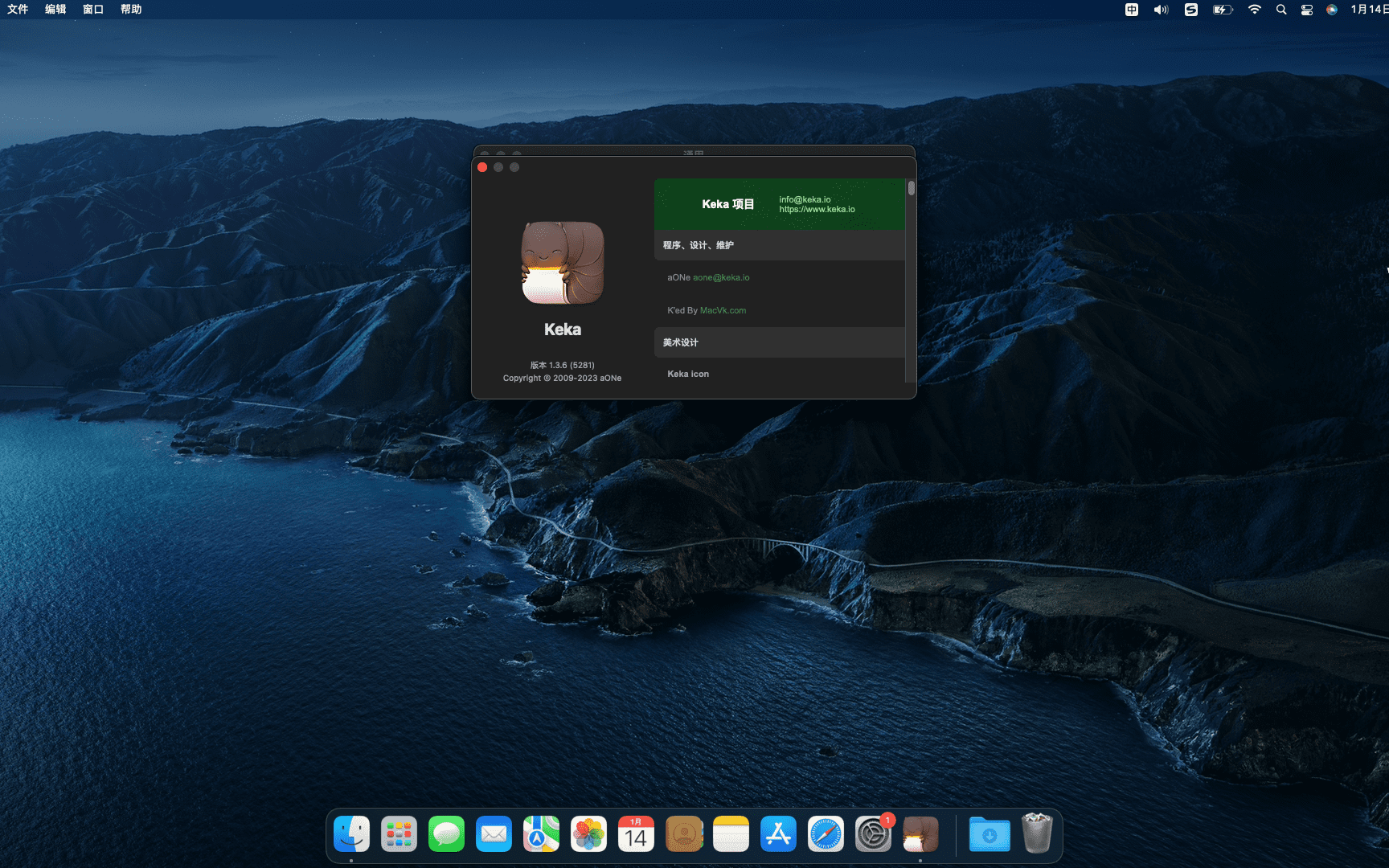
Keka is a free macOS file decompression program,Can meet your daily decompression needs,Small size,Simple and easy to use,faster。The main compression core is p7zip (7-zip port)。
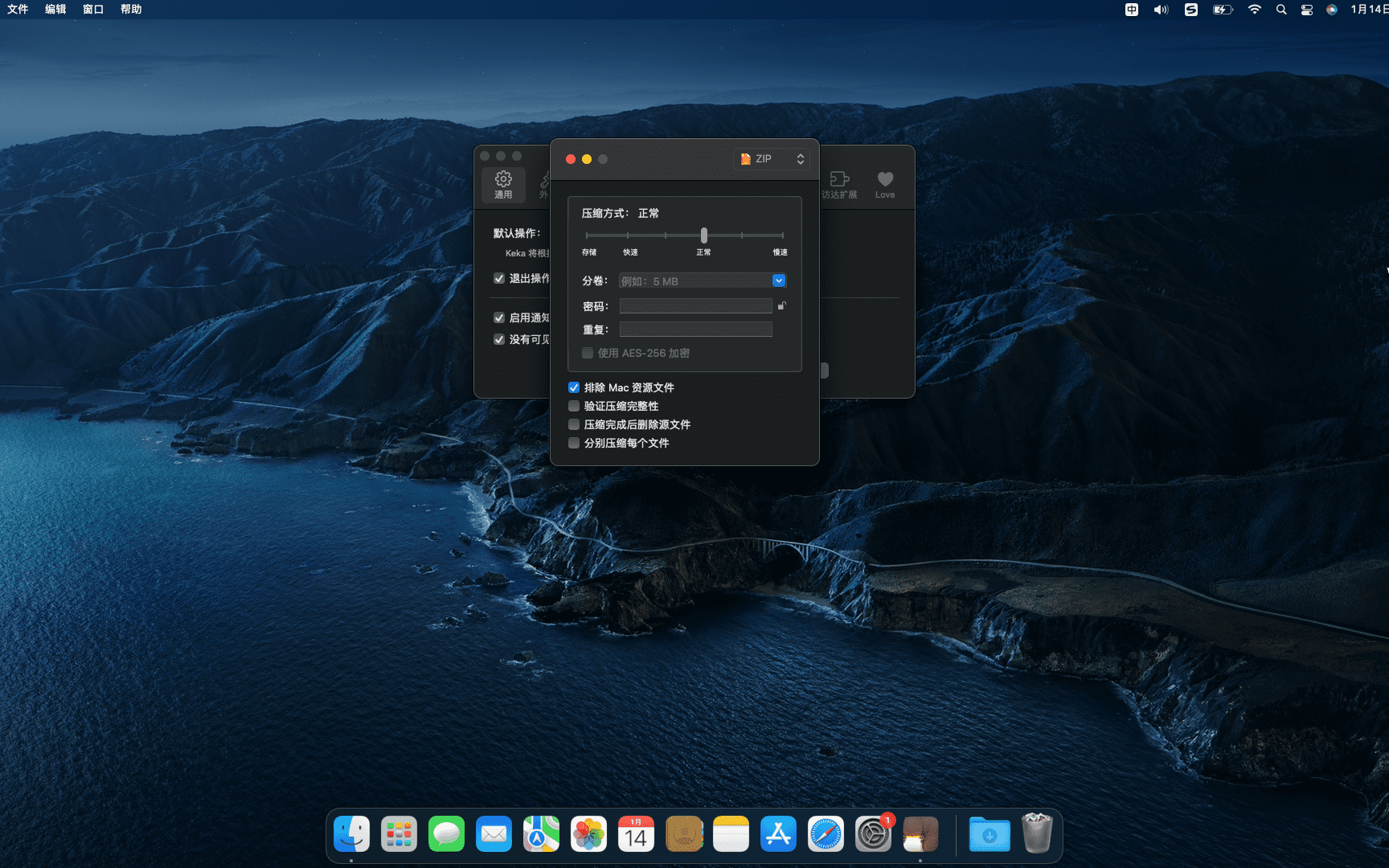
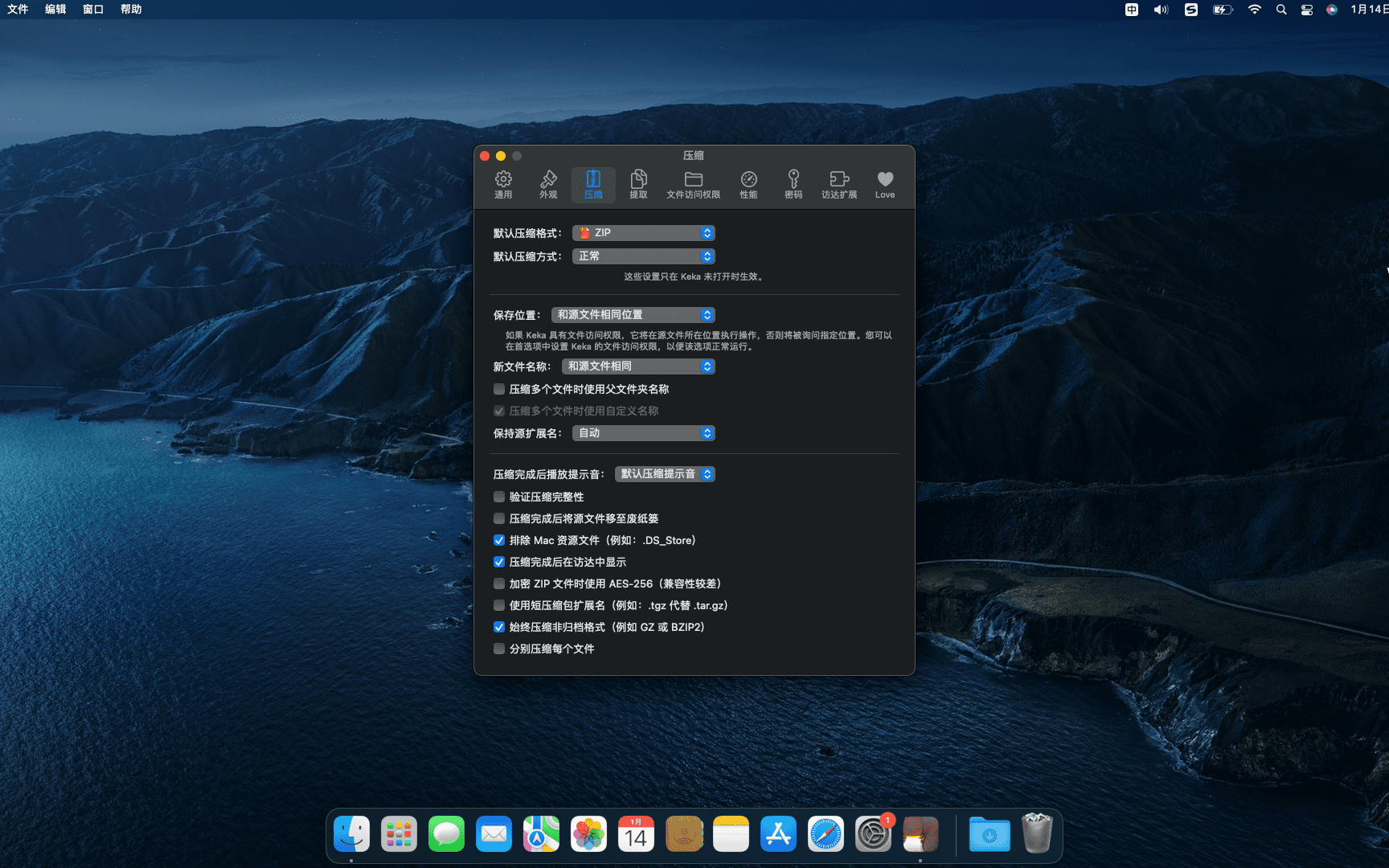
Support compressed formats:7z,Zip,Tar,Gzip,Bzip2,DMG,ISO
statement:All articles on this site,If there is no special instructions or markings,All are originally published by this site。any person or organization,Without the consent of this website,Reproduction prohibited、Misappropriate、collection、Publish content from this site to any website、Books and other media platforms。If the content on this site infringes upon the legitimate rights and interests of the original author,You can contact us for processing。
Can free downloads or VIP membership resources be used directly for commercial use?
The copyright of all resources on this site belongs to the original author,The resources provided here are for reference and study purposes only.,Please do not use it directly for commercial use。If copyright disputes arise due to commercial use,All responsibility lies with the user。For more instructions, please refer to VIP introduction。
It prompts that the download is complete but cannot be decompressed or opened?
The most common situation is an incomplete download: You can compare the capacity of the downloaded compressed package with the capacity on the network disk,If it is less than the capacity prompted by the network disk, this is the reason。This is a browser download bug,It is recommended to download using Baidu Netdisk software or Thunder。 If this situation is excluded,You can leave a message at the bottom of the corresponding resource,or contact us。
Can't find the sample image in the material resource introduction article?
For members only、Whole site source code、Program plug-in、website template、Web page templates and other types of materials,The pictures used for introduction in the article are usually not included in the corresponding downloadable material package.。These related commercial images need to be purchased separately,And this site is not responsible for(There is no way)find source。 The same is true for some font files,However, some materials will have a list of font download links in the material package.。
The download address cannot be displayed or the content cannot be viewed after payment?
If you have successfully paid but the website does not pop up a success prompt,Please contact the webmaster to provide payment information for you to process
After purchasing this resource,Can I get a refund?
Source code materials are virtual goods,replicable,Transmissibility,once granted,No refunds of any kind will be accepted、Exchange request。Please confirm before purchasing to obtain the resources you need.
Comments (0)
Note: Please be respectful and civil in your comments Cancel reply
Are you using AnyTrans to manage iOS files? AnyTrans breaks the boundaries of synchronization,iPhone、iPad、iPod、iTunes and iCloud content consolidated on one platform,Let you manage your digital life more efficiently。Let's explore the wonderful features of AnyTrans together! one、Convenient file management:Find the best place for your content AnyTrans is more than just a data transfer tool,It is your digital life comfort zone。Imagine a neat and organized closet,This is how AnyTrans manages files。You can easily position your content where it works best,and transmit it to the destination within seconds。 two、Multi-device file transfer Whether you are a student、Working professionals or digital enthusiasts?,AnyTrans can meet your needs。it supports iPhone、iPad、Data transfer between iPod touch and other devices,And seamlessly integrates with iCloud Drive,Let you easily control cloud content。 three、Rich media download functions AnyTrans built-in media downloader,Easily download audio and video from over 900 websites,Let you enjoy fresh content anytime, anywhere。Whether it's YouTube、Vimeo or Dailymotion,You can easily save media from these sites to your device,Create custom media collections or watch offline。 Four、Instant data backup and recovery AnyTrans provides powerful data backup and recovery functions,Make your file transfers worry-free。Via backup manager,You can create custom backups for specific types of content。also,One-click solution Air Backup Manager lets you perform instant and scheduled backups at any time,Protect your valuable data。 byAnyTrans,You can easily manage files on your iOS device,Enjoy a convenient digital life。whether you are a student、Working professionals or digital enthusiasts?,AnyTrans can meet your needs。Let’s explore more features of AnyTrans now!
Axure RP is the flagship product of the American Axure Software Solution company,Is a professional rapid prototyping tool,Let's take responsibility for defining requirements and specifications、Experts in designing functionality and interfaces can quickly create wireframes of applications or web sites、flow chart、Prototype and specification documentation。 As a dedicated prototyping tool,It is better than general tools for creating static prototypes such as Visio、Omnigraffle、Illustrator、Photoshop、Dreamweaver、Visual Studio、FireWorks needs to be fast、Efficient。 Axure RP can help website designers,Quickly and easily create annotated page diagrams based on website architecture diagrams、Operation flow chart、and interaction design,And can automatically generate web page files and specification files for demonstration,to provide demonstration and development。 Axure RP Pro features include sitemaps、process design、Page frame design、Simple interaction design, etc.,Can generate HTML、Word and other formats。 RP operation is much simpler than using Dreamweaver,picture、character、All components such as input boxes are all visual operations,It can easily realize the prototype design of website interactive content.,All previously rigid page layouts can be replaced with clickable、Link effect web page!At the same time, it can provide AJAX-style interactive processing for website design.,RP provides a dynamic layer component,Set effects for different states on the same page,Then use the link、Buttons and other triggers can produce dynamic effects,This way the website design becomes more vivid,The intention is more intuitive。 Detailed instructions for installing Axure RP 1. Download and prepare the installation package ➡️ Download the installation package:First put Axure RP 9.0.0.3727 Download the software RAR archive to your Mac,Usually found in the "Downloads" folder。 ➡️ Make sure the file is not damaged,The sizes are almost right (don’t let the lower half break)。 ➡️ Decompress the RAR compressed file to obtain the DMG installation file and registration code information file,If you don’t have decompression software on your MAC computer,You can install this KeKa 1.4.3 Chinese cracked version(Simple and powerful decompression tool) Decompression software,relatively easy to use,Commonly used compression formats are supported。 2.Start installation ➡️ Double-click to open .dmg...
How to check the password of a connected WiFi on Mac? sometimes,We may need to check the password for the connected WiFi on the Mac,For example, connecting to the same network on a new device。Here's an easy way to check your connected WiFi password on your Mac。 View WiFi passwords using Keychain Access 1. Open the Keychain Access app: •In Finder,Open the Applications folder。 •Go to the "Utilities" folder,Double-click the Keychain Access app。 2. Find a WiFi network: •In the category list on the left side of the Keychain Access window,Select the "System" keychain,Then select the "Password" category。 •Enter the WiFi network name (SSID) for which you want to view the password in the search bar on the right。 3.View password: •Double click on the corresponding WiFi network name,Open properties window。 •In the pop-up window,Check the "Show password" option。 • You will be prompted for your administrator username and password。 •After entering administrator credentials,The WiFi password will appear in the text box next to "Show password"。 Use Terminal to View WiFi Password...
Microsoft Remote Desktop helps you quickly connect to your Windows-based computer,to use its programs and files,Access data etc.。When configuring the connection,Microsoft Remote Connection Tool allows you to decide which resolution should be used,color quality,full screen mode,Whether to start the session in full screen,Whether to use all monitors,Or the content should be scaled。and you can choose to,Play sound on remote PC,Or don't play the sound at all,Manage sessions with connections,Forward printing device,Swap mouse buttons or enable folder redirection。
iNet Network Scanner is a network device monitor on Mac,Ability to automatically scan and discover devices on the network,Shows the device’s IP address、Manufacturer、MAC address, etc.,Support network equipment、BonjourService、Airport etc. iNet Network Scanner gives you all the information about your Mac network and the devices your Mac is connected to,Ease of use and perfectly thoughtful design allow even inexperienced users to gain a deep understanding and overview of the network,Report on running services and quality of wireless network connections。 Function introduction Network scanner Bonjour browser WiFi wireless monitor Wake on LAN We did our best to develop a solution,Make network observation as simple as possible。Whether you are a networking expert or a casual user – iNet Network Scanner provides all the network information you need to know。 network scanner: View all devices that are online and connected to the network,together with suppliers, IP and MAC addresses Assign your own name and icon,or from the provided icon,To facilitate identification of device selections in the scan list。Most Mac devices display with the original icon。 Set up scan ranges and interface scans Export scan results in CSV format Connect to devices via different protocols Bonjour monitors: Detect all running Bonjour services,Real-time detection of services running on discrete devices Detailed information about services Select active Bonjour domains for observation WiFi network monitoring: Pay attention to providing users with the latest 2013 version of the network and 802.11ac:Because SNMP support has been disabled,iNet cannot retrieve usage statistics and wifi strength anymore with these models。 All other features of iNet work fine。The following airport surveillance features can only be used with pre-802.11ac models: See the Current Status of Apple AirPort Base Stations Like Wireless Express or Time Capsule Monitor Network Traffic for Wireless Devices Find the MAC Address of Your AirPort Base Station,IP,For details such as channels used, see Connection quality for wireless clients on live connections Wake on LAN:...
I like to keep a clean and organized desktop,But sometimes it's really hard to keep。fortunately,MacOS Mojave introduces new stacking feature,Allows me to manage my desktop quickly and easily。 Use Stacking Enable Stacking: Just right click on the desktop,Then select "Use Stacking"。Stacking automatically groups all files on your desktop by type,and stacked neatly on the right side of the screen。 Unstack: If stacking starts to worry you about hiding needed files,Or maybe you want to go back to the chaotic and organized desktop view you're used to,Just right click on the desktop again,Then select "Unuse Stacking"。 Sorting options Custom sorting: Overlay organizes files by file type by default,But you can also go by the last modified date、Add date、Modification date、Sort by creation date, tag, etc.。Right click on the desktop,Select "View display options",Then select the sort method。 View and manage stacks View stacks: Click on Stack,It expands to show thumbnails of each file group。You can click on any file to open it,Or click the stack icon to close the expanded stack。 Using MacOS’s stacking feature allows me to quickly scan and manage files on my desktop,Although it sometimes makes me lazier。But at least,It allows me to easily find files I hide out of sight。
GlueMotion is the ideal tool for time-lapse photographers on the Mac platform。GlueMotion Mac version allows users to batch edit images、deblink,and assemble the image sequence into a time-lapse movie。 GlueMotion is designed to help you save time and guide you in the creative process 。By using the included batch processing tool,You don't even need to use an extra app。 GlueMotion can crop、rotate、Flip and adjust the color of your photos,For example, exposure、Saturation and brightness。here,This app can also de-flicker photo sequences。In other words,GlueMotion will analyze the photo and automatically select the best brightness correction for each image。 This application is suitable for professional level needs。That’s why it can process thousands of images with ease。and ,So it also supports all industry standard formats。The app is able to import PNG、JPEG and all RAW image formats supported by macOS。Exported videos can be in H.264、Apple ProRes and HEVC encoding。 This version is optimized for macOS High Sierra and above。also,The app is also available in seven languages (English、French、German、spanish、Italian、Japanese and Chinese)。 Send us feedback directly from the app。so,You can tell us your suggestions and feedback for improvements in just a few taps。 GlueMotion now has additional apps attached。 SnapMotion: Precisely extract still images from videos MetaImage: Edit image metadata and geotags
SnapMotion can quickly capture pictures from videos,and supports batch processing,Supports exporting to GIF and other formats,Simple and easy to use。 SnapMotion is the most innovative in extracting images from video,and use the most common tools。This application allows users to accurately and losslessly extract image frames from videos。 Two modes are provided: Manual mode allows you to extract images precisely at a specific time。 Batch mode allows you to extract thousands of images simultaneously。 SnapMotion is designed to support large video files like 4K movies and extract every frame from the media when necessary。This app can play all video formats natively supported by macOS。and,It can also export images to industry standard formats,For example PNG、JPEG、TIFF and HEIC。 Other features: Share images on social networks (Facebook、Twitter …) Drag and drop images to export Create animated GIFs from grabbed images Rotate videos directly in the player Copy extracted images to the clipboard Customize the file name of the output Support notifications and touch bar This version is optimized for macOS High Sierra and above。also,The app is also available in seven languages (English、French、German、spanish、Italian、Japanese and Chinese)。 Send us feedback directly from the app。so,You can tell us your suggestions and feedback for improvements in just a few taps。 SnapMotion now has other apps attached。 GlueMotion: Edit the image、deblink,And compile them into time-lapse MetaImage: Edit image metadata and geotags
Optimized content: Microsoft Outlook 2019 for Mac is Office launched by Microsoft 2019 One of the components,Outlook 2019 Mac is an email and calendar tool,Can be used to send and receive emails、Schedule、Manage contact information、Take notes etc.。So,How do you find items by performing a basic search in Outlook for Mac? Next,Follow the editor to see the specific tutorial! Perform a basic search in Outlook You can use the search box on the toolbar to search within the current folder or view。 1. Go to the folder or view you want to search:For example "mail"、"Calendar" or "People"。 2. Enter search terms in the search box:Enter your search terms in the search box in the upper right corner of the Outlook window。Outlook will display search results on the Search tab。 •To conduct a comprehensive search across all Outlook files (regardless of folders or views),Please select "All Projects"。This option is available in all views。 •Every time you switch views,You need to re-enter your search terms。 3. Select search scope:You can choose where to search based on folders or views。Available options include: •mail:current folder、subfolder、All messages or all items。 •Current email:Search within the currently selected mailbox。 •calendar:current folder、all events or all projects。 •Contact person:current folder、All contacts or all projects。 •Task:current folder、All tasks or all projects。 •notes:current folder、All notes or all items。 4. Complete search:After viewing the search results,Click Close Search on the Search tab。 •Notice:If you don't click "Close Search",The Search tab will remain active,The project list will continue to show search results,Even if you click on other tabs (like the Home tab)。 •Outlook...
Cookies can help you view and clear cookies in all installed browsers with one click、History、cache,And can prevent website cookie tracking,Improve protection of personal data privacy。 Cookies are the only cookie manager that gives you complete control over your privacy。 Cookies prevent third parties from hijacking your browsing experience。 in your browser,Websites you visit without your knowledge or consent。some are beneficial,But others are frustrating and invasive。Cookies can help。 More privacy,Better browsing Automatic privacy controls。Set a timer,Delete it when you exit your browser,It's entirely up to you when you delete your private browsing data。 strengthen security。Securely delete any unwanted data,And it’s easy to know that external threats cannot recover your private data。 Avoid intrusive marketing。Tired of targeted ads,Secretly know what products you are shopping for online?Eliminate cookies。 Stay away from flash and Silverlight。Cookies are good at eliminating Flash and Silverlight cookies,Especially large and persistent types of cookies。 Impressive results,minimal effort。By combining all cookie controls into a simple interface,Cookies make maintaining your browsing privacy a breeze。
1. Show or hide the menu bar If the menu bar is not displayed,You can display it by following these steps: 1. Open system preferences:Click the Apple icon in the upper right corner of the screen,Select "System Preferences"。 2. Go to general settings:In the System Preferences window,Click "General"。 3. Adjust menu bar settings: •In general settings,Find and check the "Automatically hide and show menu bar" option。 After setting this,The menu bar will automatically hide and show,Display based on your mouse movement or window operation。 2. Adjust menu bar icons •Rearrange icons:Command-drag an icon on the menu bar,Their positions can be rearranged。 •Remove menu bar icon:Hold down the Command key,Then click on the icon you want to delete and drag,until a delete sign appears at the top of the screen。Release the mouse to delete the icon。 please note,The icons of some software may not be removed from the menu bar,This depends on the settings of the software itself。 With these simple steps,You can easily manage and adjust the display and icons of your Mac's top menu bar。
Backing up macOS is never a bad idea,Because your machine may be damaged、Failure or more serious problem occurs。no matter what happens,Backups can help you get back to work。 How to Back Up Your Mac Using Time Machine and iCloud Back Up Using iCloud First,Make sure your Mac backs up files to iCloud。Check steps are as follows: 1.Click the Apple logo in the upper left corner of the menu bar。 2.Select "System Preferences"。 3.Select "Apple ID"。 4.Make sure "iCloud Drive" is selected。 5.Select "Options" on the right side of iCloud Drive。 6.Make sure "Desktop and Documents Folders" is selected。 This ensures that files and folders on your Mac are syncing to iCloud。If you encounter an issue where the Desktop and Documents Folders option cannot be selected or synced,Please log out of iCloud in System Preferences and log in again:System Preferences > Apple ID >...
Comments (0)