
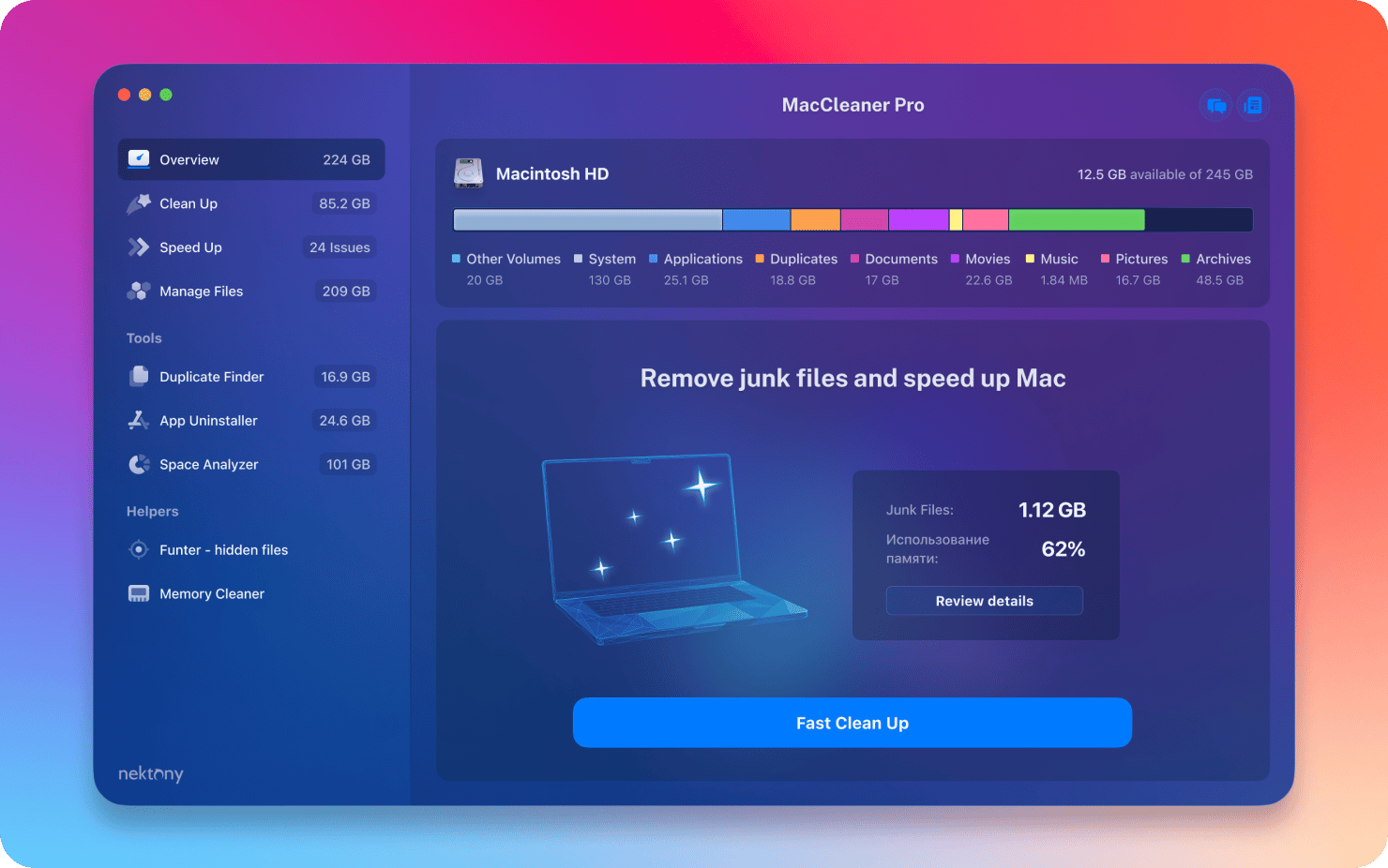
MacCleaner Pro is a professional Mac cleaning tool suite software,Keep your Mac fast、clean and orderly,Helps you see what's taking up the most space on your Mac,Unnecessary files found,and reclaim hard drive space。It can clean junk files in one click、Optimize RAM、Manage extensions and fix issues,Make your Mac run faster。MacCleaner Pro is packed with features,For example cleaning invalid RAM memory、Disable startup programs、Reindex Spotlight and Mail、Remove unnecessary plugins and extensions、Close memory-intensive apps、clear cache、Delete installation files and unnecessary localization files, etc.。also,MacCleaner Pro also offers several additional tools,Such as App Cleaner & Uninstaller、Duplicate File Finder和Disk Space Analyzer,Help you perform deep cleaning。MacCleaner Pro user feedback is positive,Recommended by many users。
statement:All articles on this site,If there is no special instructions or markings,All are originally published by this site。any person or organization,Without the consent of this website,Reproduction prohibited、Misappropriate、collection、Publish content from this site to any website、Books and other media platforms。If the content on this site infringes upon the legitimate rights and interests of the original author,You can contact us for processing。
Can free downloads or VIP membership resources be used directly for commercial use?
The copyright of all resources on this site belongs to the original author,The resources provided here are for reference and study purposes only.,Please do not use it directly for commercial use。If copyright disputes arise due to commercial use,All responsibility lies with the user。For more instructions, please refer to VIP introduction。
It prompts that the download is complete but cannot be decompressed or opened?
The most common situation is an incomplete download: You can compare the capacity of the downloaded compressed package with the capacity on the network disk,If it is less than the capacity prompted by the network disk, this is the reason。This is a browser download bug,It is recommended to download using Baidu Netdisk software or Thunder。 If this situation is excluded,You can leave a message at the bottom of the corresponding resource,or contact us。
Can't find the sample image in the material resource introduction article?
For members only、Whole site source code、Program plug-in、website template、Web page templates and other types of materials,The pictures used for introduction in the article are usually not included in the corresponding downloadable material package.。These related commercial images need to be purchased separately,And this site is not responsible for(There is no way)find source。 The same is true for some font files,However, some materials will have a list of font download links in the material package.。
The download address cannot be displayed or the content cannot be viewed after payment?
If you have successfully paid but the website does not pop up a success prompt,Please contact the webmaster to provide payment information for you to process
After purchasing this resource,Can I get a refund?
Source code materials are virtual goods,replicable,Transmissibility,once granted,No refunds of any kind will be accepted、Exchange request。Please confirm before purchasing to obtain the resources you need.
Comments (0)
Note: Please be respectful and civil in your comments Cancel reply
Infuse Pro is a powerful Mac video player。It can eat all your video files in one go – Infuse will free you from tedious video conversion,Beautifully watch almost any video format on your Mac。Infuse is adapted for macOS 11 and add more powerful online video,Trakt sync,AirPlay and subtitle functionality。Everything is under your control。 Play more types of videos Infuse supports standard MP4、M4V and MOV – plus MKV、AVI、WMV、MTS、ISO、VIDEO_TS、FLV、GMO、OGV、ASF、3GP、DVR-MS、WebM and WTV。Includes support for Dolby® Digital Plus (AC3/E-AC3)、DTS® and DTS-HD® audio support。 Receive media streams from other devices Browse and play files stored on your Mac、PC、NAS、A Wi-Fi enabled hard drive and a program like Plex、Emby、Jellyfish and Kodi(XBMC)videos in。Dropbox、Google Drive、OneDrive、Box、pCloud、Yandex.Disk and MEGA are also supported - no synchronization required。 TRAKT.TV sync...
If your Mac system has been upgraded to macOS Mojave,You may encounter such a situation:Although the "system language" is Chinese,But the user login interface is in English。So,How to change the Mac login interface to Chinese? Two methods are introduced below。 Method one:Change language via System Preferences 1. Open System Preferences,Select "Language & Region"。 2.Drag English to the top of the preferred languages list,Then drag Simplified Chinese to the top。 3.Just restart your computer。 If there is no English option in the list,Please follow the steps below: 1.Click the "+" sign in the lower left corner,Select English and click Add。 2.Click "Use English",Then drag Simplified Chinese to the top。 3.Just restart your computer。 Method two:Change language via terminal 1. Open Launchpad,Go to the "Utilities" folder,Open terminal。 2. Enter command:sudo languagesetup,Then press Return。 3.Enter the current administrator account password (characters will not be displayed when entering),Press Return。 4.After displaying the list of available languages,Enter the number before the language you want to use,Then press Return。For example,To use Simplified Chinese,enter 4,Then press enter。 5.Close terminal,Restart your computer。 Through the above two methods,You can easily change your Mac login screen from English to Chinese。Hope this tutorial helps you!
When using a Mac computer,for safety,Many users will set an administrator password。If you accidentally forget your Mac administrator password,don’t worry,Here are a few ways you can reset your password and restore access。 Method 1 for users who have not turned on FileVault:Using Apple ID Reset in OS X Mavericks (10.9) and later versions,Apple integrates Apple ID and administrator password,Allow quick reset of user password using Apple ID。Please make sure your Mac is logged in with Apple ID,And check "Allow users to reset passwords using Apple ID" in "System Preferences - Users & Groups - Login Options"。 1.In the login window,Entering incorrect password three times in a row,Until the system pops up a prompt window:"If you forget your password,You can…use your Apple ID to reset/use your master password to reset”。 2.Click the little arrow next to "Reset using your Apple ID"。 3.Enter your Apple ID and password,Then click "Reset Password"。 4.In the reset password window,Set and confirm new user password and password prompt (optional),When finished, click "Reset Password"。 5.After reset is complete,Restart your Mac and log in with your new password。 Method two:Use Master Password Reset If you set a Master Password and remember it,The master password can be used to reset the password for administrator or regular accounts。The specific steps are similar to method one,No more details。 Method three:Reset using another administrator account If you know the name and password of another administrator account on your Mac,Password can be reset through this account。 1.Log in using another administrator account。 2.Go to "System Preferences - Users & Groups",Click the little key icon to unlock。 3.Select the account whose password needs to be reset from the user list,Click the "Reset Password" button,and follow the instructions to reset your new password。 4.After reset is complete,Cancel current account,Log in to your account using your new password。 Users who have FileVault enabled For users who have FileVault enabled...
While using a Mac computer,You may install some third-party input methods to meet different input needs。but,If you find that you no longer need these input methods or encounter compatibility issues,Removing them is a good option。under,The editor will introduce to you how to remove or uninstall third-party input methods on Apple Mac systems。 step one:Open System Preferences First,Click the Apple logo in the upper left corner of the screen,Then select "System Preferences"。 Step 2:Go to Keyboard settings in System Preferences,Find and click the "Keyboard" icon。 Step 3:Select the "Input Method" tab in the "Keyboard" settings interface,Select the "Input Method" tab above。 Step 4:Remove third-party input method from input method list,Find the third-party input method you want to remove。Click the "-" button on the left side of the input method to delete it。at this time,You will be prompted to confirm the deletion,Just click "Delete"。 Step 5:Check the application Some third-party input methods may also install a corresponding application in your application list。In order to completely remove these input methods,You also need to check the application list。Open the Finder,Then select "Applications"。Find the corresponding input method application in the application list,Drag to Trash to delete。 Step 6:Empty the Trash Finally,Right click on the Trash icon,Select "Empty Trash" to completely delete the input method and its associated files。 Go through the above steps,You can easily remove or uninstall unwanted third-party input methods,Make your Mac system more concise and efficient。
MacOS and Windows are two completely different operating systems,For those who are using Mac computers for the first time,You may feel a little uncomfortable。But in fact,Mac computers have many hidden magical features,Once you use it in depth,You will like it more and more! Let’s share 8 magical hidden functions of Mac computers,Every one of them is useful,Be sure to collect it! Instantly hide the Dock using the shortcut key Command + Option + D can help you quickly hide or restore the application icon bar (Dock) under the desktop。 Invert screen colors using shortcut Command + Option + Control + 8 Can invert screen colors,Particularly suitable for reducing eye irritation in nighttime environments,Also provides convenience for visually impaired users。 Quickly view and manage running applications Want to quickly view currently running applications? Hold down the Command key and hit the Tab key to quickly switch and manage running applications。Under the application interface,Press Command + Q Quickly exit the program,Press Command + H Minimize the current application window。 Display the Apple Logo anytime,Hold down Option + Shift + K can quickly type the Apple Logo ()。 Trash Operation Command + Delete moves the selected files to the trash。 Shift + Command + Delete clears all files in the trash。 View folder properties using the shortcut Command + I can quickly display the properties of a selected file or folder。 Use your Mac as a USB hard drive at startup,Hold down the T key to put your Mac into target disk mode,Connect it to other computers as a USB hard drive。 Turn on incognito mode in the Notifications option in System Preferences,You can set your Mac to enter Do Not Disturb mode,To avoid pop-up notifications during presentations or other situations that require concentration。 These features not only improve the ease of use of Mac,It also helps you complete your work and daily tasks more efficiently。Come and try it!
The startup screen may vary depending on your Mac model、Varies depending on factors such as operating system (macOS)。Some screens, such as the ban sign or question mark, mean you need to solve a problem first,Then the Mac can complete booting。For all Mac models,When you see the Finder menu bar、Desktop and Dock,This means that the startup is complete。today,The editor of MacW will take you to understand what the various interfaces displayed when Mac starts up represent.。 1. Forbidden symbol A circle crossed by a line or slash means that the selected startup disk contains a Mac operating system,But it's not macOS for your Mac。You should reinstall macOS on this disk。 2. Question mark A folder with a question mark means that the selected startup disk is not available,or does not include Mac OS。Learn how to fix problems with flashing question marks。 3. Blank Screen It is normal to have one or more blank screens during startup.。it may be black、grey、blue,It could also be a desktop picture。If no image appears on the screen after a while,Make sure your display is on、Connected and brightness turned up。 4. Apple Logo Your Mac displays the Apple logo after finding the local startup disk,This disk is the Mac's built-in startup disk or is directly connected to the Mac's startup disk。If your Mac cannot find your local startup disk,then it will try to use a network boot disk if one is available。As the boot process continues,You should see a progress bar or indicator showing the circle (which may or may not contain the Apple logo)。This screen may alternate with a blank screen multiple times。 If you're updating or reinstalling macOS,then this stage may take longer to complete。As the installation continues,The progress bar may move slowly and pause for a long time。Find out if your Mac seems to be stuck on this screen during the installation process or just after the installation is complete,what to do。 5. Rotating Earth When using a network boot disk,Your Mac displays a spinning globe instead of the Apple logo。When launching from macOS recovery function over the Internet,There will also be a rotating earth。As the boot process continues,You should see a progress bar,It may alternate with a blank screen multiple times。 6. Earth with warning symbol when your Mac tries to boot from macOS Recovery over the Internet and fails,You may see a globe with an exclamation mark。Your Mac may not be able to connect to the internet,Or it might be using a network configuration that's incompatible with macOS recovery features。Please try the following solutions: – Use Command-R on startup to try to use the built-in macOS recovery system,Rather than booting from macOS recovery over the Internet。 – Connect to the Internet using Ethernet instead of Wi-Fi,vice versa。 – Connect to the Internet from another network。 – Please try again later,Because the problem may be temporary。 7. Lock icon If your Mac uses a firmware password,then when you try to download a file from another disk or volume such as,external drive or macOS recovery) a lock icon appears when starting。Please enter your firmware password to continue。 8. PIN code to lock your system if your Mac is locked remotely via the Find My feature,then your Mac will ask for a PIN。Please enter a four-digit or six-digit password to continue。 9. Login window In the login window,Enter your user account password,to log into your Mac。If FileVault is open,then this action will also unlock your disk。You may see the default desktop picture in the background,After you select your account,This image may be changed to a desktop image of your choice。 By understanding these launch screens,You can better solve problems you encounter when your Mac starts up,Make sure your Mac starts up smoothly and works normally。
MacBook battery usage guide and battery health check method MacBook is loved by users for its excellent performance and convenient portability。To extend battery life and ensure optimal performance of your device,It is important to use batteries correctly and check battery health regularly。Let’s take a look at how to use the MacBook battery and how to check the health of the battery。 one、MacBook Battery Instructions 1. Avoid complete discharge •Avoid frequently draining the battery to 0%,Try to start charging when the battery is low。 2. Maintain the right temperature •Use your MacBook at room temperature,Avoid extreme temperatures,Especially in high temperature environments,Will adversely affect the battery。 3. Calibrate the battery regularly •Calibrate the battery at least once a month,That is, after it is fully charged, the battery will be used up until it shuts down.,Then fully charge。This helps maintain battery accuracy。 4. Use battery saver mode moderately •When battery power is low,Enable battery saver mode to extend battery life。 5. Try to use original chargers •Use original or Apple-certified chargers,Ensure charging safety and battery life。 two、How to check MacBook battery health 1. Check through System Information • Click the Apple logo in the upper left corner of the screen,Select "About This Mac"。 •In the pop-up window,Click "System Report"。 •In system reports,Find and click the "Power" option on the left。Battery details will be displayed here,Includes battery cycle count and battery health status。 2. Check via the battery status menu •Hold the "Option" key,Simultaneously tap the battery icon in the upper right corner of the screen。 •In the pop-up menu,You can see the battery status。If it says "normal",Indicates that the battery is in good health;If "Replace battery" is displayed,It means you need to consider replacing the battery。 3. Use third-party software •Some third-party software can also be used,Such as CoconutBattery,to learn more about battery health status。These software can often provide more battery information,Such as battery capacity、Temperature etc.。 three、Tips to extend battery life 1. Avoid using it plugged in for long periods of time •Using it plugged in for a long time may put stress on the battery,It is recommended to use battery power when appropriate。 2. Close unnecessary background apps •Close apps and services you don’t use,Can reduce battery consumption。 3. Lower the screen brightness •Adjust the screen brightness appropriately,Helps extend battery life。 Through the above methods and suggestions,You can better manage and maintain your MacBook battery,Keep your equipment in top condition。
GlueMotion is the ideal tool for time-lapse photographers on the Mac platform。GlueMotion Mac version allows users to batch edit images、deblink,and assemble the image sequence into a time-lapse movie。 GlueMotion is designed to help you save time and guide you in the creative process 。By using the included batch processing tool,You don't even need to use an extra app。 GlueMotion can crop、rotate、Flip and adjust the color of your photos,For example, exposure、Saturation and brightness。here,This app can also de-flicker photo sequences。In other words,GlueMotion will analyze the photo and automatically select the best brightness correction for each image。 This application is suitable for professional level needs。That’s why it can process thousands of images with ease。and ,So it also supports all industry standard formats。The app is able to import PNG、JPEG and all RAW image formats supported by macOS。Exported videos can be in H.264、Apple ProRes and HEVC encoding。 This version is optimized for macOS High Sierra and above。also,The app is also available in seven languages (English、French、German、spanish、Italian、Japanese and Chinese)。 Send us feedback directly from the app。so,You can tell us your suggestions and feedback for improvements in just a few taps。 GlueMotion now has additional apps attached。 SnapMotion: Precisely extract still images from videos MetaImage: Edit image metadata and geotags
System Toolkit is an all-in-one information and maintenance application designed for MacOS。 System Toolkit provides system maintenance、Privacy protection、disk cleanup、Battery maintenance、Network status monitoring、Practical functions such as network traffic monitoring。 System Toolkit can retrieve the latest technical data at any time,For example, process load,CPU temperature,Main memory consumption,storage space,disk activity,Communication on network interfaces, etc.。The program continuously monitors your system,and be available when needed。
Special reminder: 1、Be sure to completely uninstall the previous version before installation。 2、Do not open CrossOver after installation。 3、First run CrossOver crack in DMG to activate it.。 CrossOver Mac offers a treat for users familiar with Wine,Allows them to run programs made for Microsoft Windows without actually having to install the Windows operating system。This application contains software libraries optimized for Windows programs,in it,You can run e.g. Microsoft Word、Excel、Many common applications such as Quick and Windows Media Player,But you need to configure the program yourself to install any application。It creates a Windows runtime environment called a "bottle" for installed programs,Including their respective C drives、Subdirectories and registries。Since CrossOver Mac is not a true virtual environment,So you can run your application faster,But it cannot provide a real Windows experience,And software that is not supported by Wine may not be able to run or may run unstable.。 Features Support for a wide range of Windows applications CrossOver can run many commonly used Windows applications,Includes Microsoft Office、Photoshop、Steam etc.。And it doesn’t require a Windows operating system to be installed,Therefore, many tedious operations can be saved。 Automatically Set Up Applications CrossOver automatically sets up applications,Make it run correctly on macOS。It automatically installs required Windows components and libraries,to ensure the application runs smoothly。This eliminates the need for users to worry about whether the application will run correctly。 Fully supports macOS system CrossOver fully supports macOS system,Including the latest....
Passwords saved in Safari can help you log into websites easily,without having to enter your credentials every time。sometimes,You may want to check、Edit or delete Safari saved passwords。Here are the steps on how to view Safari saved passwords on Mac: View Safari saved passwords 1. Open the Safari browser Launch the Safari browser,Then click on the "Safari" menu in the upper left corner of the screen,Select "Preferences"。 2. Access password settings in the pop-up "Preferences" window,Click on the "Password" option。 3. Enter your computer password. You will be asked to enter your Mac’s administrator password.,to verify your identity。After entering the password,Click "OK"。 4. View saved passwords after successful login,You will see a list of saved passwords。Click on any website entry,You can view the corresponding password。 5.Delete Password If you want to delete a saved password,Select this password entry,Then click the "Remove" button in the lower right corner。 6. Add new password To add a new password entry,Click the "Add" button in the lower right corner,Enter relevant information and save。 Go through the above steps,You can easily view、Remove or add Safari saved passwords。
Optimized content: Microsoft Outlook 2019 for Mac is Office launched by Microsoft 2019 One of the components,Outlook 2019 Mac is an email and calendar tool,Can be used to send and receive emails、Schedule、Manage contact information、Take notes etc.。So,How do you find items by performing a basic search in Outlook for Mac? Next,Follow the editor to see the specific tutorial! Perform a basic search in Outlook You can use the search box on the toolbar to search within the current folder or view。 1. Go to the folder or view you want to search:For example "mail"、"Calendar" or "People"。 2. Enter search terms in the search box:Enter your search terms in the search box in the upper right corner of the Outlook window。Outlook will display search results on the Search tab。 •To conduct a comprehensive search across all Outlook files (regardless of folders or views),Please select "All Projects"。This option is available in all views。 •Every time you switch views,You need to re-enter your search terms。 3. Select search scope:You can choose where to search based on folders or views。Available options include: •mail:current folder、subfolder、All messages or all items。 •Current email:Search within the currently selected mailbox。 •calendar:current folder、all events or all projects。 •Contact person:current folder、All contacts or all projects。 •Task:current folder、All tasks or all projects。 •notes:current folder、All notes or all items。 4. Complete search:After viewing the search results,Click Close Search on the Search tab。 •Notice:If you don't click "Close Search",The Search tab will remain active,The project list will continue to show search results,Even if you click on other tabs (like the Home tab)。 •Outlook...
Comments (0)

