
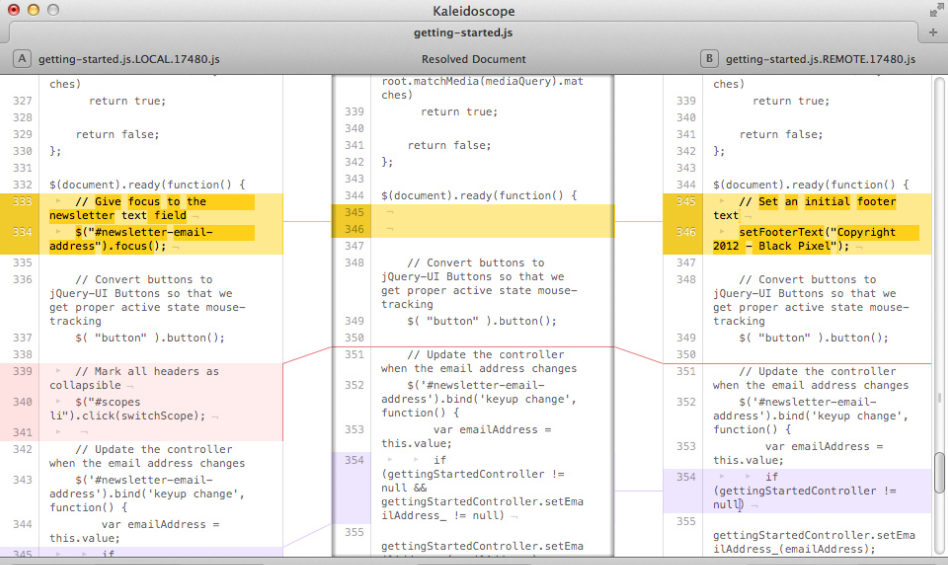
Kaleidoscope is a powerful file and image comparison tool,Supports any text file and jpeg、tiff、png、Image files in psd and other formats,At the same time and git、Version control tools such as svn can be perfectly combined。
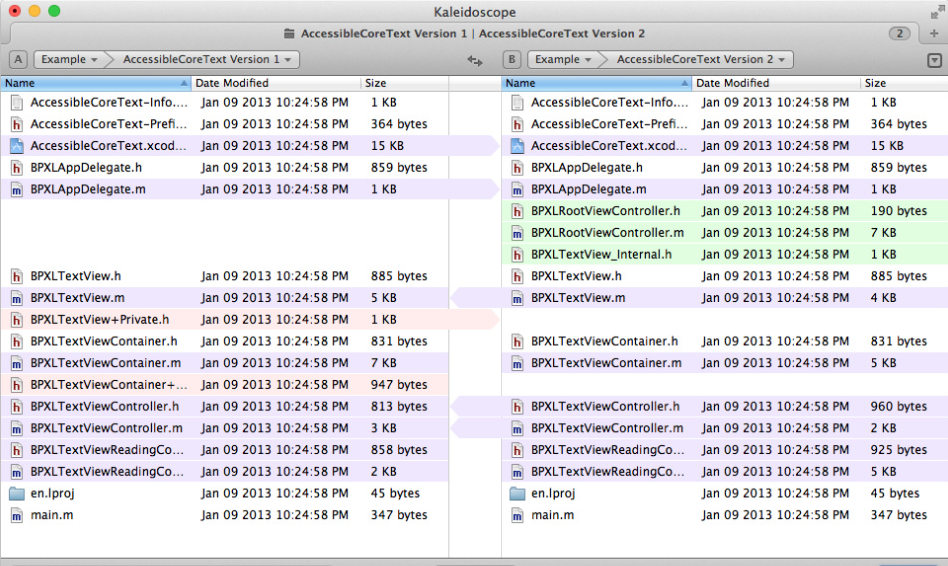
Kaleidoscope is a very powerful file image and text comparison tool on Mac,Supports arbitrary text documents and image files,Able to find differences and merge different documents or pictures very quickly and accurately,Its powerful merge and conflict resolution functions are very easy to use,And supports and Subversion、Git、Integration of version management tools such as Mercurial,Comparisons that can ignore whitespace characters、Unresolved conflict indicators, etc.。
statement:All articles on this site,If there is no special instructions or markings,All are originally published by this site。any person or organization,Without the consent of this website,Reproduction prohibited、Misappropriate、collection、Publish content from this site to any website、Books and other media platforms。If the content on this site infringes upon the legitimate rights and interests of the original author,You can contact us for processing。
Can free downloads or VIP membership resources be used directly for commercial use?
The copyright of all resources on this site belongs to the original author,The resources provided here are for reference and study purposes only.,Please do not use it directly for commercial use。If copyright disputes arise due to commercial use,All responsibility lies with the user。For more instructions, please refer to VIP introduction。
It prompts that the download is complete but cannot be decompressed or opened?
The most common situation is an incomplete download: You can compare the capacity of the downloaded compressed package with the capacity on the network disk,If it is less than the capacity prompted by the network disk, this is the reason。This is a browser download bug,It is recommended to download using Baidu Netdisk software or Thunder。 If this situation is excluded,You can leave a message at the bottom of the corresponding resource,or contact us。
Can't find the sample image in the material resource introduction article?
For members only、Whole site source code、Program plug-in、website template、Web page templates and other types of materials,The pictures used for introduction in the article are usually not included in the corresponding downloadable material package.。These related commercial images need to be purchased separately,And this site is not responsible for(There is no way)find source。 The same is true for some font files,However, some materials will have a list of font download links in the material package.。
The download address cannot be displayed or the content cannot be viewed after payment?
If you have successfully paid but the website does not pop up a success prompt,Please contact the webmaster to provide payment information for you to process
After purchasing this resource,Can I get a refund?
Source code materials are virtual goods,replicable,Transmissibility,once granted,No refunds of any kind will be accepted、Exchange request。Please confirm before purchasing to obtain the resources you need.
Comments (0)
Note: Please be respectful and civil in your comments Cancel reply
SnapMotion can quickly capture pictures from videos,and supports batch processing,Supports exporting to GIF and other formats,Simple and easy to use。 SnapMotion is the most innovative in extracting images from video,and use the most common tools。This application allows users to accurately and losslessly extract image frames from videos。 Two modes are provided: Manual mode allows you to extract images precisely at a specific time。 Batch mode allows you to extract thousands of images simultaneously。 SnapMotion is designed to support large video files like 4K movies and extract every frame from the media when necessary。This app can play all video formats natively supported by macOS。and,It can also export images to industry standard formats,For example PNG、JPEG、TIFF and HEIC。 Other features: Share images on social networks (Facebook、Twitter …) Drag and drop images to export Create animated GIFs from grabbed images Rotate videos directly in the player Copy extracted images to the clipboard Customize the file name of the output Support notifications and touch bar This version is optimized for macOS High Sierra and above。also,The app is also available in seven languages (English、French、German、spanish、Italian、Japanese and Chinese)。 Send us feedback directly from the app。so,You can tell us your suggestions and feedback for improvements in just a few taps。 SnapMotion now has other apps attached。 GlueMotion: Edit the image、deblink,And compile them into time-lapse MetaImage: Edit image metadata and geotags
App Cleaner & Uninstaller is a mac application cleaner、mac application uninstall tool,It can help you deeply clean application residues,Completely uninstall mac apps。 App Cleaner & Uninstaller Pro Awesome app cleaning and complete uninstall tool,App Cleaner & Uninstaller Pro is the best and cleanest tool for uninstalling applications on the macOS platform.。 uninstall、Reset the application Completely uninstall the application or reset the application to its original state。 Extended Management Extended Management includes:Start agent、Login items、Installation files(Bag)delete、browser extension、Preference panel items, etc.。 Residual item cleaning if you are not using App Cleaner & Uninstaller Pro uninstalls apps,It is very likely that the application will not be completely uninstalled.,This leaves a lot of residual items (junk files),Use Residue Cleaner to help you completely clean up Mac application residue。 Startup management can manage startup applications、Start the agent and system startup monitoring program。 Default application management allows you to set files in certain formats to be opened using specified applications.。
PDF Expert is a powerful, efficient and beautiful PDF editing tool,Ability to scroll smoothly and quickly search the first document of your choice。PDF opens instantly,Whether they are small email attachments or 2,000 page reports。 Professional annotation tools from simple change marathon editing sessions,PDF Expert lives up to its name。Powerful yet easy-to-use tools are just a click away,So you can make your mark in record time。 Read an award-winning,Lightning-fast tabbed document viewer will get you through multiple PDFs faster than ever。 Great for form filling PDF Expert provides the best experience for filling PDF forms。text field,checkbox,Radio buttons and other form elements work as you expect,and all the information you enter is saved in the form。Works well even with complex interactive forms using Javascript An easy way to sign files Signing files on Mac is easy。Just enter your name on the keyboard,PDF Expert will convert it into beautiful handwriting。Or use your Macbook’s trackpad and write with your fingers。You can even use signatures you have already created in PDF Expert for iOS。 Extensive sharing options so you don't work alone,Not PDF Expert either。When documents need to be sent to clients,colleagues and others,PDF Expert offers best-in-class support for Mac system-wide share sheets and other applications。If the application accepts PDF files,PDF Expert can put them there。 Works on all devices on any Apple device Mac,Use PDF Expert on iPad and iPhone。Use Apple's Continuity and Switching features to seamlessly transfer documents from one device to another,and continue editing where you left off。
When your Mac is low on disk space,You may need to clean up your user folders of files you no longer need,Such as documentation、Downloads and desktop files。Here are the detailed steps on how to delete these files,Hope it helps you solve the problem: Right click delete: Right click on the file,Select "Move to Trash"。 Drag to Trash: Hold down the left mouse button and drag the file to the Trash icon at the bottom of the screen。 Use shortcut keys: After selecting the file,Press Command + Delete key combination,to move the file to the Trash。 With these simple steps,You can quickly clean up files you no longer need,Free up disk space。
Dynamic Wallpaper Engine(Live wallpaper engine)It is a dynamic wallpaper tool carefully built for Mac users.,Let users say goodbye to the single static wallpaper of the past,Experience vibrant live wallpapers。This program provides ready-made video materials for users to choose from,It also supports importing local videos。The most convenient thing is that users can set the selected video as desktop wallpaper,You can also freely set it as a screen saver for your computer,Make your desktop come alive、interesting。 feature: 2000+Exquisite video material,Continuous updates,You don’t have to spend time finding material。 Video material classification:4K ultra clear、cartoon animation、natural humanities、Cute pets、game world、creative video、Pleasant beauty、antique style、Movie stars, etc.,There is always a style that suits you。 Support "keyword search",Search for your favorite live wallpaper。 Support "add playlist",single cycle、List loop、Shuffle mode。 Support scheduled switching,Automatically switch live wallpaper every half hour/hour/daily。 Support dynamic screensaver,Personalized lock screen,Full of style。 Support "break reminder",Custom reminder time,Avoid eye and brain fatigue。 Import local videos with one click,Convenient and fast。 Supports multiple screen aspect ratios and native resolutions,Support fish screen。 Support multiple monitors,Different dynamic wallpapers for different monitors。 Turn on smart control,Automatically pause when using other apps,Work without being disturbed。 Automatically pause when power is not connected,Save power。 Support hiding desktop icons,Immersive experience。 Support "global shortcut keys",Switch wallpapers with one click、Hide desktop icons、display saver。 one time purchase,Valid permanently,There are no charging points in the software。 Zero App learning cost,Simple interaction,Pursue the best experience。 Dynamic Wallpaper is designed to provide a fun experience,while occupying as little system resources as possible。
Special reminder:After the installation is completed and run,Be sure to cancel automatic updates,Otherwise, if a new version is automatically updated, the crack will become invalid.。 Permute can easily convert media files on Mac to various formats。Supports almost all formats,And there are tons of device presets to choose from。 Simple operation Permute operation is very simple,Just drag and drop the file into the window。Has a gorgeous interface,Drag and drop simplicity,No need for complicated options。 Fast processing Permute is processed very quickly。Just select the video format you want to convert the file to,It will process faster than you think。 Support all formats whether it is pictures,video,Audio Permute can be converted。Supports almost all formats,And there are tons of device presets to choose from。
Many Mac users may encounter this problem:How to prevent others from viewing files or photos on your Mac? Mac is not like PC where you can hide folders directly,So how does macOS encrypt files? Today I will bring you a tutorial on encrypting files on Mac。 step one:Open Disk Utility 1. Method one:Via the magnifying glass button • Click the magnifying glass button in the upper right corner of the screen。 •Enter “Disk Utility” in the pop-up dialog box,Then press Enter。 2. Method two:Via Launchpad •Click the Launchpad icon at the bottom of the screen。 •Find the "Other" folder in Launchpad and click to open。 •Select "Disk Utility" in the "Other" folder and click Open。 Step 2:Create an encrypted folder 1. Click "File → New Image → Blank Image" in the menu bar in the upper left corner。 2.Enter the folder name in the dialog box,And select the encryption method in the encryption options below。 3.The system will pop up a dialog box,Ask for password and verify。After input is completed,Click the "Choose" button,Then click "Save" at the bottom right of the dialog box。 4.After setting up,Two icons will appear on the desktop。Drag the file that needs to be encrypted to the second icon (the original file will still be in,Finally delete the original file to achieve the encryption effect)。 5.After dragging and dropping files,Right click on the icon,Select "Launch 'Unnamed'"。Finally, click on the encrypted .dmg file and enter the password to view the encrypted file。 Go through the above steps,You can create an encrypted folder on your Mac,Effectively protect your privacy and important files。
Backing up macOS is never a bad idea,Because your machine may be damaged、Failure or more serious problem occurs。no matter what happens,Backups can help you get back to work。 How to Back Up Your Mac Using Time Machine and iCloud Back Up Using iCloud First,Make sure your Mac backs up files to iCloud。Check steps are as follows: 1.Click the Apple logo in the upper left corner of the menu bar。 2.Select "System Preferences"。 3.Select "Apple ID"。 4.Make sure "iCloud Drive" is selected。 5.Select "Options" on the right side of iCloud Drive。 6.Make sure "Desktop and Documents Folders" is selected。 This ensures that files and folders on your Mac are syncing to iCloud。If you encounter an issue where the Desktop and Documents Folders option cannot be selected or synced,Please log out of iCloud in System Preferences and log in again:System Preferences > Apple ID >...
There are always people complaining after updating Mac to system 10.14 or above,Serious power consumption problem in standby mode。Recently I also encountered this problem:After it is fully charged, close the lid.,The battery dropped by 70% or 80% the next day.,sometimes even more。So,How can we solve this problem? The editor will share two practical Mac setup tips,Help everyone alleviate standby power consumption。 1. Adjust energy saving settings in System Preferences,Find the "Energy Saver" option: •Turn off monitor time setting:In the battery and power adapter options respectively,Shorten the period of time when the display is turned off。This reduces the display brightness time,Thereby reducing the battery consumption rate。 •Disable automatic sleep:Uncheck "When display turns off",Prevent the computer from automatically going to sleep" option。This prevents the computer from going to sleep prematurely when not needed,thereby reducing energy consumption。 2. Set Do Not Disturb mode in System Preferences,Find the "Notifications" option: •Enable Do Not Disturb mode:In Do Not Disturb settings,Check "Enable Do Not Disturb when display goes to sleep"。This will block incoming calls and notifications when your computer goes to sleep.,Also reduce background application activity,Further save power。 Through the above two settings,You can effectively reduce the power consumption of your Mac in standby mode,Improve battery life,Make your MacBook experience smoother and save power。
By default,Mac computers cannot install external software from non-App Store sources。This is because Mac’s new system enables new security mechanisms。So how to solve this problem? This article will introduce how to allow the installation of non-App Store software on Mac。 Open system preferences:Click the Apple icon in the upper left corner of the screen,Then select "System Preferences" in the drop-down menu。 Go to Security & Privacy:In the System Preferences dialog,Select the "Security & Privacy" option。 Unlock settings:In the lower left corner of the Security & Privacy dialog box,Click the lock button。 Enter system password:Enter the system password in the pop-up interface,Then click "Unlock"。 Allows installation of software from any source:Select Allow software installation from "Any Source",and click the lock button in the lower left corner again,lock it。 Go through the above steps,You can now install external software from non-App Store sources on your Mac computer。
In Mac system,You can easily unzip ZIP files,But for other compression formats such as RAR,The system cannot decompress directly by default。Here's how to unzip RAR on Mac、Methods for files in various formats such as ZIP: Decompress files such as RAR and ZIP Method 1:Using "The Unarchiver" software 1. Download and install "The Unarchiver" Open the App Store,Type "The Unarchiver" into the search box,Click "Get" and install the software。(if already installed,button says "Open") 2. Open The Unarchiver after installation is complete,You can find The Unarchiver icon in the Dock。Click to open the software。 3. Set up file associations after starting The Unarchiver,You can view supported compressed file formats in the app。You can also set The Unarchiver as the default decompression tool。 4.Unzip the file Find the RAR or ZIP file that needs to be unzipped,Right click on the file,Select "Open with",Then select "The Unarchiver"。The software will automatically start decompression。 5. View decompression results After decompression is complete,You can find the extracted files in the same location as the file。The contents of the folder will be displayed where the original file is located。 Method two:Through other decompression tools except The Unarchiver,You can also use other third-party decompression tools,Such as Keka or WinZip for Mac。These tools also support multiple compression formats,And the operation method is similar: 1. Download and install the required tools. Download and install the required decompression tools from the App Store or official website.。 2. Unzip the file using the tool Launch the tool,Usually you just drag and drop the compressed file into the tool window,Or right-click the file and select the appropriate tool to decompress it。 Through the above methods,You can easily unzip RAR on Mac、ZIP and other compressed files,Manage files conveniently and efficiently。
Sketch for Mac is a powerful vector drawing design tool for mobile applications,For web and mobile designers,Much easier to use than Photoshop! So,How to convert the English version of Sketch to Chinese? The following is a detailed tutorial on switching between Chinese and English in Sketch,Let’s take a look! How to switch the Chinese version of Sketch to the English version Open Terminal。 Enter the following command and press Enter key: bash copy code defaults write com.bohemiancoding.sketch3 AppleLanguages '("en-US")' How to switch the English version of Sketch to Chinese Open Terminal。 Enter the following command and press Enter key: bash copy code defaults write com.bohemiancoding.sketch3 AppleLanguages '(zh-CN)' Go through the above steps,You can easily switch language settings in Sketch。Hope this tutorial is helpful!
Comments (0)

