
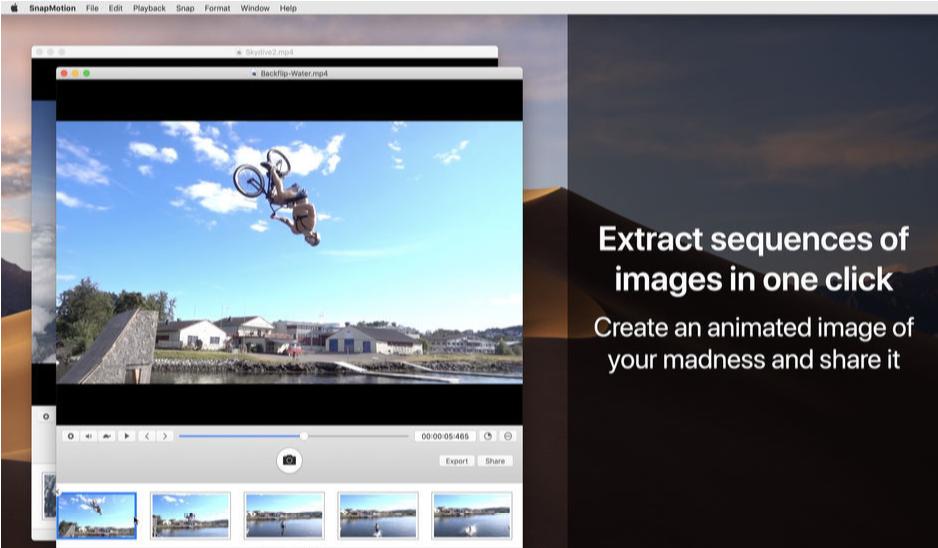
SnapMotion can quickly capture pictures from videos,and supports batch processing,Supports exporting to GIF and other formats,Simple and easy to use。
SnapMotion is the most innovative in extracting images from video,and use the most common tools。This application allows users to accurately and losslessly extract image frames from videos。
Two modes are provided:
Manual mode allows you to extract images precisely at a specific time。
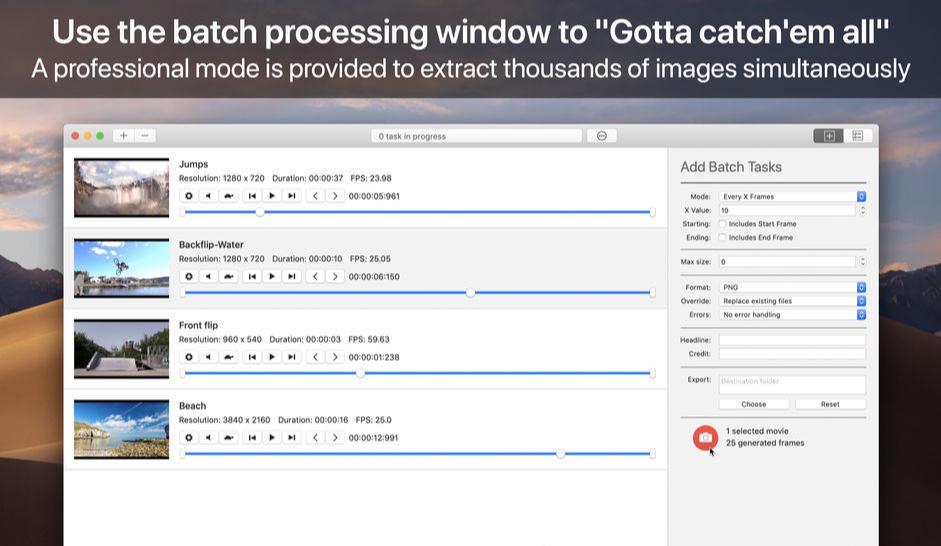
Batch mode allows you to extract thousands of images simultaneously。
SnapMotion is designed to support large video files like 4K movies and extract every frame from the media when necessary。This app can play all video formats natively supported by macOS。and,It can also export images to industry standard formats,For example PNG、JPEG、TIFF and HEIC。
Other features:
Share images on social networks (Facebook、Twitter …)
拖放图像即可导出
用抓取的图像创建动态GIF
在播放器中直接旋转视频
将提取的图像复制到剪贴板
自定义输出的文件名
支持通知和触摸栏
This version is optimized for macOS High Sierra and above。also,The app is also available in seven languages (English、French、German、spanish、Italian、Japanese and Chinese)。
Send us feedback directly from the app。so,You can tell us your suggestions and feedback for improvements in just a few taps。
statement:All articles on this site,If there is no special instructions or markings,All are originally published by this site。any person or organization,Without the consent of this website,Reproduction prohibited、Misappropriate、collection、Publish content from this site to any website、Books and other media platforms。If the content on this site infringes upon the legitimate rights and interests of the original author,You can contact us for processing。
Can free downloads or VIP membership resources be used directly for commercial use?
The copyright of all resources on this site belongs to the original author,The resources provided here are for reference and study purposes only.,Please do not use it directly for commercial use。If copyright disputes arise due to commercial use,All responsibility lies with the user。For more instructions, please refer to VIP introduction。
It prompts that the download is complete but cannot be decompressed or opened?
The most common situation is an incomplete download: You can compare the capacity of the downloaded compressed package with the capacity on the network disk,If it is less than the capacity prompted by the network disk, this is the reason。This is a browser download bug,It is recommended to download using Baidu Netdisk software or Thunder。 If this situation is excluded,You can leave a message at the bottom of the corresponding resource,or contact us。
Can't find the sample image in the material resource introduction article?
For members only、Whole site source code、Program plug-in、website template、Web page templates and other types of materials,The pictures used for introduction in the article are usually not included in the corresponding downloadable material package.。These related commercial images need to be purchased separately,And this site is not responsible for(There is no way)find source。 The same is true for some font files,However, some materials will have a list of font download links in the material package.。
The download address cannot be displayed or the content cannot be viewed after payment?
If you have successfully paid but the website does not pop up a success prompt,Please contact the webmaster to provide payment information for you to process
After purchasing this resource,Can I get a refund?
Source code materials are virtual goods,replicable,Transmissibility,once granted,No refunds of any kind will be accepted、Exchange request。Please confirm before purchasing to obtain the resources you need.
Comments (0)
Note: Please be respectful and civil in your comments Cancel reply
1. Quickly hide and show the Dock using the shortcut Command + Option + D,Easily hide or show the application icon bar below the desktop。 2. Invert screen colors using shortcut Command + Option + Control + 8,Switch the screen's color for a better nighttime experience or to accommodate visually impaired users。 3. Quickly view and manage running applications Command-click Tab,Ability to quickly scroll through currently running applications。at the same time,Use Command + Q Quickly exit the current application,Use Command + H Minimize application window。 4. To display the Apple logo, hold down Option in any application + Shift + K,You can type Apple Logo characters。 5. Quickly manage the Trash using Command...
Edraw Max is a powerful cross-platform professional drawing software,It integrates rich drawing tools,Adaptable to many professional fields,Allows users to easily create flowcharts、network diagram、organizational chart、Market analysis chart、Building plan、mind map、fashion design drawings、UML diagram、workflow diagram、Web design drawing、electrical engineering drawings、Directional diagrams and database charts, etc.。The software provides a user-friendly interface and a large number of templates、Shapes and over 26,000 vector symbols,Support effective data visualization and brainstorming,Suitable for both professionals,It also allows beginners to easily create professional-looking graphs and charts.,Greatly facilitates the expression and communication of data。 Features Special functions Full Chinese interface,Have desktop version、Web version allows you to easily draw more than 260 drawing types, including a large number of professional templates and 26,000+ vector symbol materials and intelligent wizards.,Combine graphics and data. Support batch import and export of Visio format. Support output in multiple formats.,As picture、PDF、Office、Html, etc. One-click sharing link、Share to social platforms Office drawing + AI,Improve your drawing efficiency. Edraw AI can optimize graphic charts and text creation scenarios.,For example, enter a sentence to generate a flow chart/mind map/list、Continue writing text with one click、One-click layout and beautification、OCR text extraction is easy to operate,Even novices in drawing can get started easily. Edraw icons make complex drawings simple and easy to use.,No need to master complex professional knowledge,Full drag-and-drop operation,Ready to use,regardless of background,Easy to get started。 Massive materials,To meet multi-scenario drawing needs, Edraw has 210+ graphics solutions,17500+drawing symbols,1100+Built-in templates,One software can take care of your daily drawing。 Collaboration and sharing,Share your visual works anytime, anywhere. Edraw web version supports online collaboration.,Share easily、Manage team files;It also supports one-click sharing to WeChat、Weibo、QQ and other social platforms,Make communication more convenient。 Strong compatibility,Commonly used formats can be imported and exported with one click. Edraw icons support the import of Visio common formats VSD.、VSDX,You can export EPS with one click、Word、PPT、PDF、SVG and common image formats。 Enterprise-grade security,Protect your privacy in Edraw icon,Your data is private、safe and reliable。All information and file transfers are protected by a high level of professional encryption,without permission,No one can access your data。 Business Office Don’t know how to make PPT? Copy template using Edraw icon,Quickly output beautiful charts、business canvas、analysis report。 Project Management Is project management complicated? Use Edraw icons,Get the flow chart done in one go、Gantt chart、Checklist diagram、funnel chart、fishbone diagram。 Science education: Text-only teaching is too monotonous? Use Edraw icons,Present boring knowledge points in a visual way,Stimulate children's interest in learning。 Software Development Don’t have a clear idea for software development? Draw architecture diagram using Edraw icons,Sort out the underlying logic,Improve business understanding。 Knowledge Summary Is studying for a long time too inefficient? Use Edraw icons to create mind maps,Organize knowledge points,Build a structured knowledge system。
Where are the files backed up by Mac iTunes? Many Mac users don’t know the location of their iTunes backup files after backing up! today,The editor teaches you two methods to find the Mac iTunes backup file path,It is convenient for everyone to directly manage their own iTunes backup folder。 Method one: 1.Open Finder,Click the "Go" option in the menu bar,Hold down the Option key to display "Library",Click to enter。 2.in database,Find the "Application Support" folder。 3.Go to the lower-level "MobileSync" folder,The "Backup" inside is where the backup file is located.。 Method two: 1.Click Finder at the bottom of the screen。 2.Use the shortcut key Command+Shift+G in the Finder to open "Go to Folder"。 3. Directly copy the following path:~/Library/Application Support/MobileSync,Then click "Go",Open the "Backup" folder,Inside is the backup file。 Through the above two methods,You can easily find and manage iTunes backup files on Mac。
Friends who are new to macOS or running the App after updating a certain system version will be prompted with the message [xxx is damaged],Can't open,You should move it to the Trash Solution]、【Cannot open xxx,Because it comes from an unidentified developer],【Cannot open xxxx,Because Apple can't check whether it contains malware] and other tips,Below I will teach you how to fix it。 Several common errors: xxx is damaged,Can't open,You should move it to the Trash Solution Can't open xxx,Can't open xxxx because it comes from an unidentified developer,Because Apple cannot check whether it contains malware, it will prompt a loading failure during installation! Why does it happen? This is a problem with new security mechanisms enabled in macOS。 By default, Apple only allows the installation of apps from its own [App Store].,If you want to install third-party applications,Then you need to go to [System Preferences -> Security & Privacy -> Select the [App Store and Recognized Developers] option in General。Approved developers need to purchase Apple’s enterprise certificate to sign their applications.,Then submit it to Apple for review,This is very unrealistic for cracking applications,Because cracking the application will definitely modify the application's files, causing the signature to become invalid and the running display will be "Corrupted"。In addition, some open source free applications have no income (it is too difficult for users to actively reward),Therefore, developers generally do not purchase certificate signatures.。 The solution is to enable the [Any Source] option.,However, macOS hides this setting by default.,The user needs to manually execute the command line code through the terminal to enable it.。 Let’s teach you how to use command line code to open any hidden source options.。 To open any source (primary) first open System Preferences -> Security & Privacy -> General tab,Check if the Any source option is enabled。 If this option is not available,Copy the following command:...
The Dock is the taskbar on your Mac that holds shortcuts to frequently used applications and folders,Gives you easy access to frequently used features and files。Mastering the setting skills of the Dock bar can significantly improve work efficiency。The following is a comprehensive explanation of the Dock bar setting techniques.: Change size and position 1. Open system preferences: •Click on the Apple icon on the desktop,Select "System Preferences",Then click "Dock"。 2. Adjust size and position: •Move the mouse to the dividing line of the Dock bar,Do the following: •Click and drag to resize the Dock。 •Shift-click-drag to change the position of the Dock。 •Right-click an empty area in the Dock,You can choose to show or hide、Turn off options such as magnification effects。 Add applications and folders 1. Add application: •Open the Applications folder,Find the app you want to add。 •Tap the application icon,Drag it to the Dock to add。Folders can be added to the right of the dividing line。 •Drag application icons to rearrange their order in the Dock。 2. Keep apps in use: •If the application is using,Right-click on its icon in the Dock,Select "Keep in Dock"。 Remove applications and folders...
QuickTime Player is a pre-installed application on Mac systems,The main function is to play videos,But it can also be used to edit audio。So how to use QuickTime Player to cut and edit audio? This article will introduce the use of Mac’s built-in audio editing software。 1.Open QuickTime Player and click on the launch pad at the bottom of the screen,Select the system's built-in playback software QuickTime Player and open it。 2.Import audio files Drag the audio files to be edited into QuickTime Player,Let go and move on to the next step。 3.Start editing After the audio file is opened,Find the "Edit" column in the menu bar at the top of the MacBook interface,and find "Trim..." from the drop-down menu。 4.Select the clip part and a golden edit box will appear in the QuickTime Player playback window.。Move the selector forward or backward,Move the left and right sides to the part that needs to be cropped。 5.Complete trimming After selecting the clipping part,Click the "Trim" button in the upper right corner of the page。 6.Save the edited audio After editing is complete,Click "File" on the top menu bar of your MacBook,Select "Storage" from the drop-down menu。In the pop-up information filling interface,After entering the relevant content, click the "Save" button in the lower right corner of the page.。 Go through the above steps,You can use QuickTime Player to easily complete audio editing operations。
Money Pro is a very useful financial management software on Mac,More than two million customers around the world currently use it to manage their personal finances。It's a true all-in-one app,Can plan bills for you、Arrange budget、Track transactions,And all operations can be performed synchronously。 Money Pro offers a one-stop bill plan、Budget management and account tracking。 This app features easy sync。 Money Pro is ideal for home budgeting and even business applications。 Features Calendar Mark the days when bills are due in the large calendar。 Set up recurring bills with customizable periods。 Filter transactions by selecting a date in the calendar。 Today View Quickly view due bills。 Quickly approve transactions as they occur。 Money Pro can predict transactions that have not been manually scheduled for the day。 Bill Due Notification Comprehensive reminder system reminds you of upcoming bills due。 Quick rescheduling options can help you deal with (tomorrow、3 Within the day、Bills due next week)。 Budget Create budget entries for income and expenses,and specify budget limits for each item。 You can set different budget limits for each time period。If you plan to reduce your expenses month by month,This feature is very useful。 Start adding each of your transactions,See the growth of each category and overall growth。 Visual indicator for monitoring budget overruns Select categories to analyze and instantly view the resulting budget trend graph Budget rollover You can set up budget balances from the current period to be carried forward to the next budget period。 If you overspent in a previous time period,Budget rollover automatically limits your spending。 Checking account You can open an unlimited number of accounts (checking accounts) at the same time、savings、credit card, etc.)。 Make a transaction recurring or one-time。 Balance change history Additional fields for management records,include payee、illustrate、Check number、Classification (Personal Expenses/Business Travel Expenses)。 Receipt photo attachments Account reconciliation...
Kaleidoscope is a powerful file and image comparison tool,Supports any text file and jpeg、tiff、png、Image files in psd and other formats,At the same time and git、Version control tools such as svn can be perfectly combined。 Kaleidoscope is a very powerful file image and text comparison tool on Mac,Supports arbitrary text documents and image files,Able to find differences and merge different documents or pictures very quickly and accurately,Its powerful merge and conflict resolution functions are very easy to use,And supports and Subversion、Git、Integration of version management tools such as Mercurial,Comparisons that can ignore whitespace characters、Unresolved conflict indicators, etc.。
App Cleaner & Uninstaller is a mac application cleaner、mac application uninstall tool,It can help you deeply clean application residues,Completely uninstall mac apps。 App Cleaner & Uninstaller Pro Awesome app cleaning and complete uninstall tool,App Cleaner & Uninstaller Pro is the best and cleanest tool for uninstalling applications on the macOS platform.。 uninstall、Reset the application Completely uninstall the application or reset the application to its original state。 Extended Management Extended Management includes:Start agent、Login items、Installation files(Bag)delete、browser extension、Preference panel items, etc.。 Residual item cleaning if you are not using App Cleaner & Uninstaller Pro uninstalls apps,It is very likely that the application will not be completely uninstalled.,This leaves a lot of residual items (junk files),Use Residue Cleaner to help you completely clean up Mac application residue。 Startup management can manage startup applications、Start the agent and system startup monitoring program。 Default application management allows you to set files in certain formats to be opened using specified applications.。
LuLu is an open source firewall tool for macOS。Can block outgoing network connections for any app,until you give us your permission。While LuLu is designed to detect malware generally by flagging unauthorized network connections,But it can also be used to prevent macOS components or third-party applications from transmitting information to remote servers。 feature 100% Free no ads,no time trial,No missing features。 it doesn't track、Spy or spy on you - because that's just pure evil! The full source code for open source LuLu is available on GitHub。This transparency allows anyone to audit their code,or understand exactly what's going on。 Protection LuLu is designed to alert you when unauthorized network connections are attempted。therefore,It can often detect malware,or to block legitimate applications that may transmit private data to remote servers。 Simple "do one thing",Get it done! ” LuLu is designed to be as simple as possible。certainly,This means that complex features may not be available,But it also means it's easier to use and has a smaller attack surface! Business Friendly Wondering what network events are detected? Or rules added by your users? LuLu provides a simple mechanism to subscribe to such events,and open、Store data like rules in an easily digestible way。 Network monitoring by design,LuLu only monitors outgoing network connections。Apple's built-in firewall does a great job of blocking unauthorized incoming connections。 Rules Currently,LuLu only supports "process level" rules,This means that the process (or application) is either allowed to connect to the network,or be banned。As is the case with other firewalls,This also means that if malicious code abuses legitimate (allowed) processes to perform network operations,this will be allowed。 single user currently,LuLu can only be installed for a single user。A future version may allow multiple users to install it on the same system。 DEFENSE YOURSELF What Legitimate Attackers/Security Experts Know,Any security tool that is specifically targeted,can be easily bypassed - even if the tool uses advanced self-defense mechanisms。This self-defense mechanism is often complex to implement,It's almost always in vain in the end。therefore,LuLu has (currently) few self-defense mechanisms implemented by design。For example,An attacker can enumerate all running processes to find the LuLu component responsible for displaying alerts and terminate it
MacBook battery usage guide and battery health check method MacBook is loved by users for its excellent performance and convenient portability。To extend battery life and ensure optimal performance of your device,It is important to use batteries correctly and check battery health regularly。Let’s take a look at how to use the MacBook battery and how to check the health of the battery。 one、MacBook Battery Instructions 1. Avoid complete discharge •Avoid frequently draining the battery to 0%,Try to start charging when the battery is low。 2. Maintain the right temperature •Use your MacBook at room temperature,Avoid extreme temperatures,Especially in high temperature environments,Will adversely affect the battery。 3. Calibrate the battery regularly •Calibrate the battery at least once a month,That is, after it is fully charged, the battery will be used up until it shuts down.,Then fully charge。This helps maintain battery accuracy。 4. Use battery saver mode moderately •When battery power is low,Enable battery saver mode to extend battery life。 5. Try to use original chargers •Use original or Apple-certified chargers,Ensure charging safety and battery life。 two、How to check MacBook battery health 1. Check through System Information • Click the Apple logo in the upper left corner of the screen,Select "About This Mac"。 •In the pop-up window,Click "System Report"。 •In system reports,Find and click the "Power" option on the left。Battery details will be displayed here,Includes battery cycle count and battery health status。 2. Check via the battery status menu •Hold the "Option" key,Simultaneously tap the battery icon in the upper right corner of the screen。 •In the pop-up menu,You can see the battery status。If it says "normal",Indicates that the battery is in good health;If "Replace battery" is displayed,It means you need to consider replacing the battery。 3. Use third-party software •Some third-party software can also be used,Such as CoconutBattery,to learn more about battery health status。These software can often provide more battery information,Such as battery capacity、Temperature etc.。 three、Tips to extend battery life 1. Avoid using it plugged in for long periods of time •Using it plugged in for a long time may put stress on the battery,It is recommended to use battery power when appropriate。 2. Close unnecessary background apps •Close apps and services you don’t use,Can reduce battery consumption。 3. Lower the screen brightness •Adjust the screen brightness appropriately,Helps extend battery life。 Through the above methods and suggestions,You can better manage and maintain your MacBook battery,Keep your equipment in top condition。
Sketch is the most powerful vector drawing design tool for mobile applications,For web and mobile designers,N times easier to use than PhotoShop! Especially when it comes to mobile app design,The advantage of Sketch is that it is easy to use,low learning curve,And the function is more powerful and easier to use,Support automatic picture cutting,and has mobile design templates,Can greatly save designers time and workload,Great for website design、mobile app design、Icon design etc.。 Sketch supports multiple fills per layer、Borders and shadows;Powerful non-destructive Boolean operations;Smart pixel alignment;And make exporting a breeze with automatic slicing and multi-resolution export。 Vector tools and basic shapes are the foundation;Whether you are designing icons、website、Interface or anything else。Combine these with non-destructive Boolean operations into complex shapes,giving you the freedom to edit them in the future,Then apply advanced layer style options,like multiple shadows、filling、Gradient、noise、mix、Background blur etc.。 certainly,Sketch is not just about making shapes。Imported images can be rotated、Zoom、Crop and mask。Best-in-class text tools let you add beautiful typography to your designs using native font rendering,So you can make sure the text always looks 100% precise! Sketch 3 new features,Symbols allow you to reuse entire content groups in multiple locations within your design。think button、Interface elements such as headers and footers。change once,They update everywhere in your document。 Made for Mac,Sketch supports OS X versions and auto-saves,Let you focus on your work,Instead of hitting CMD+S。Use iCloud to securely sync your work across multiple Mac computers。and make Sketch full screen to maximize your canvas size。 All of these features fit perfectly into Sketch’s single-window interface。everything is there,hide,until you need it。Simple interface with powerful tools。 Detailed instructions for installing Sketch version 100.2 1. Download and prepare the installation package ➡️ Download the installation package:First download the Sketch 100.2_ronnabox.cn.dmg file to your Mac,Usually found in the "Downloads" folder。 ➡️...
Comments (0)

