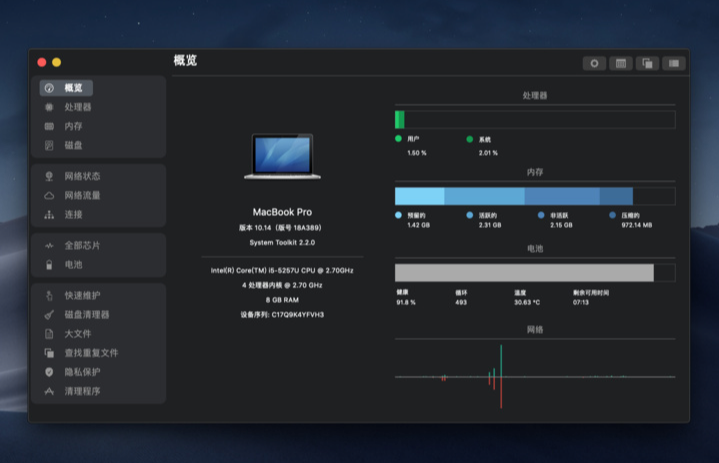
System Toolkit is an all-in-one information and maintenance application designed for MacOS。
System Toolkit provides system maintenance、Privacy protection、disk cleanup、Battery maintenance、Network status monitoring、Practical functions such as network traffic monitoring。
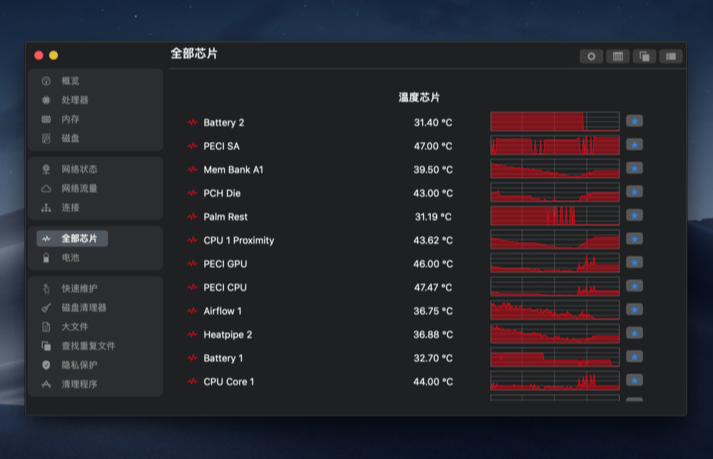
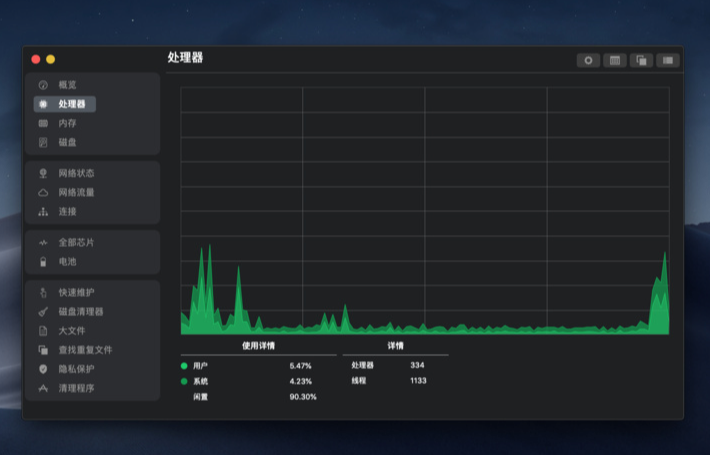
System Toolkit can retrieve the latest technical data at any time,For example, process load,CPU temperature,Main memory consumption,storage space,disk activity,Communication on network interfaces, etc.。The program continuously monitors your system,and be available when needed。
statement:All articles on this site,If there is no special instructions or markings,All are originally published by this site。any person or organization,Without the consent of this website,Reproduction prohibited、Misappropriate、collection、Publish content from this site to any website、Books and other media platforms。If the content on this site infringes upon the legitimate rights and interests of the original author,You can contact us for processing。
Can free downloads or VIP membership resources be used directly for commercial use?
The copyright of all resources on this site belongs to the original author,The resources provided here are for reference and study purposes only.,Please do not use it directly for commercial use。If copyright disputes arise due to commercial use,All responsibility lies with the user。For more instructions, please refer to VIP introduction。
It prompts that the download is complete but cannot be decompressed or opened?
The most common situation is an incomplete download: You can compare the capacity of the downloaded compressed package with the capacity on the network disk,If it is less than the capacity prompted by the network disk, this is the reason。This is a browser download bug,It is recommended to download using Baidu Netdisk software or Thunder。 If this situation is excluded,You can leave a message at the bottom of the corresponding resource,or contact us。
Can't find the sample image in the material resource introduction article?
For members only、Whole site source code、Program plug-in、website template、Web page templates and other types of materials,The pictures used for introduction in the article are usually not included in the corresponding downloadable material package.。These related commercial images need to be purchased separately,And this site is not responsible for(There is no way)find source。 The same is true for some font files,However, some materials will have a list of font download links in the material package.。
The download address cannot be displayed or the content cannot be viewed after payment?
If you have successfully paid but the website does not pop up a success prompt,Please contact the webmaster to provide payment information for you to process
After purchasing this resource,Can I get a refund?
Source code materials are virtual goods,replicable,Transmissibility,once granted,No refunds of any kind will be accepted、Exchange request。Please confirm before purchasing to obtain the resources you need.
Friends who are new to macOS or running the App after updating a certain system version will be prompted with the message [xxx is damaged],Can't open,You should move it to the Trash Solution]、【Cannot open xxx,Because it comes from an unidentified developer],【Cannot open xxxx,Because Apple can't check whether it contains malware] and other tips,Below I will teach you how to fix it。 Several common errors: xxx is damaged,Can't open,You should move it to the Trash Solution Can't open xxx,Can't open xxxx because it comes from an unidentified developer,Because Apple cannot check whether it contains malware, it will prompt a loading failure during installation! Why does it happen? This is a problem with new security mechanisms enabled in macOS。 By default, Apple only allows the installation of apps from its own [App Store].,If you want to install third-party applications,Then you need to go to [System Preferences -> Security & Privacy -> Select the [App Store and Recognized Developers] option in General。Approved developers need to purchase Apple’s enterprise certificate to sign their applications.,Then submit it to Apple for review,This is very unrealistic for cracking applications,Because cracking the application will definitely modify the application's files, causing the signature to become invalid and the running display will be "Corrupted"。In addition, some open source free applications have no income (it is too difficult for users to actively reward),Therefore, developers generally do not purchase certificate signatures.。 The solution is to enable the [Any Source] option.,However, macOS hides this setting by default.,The user needs to manually execute the command line code through the terminal to enable it.。 Let’s teach you how to use command line code to open any hidden source options.。 To open any source (primary) first open System Preferences -> Security & Privacy -> General tab,Check if the Any source option is enabled。 If this option is not available,Copy the following command:...
iMazing 3 is the ultimate iPhone management software trusted since 2008,Supports Mac and PC platforms,Provides fast transfer including、Seamless backup and recovery、A powerful set of features including efficient media and information management。Users can quickly transfer files from computers to iOS/iPadOS apps through drag-and-drop operations,Achieve faster speeds than file sharing or AirDrop,Also supports scheduled automatic backup,As well as store backups on any local storage device。 iMazing also specially optimizes the management of media files and information,Not only supports copying between music files in various formats,Quickly export and import photos,Save or share important conversations。For business users and legal professionals,iMazing provides services such as configuring and deploying Apple mobile devices、Automatically back up device data、Install and manage applications and other automated and scaled device management solutions。With its user-friendly interface、High security standards and comprehensive management capabilities,iMazing has won the trust and praise of millions of users around the world。 Use iMazing,Users can use simple drag-and-drop operations,Quickly transfer files from computer to iOS/iPadOS apps,Even faster than file sharing or AirDrop。It also allows users to automatically back up their devices on a scheduled basis,Connect via Wi-Fi or USB,Store backups on any local storage device,Includes external hard drives and NAS。 iMazing is also particularly good at managing media files and information.,Supports copying music files between any Apple device and computer,Supports all media types,Includes FLAC format;Quickly export and import photos,Save or share important conversations,Includes iMessage、SMS and WhatsApp messages。
Special reminder: 1、Be sure to completely uninstall the previous version before installation。 2、Do not open CrossOver after installation。 3、First run CrossOver crack in DMG to activate it.。 CrossOver Mac offers a treat for users familiar with Wine,Allows them to run programs made for Microsoft Windows without actually having to install the Windows operating system。This application contains software libraries optimized for Windows programs,in it,You can run e.g. Microsoft Word、Excel、Many common applications such as Quick and Windows Media Player,But you need to configure the program yourself to install any application。It creates a Windows runtime environment called a "bottle" for installed programs,Including their respective C drives、Subdirectories and registries。Since CrossOver Mac is not a true virtual environment,So you can run your application faster,But it cannot provide a real Windows experience,And software that is not supported by Wine may not be able to run or may run unstable.。 Features Support for a wide range of Windows applications CrossOver can run many commonly used Windows applications,Includes Microsoft Office、Photoshop、Steam etc.。And it doesn’t require a Windows operating system to be installed,Therefore, many tedious operations can be saved。 Automatically Set Up Applications CrossOver automatically sets up applications,Make it run correctly on macOS。It automatically installs required Windows components and libraries,to ensure the application runs smoothly。This eliminates the need for users to worry about whether the application will run correctly。 Fully supports macOS system CrossOver fully supports macOS system,Including the latest....
Firewall can effectively protect your Mac computer from unauthorized network access。Here are the steps to turn on and configure the firewall on your Mac computer。 step one:Open System Preferences 1. Click the Apple icon in the upper left corner of the screen,Select "System Preferences"。 Step 2:Go to Security & Privacy 2. In System Preferences,Click "Security & Privacy"。 Step 3:Unlock settings 3. Click the lock icon in the lower left corner,and enter the administrator password to unlock settings。 Step 4:Open the firewall 4. Select the "Firewall" tab,Click the "Turn on firewall" button。 Step 5:Configure the firewall 5. Click the "Firewall Options..." button,Make further configuration。You can choose to allow or block network connections for specific applications。 Step 6:Complete the settings 6. After the configuration is completed,Click "OK" to save settings。 Summary Through the above steps,You can easily turn on and configure your Mac computer’s firewall,Enhance system security。
If your Mac system has been upgraded to macOS Mojave,You may encounter such a situation:Although the "system language" is Chinese,But the user login interface is in English。So,How to change the Mac login interface to Chinese? Two methods are introduced below。 Method one:Change language via System Preferences 1. Open System Preferences,Select "Language & Region"。 2.Drag English to the top of the preferred languages list,Then drag Simplified Chinese to the top。 3.Just restart your computer。 If there is no English option in the list,Please follow the steps below: 1.Click the "+" sign in the lower left corner,Select English and click Add。 2.Click "Use English",Then drag Simplified Chinese to the top。 3.Just restart your computer。 Method two:Change language via terminal 1. Open Launchpad,Go to the "Utilities" folder,Open terminal。 2. Enter command:sudo languagesetup,Then press Return。 3.Enter the current administrator account password (characters will not be displayed when entering),Press Return。 4.After displaying the list of available languages,Enter the number before the language you want to use,Then press Return。For example,To use Simplified Chinese,enter 4,Then press enter。 5.Close terminal,Restart your computer。 Through the above two methods,You can easily change your Mac login screen from English to Chinese。Hope this tutorial helps you!
Many friends don’t know much about how to import presets in Lightroom.。Today, the editor brings you a detailed tutorial on batch importing Lightroom presets.,Let’s learn together! step one:Preparation first,Make sure you have the preset folder or preset file ready to import。 Method one:Import presets via the Import function Open Lightroom Import an image into Lightroom,Click the Import button。 Edit Photo Click "Edit Photo"。 Import presets Click the "+" button on the left panel,Select "Import Preset"。 Browse and select the preset file to install,Click "Import"。 Done The newly installed Lightroom presets can be found under "User Presets",Click on a preset to apply the effect。 Method two:Import presets via Preferences Open Lightroom Select "Preferences" in Lightroom。 Select a preset in the Preferences dialog,Select the "Presets" tab。 Open the Lightroom Presets folder and click "Show Lightroom Presets Folder"。 Import preset files Find and open the "Develop presets" folder。 Drag and drop the preset folder. Drag and drop the preset folder to be imported directly into the "Develop presets" folder.。 Complete After the import is successful,You can find your newly imported Lightroom presets in the left panel,Click on the preset to use it。 Through the above two methods,You can easily import presets into Lightroom,Improve photo editing efficiency and quality。Hope this tutorial can help you!
Combo Cleaner is a system cleaning and anti-virus software on the Mac platform,Can be used to help your Mac clean up junk files on the disk、Malware and virus detection,It is a very simple and easy-to-use disk cleaning tool。 Combo Cleaner Premium is an easy-to-use antivirus and malware removal tool。Our anti-malware engine is certified by OPSWAT Labs。Includes adware and potentially unwanted applications,Thus leading to unwanted advertisements while browsing the Internet。 Features of Combo Cleaner: Equipped with award-winning viruses certified by OPSWAT,Malware and adware scanning engine。Hourly malware definition updates,Your Mac will be protected from the latest security threats。 Duplicate files are identical copies stored in various locations on your hard drive。Combo Cleaner will find and delete these files that waste valuable disk space。 disk cleaner,Your Mac is free of junk and outdated files,May accumulate megabytes of wasted disk space。 Large file searcher checks your local and external disks,Instantly list all files and folders larger than 100 megabytes (or any other user-defined size)。 When you delete an app from your Mac,Many useless and redundant files are often retained in the system。 Combo Cleaner will find these files and delete them。 Scan installed browsers,And allows you to easily delete browsing history BitMedic AntiVirus Security,Cookies etc.。Take privacy into your own hands。
iA Writer 7.1.4 is a minimalist text editor designed for content creators,The following is a detailed introduction to it: one、Software Features Minimalist Design: iA Writer 7.1.4 abandons cumbersome interface elements,Let text take center stage,Help users immerse themselves in a pure creative world。 No layers of menus and complicated settings,Everything is most intuitive、Presented in the most concise way。 Markdown format support: Full support for Markdown format,Make document structure clear at a glance,Write more clearly and fluently。 Users can easily embed links in plain text、picture、Tables and text files,And check the display effect through preview。 Smart syntax highlighting and auto-completion: Provides intelligent syntax highlighting,Help users quickly identify grammatical errors。 Autocomplete function can speed up the user's creative process,Improve writing efficiency。 two、Core Features Focus Mode: iA Writer 7.1.4 offers unique focus mode,This mode hides all interface elements that may interfere with writing.,Leave only a blank piece of paper and a keyboard,Let users focus more on writing。 in focus mode,Everything outside the current sentence or paragraph fades from the user's view,Helps users stay focused and continue output。 Cloud sync: Supports seamless Dropbox and Google Drive sync functionality,Ensure that users’ documents are always with them safely and securely。 This is undoubtedly a huge boon for users who often need to process large amounts of documents.。 Document library management: Provides integrated document library management capabilities,Users can easily access all texts by swiping right,No need to switch back and forth between folders。 This makes it easier for users to manage and organize their documents。 Export options: Supports exporting documents to HTML、Multiple formats including Microsoft Word (.docx) and PDF,Meet the different needs of users。 Users can also create custom templates for previewing、Print and PDF export。 three、Other features Night mode: Provides night mode with inverted color matching,Convenient for users to write at night。 syntax control: Help users improve their writing through in-depth analysis of the grammatical structure of text。It can find adjective redundancy、verb weakening、Issues such as noun repetition and misuse of connectives,Make users’ text cleaner and neater。 Real-time statistics: Provides reading time statistics and sentences、Word and character count statistics and other functions,Help users better understand writing progress and content quality。 Four、System requirements and updates...
Many Mac users may not know,Mac computers have a hidden screen-rotating feature。by rotating the screen 90 degree,You can read e-books or movies while lying down。So,How to rotate the screen on a Mac computer? Let me share with you the specific method below,Let’s take a look together。 1. Open System Preferences •Click on the Apple icon in the upper left corner,Choose to enter System Preferences。 2. Go to monitor settings •In System Preferences,Click on the "Display" option。 3. Select the rotation angle •In the monitor settings interface,Find the "Rotate" option。There are three rotation angles to choose from in the drop-down menu:90 degree、180 degree and 270 degree。After selecting the desired rotation angle,Exit settings to complete。 Notes •If you don’t see the “Rotate” option in your monitor settings,It may be that your computer does not support the screen rotation function。 Go through the above steps,You can easily rotate your Mac screen,Bring more convenience to your use。
Passwords saved in Safari can help you log into websites easily,without having to enter your credentials every time。sometimes,You may want to check、Edit or delete Safari saved passwords。Here are the steps on how to view Safari saved passwords on Mac: View Safari saved passwords 1. Open the Safari browser Launch the Safari browser,Then click on the "Safari" menu in the upper left corner of the screen,Select "Preferences"。 2. Access password settings in the pop-up "Preferences" window,Click on the "Password" option。 3. Enter your computer password. You will be asked to enter your Mac’s administrator password.,to verify your identity。After entering the password,Click "OK"。 4. View saved passwords after successful login,You will see a list of saved passwords。Click on any website entry,You can view the corresponding password。 5.Delete Password If you want to delete a saved password,Select this password entry,Then click the "Remove" button in the lower right corner。 6. Add new password To add a new password entry,Click the "Add" button in the lower right corner,Enter relevant information and save。 Go through the above steps,You can easily view、Remove or add Safari saved passwords。
Little Snitch is an old and excellent application firewall software on the Mac platform.,Little Snitch cracked version can control network connection access permissions of all applications/single applications on macOS,Alert you in real time about outbound network connections。 App Introduction Little Snitch allows you to intercept these unwanted connection attempts,and let you decide how to proceed。it can notify you,When a program attempts to establish an outgoing Internet connection。Then,You can choose to allow or deny this,Or define a rule how to handle something like,Future connection attempts。This reliably prevents private data from being sent to you without your knowledge。The inconspicuous Little Snitch runs in the background,It can also detect network viruses,Trojan and other malware-related activity。 Alert mode whenever an application attempts to connect to a server on the network,Little Snitch will display a connection alert,Allows you to decide whether to allow or deny the connection。 No data is transferred without your consent。 Your decision will be remembered and applied automatically in the future。 Silent Mode If you are new to Little Snitch,You may be inundated with notifications from apps that want to connect to the internet。Brand new silent mode built from the ground up,to make handling them a breeze。It lets you silence all notifications for a certain period of time,and make all decisions conveniently at a later time。
MacCleaner Pro is a professional Mac cleaning tool suite software,Keep your Mac fast、clean and orderly,Helps you see what's taking up the most space on your Mac,Unnecessary files found,and reclaim hard drive space。It can clean junk files in one click、Optimize RAM、Manage extensions and fix issues,Make your Mac run faster。MacCleaner Pro is packed with features,For example cleaning invalid RAM memory、Disable startup programs、Reindex Spotlight and Mail、Remove unnecessary plugins and extensions、Close memory-intensive apps、clear cache、Delete installation files and unnecessary localization files, etc.。also,MacCleaner Pro also offers several additional tools,Such as App Cleaner & Uninstaller、Duplicate File Finder和Disk Space Analyzer,Help you perform deep cleaning。MacCleaner Pro user feedback is positive,Recommended by many users。


Comments (2)
A really good blog and me back again.
每天都在战争,希望2026和平.