
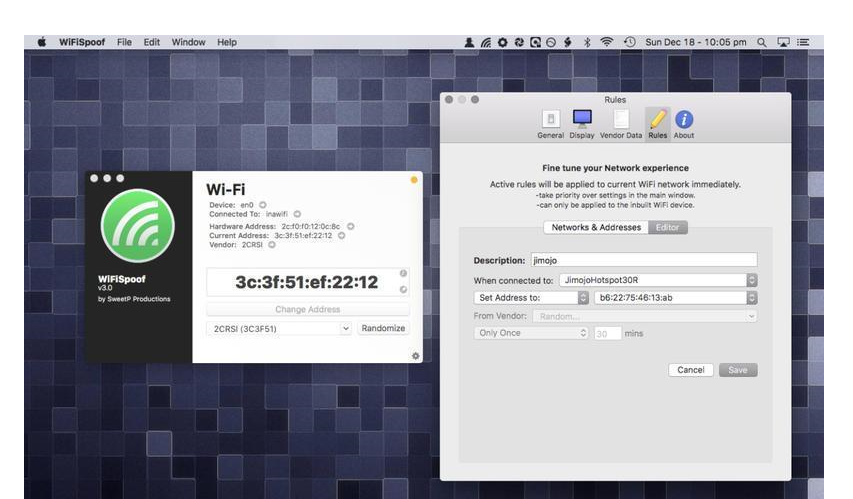
WiFiSpoof is a wifi address modifier for Mac systems,Users only need to install WiFiSpoof for mac,Click to open and you can modify the Mac address intuitively,Very easy to operate。
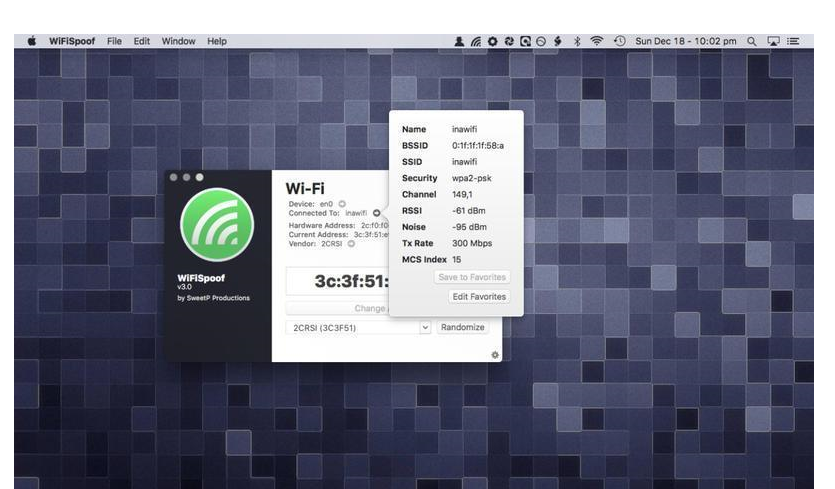
MAC Address Modifier is a compact tool,In daily network applications,Due to various reasons, the mac address of the computer sometimes needs to be modified.,If the network card address is blocked, etc.,Need to change to a new mac address。
Using this software allows you to skip the trouble of "how to modify the mac address"。Easily enter new MAC address、One-click setting。And supports one-click restoration of the original hardware MAC address,Simple and clear operation。
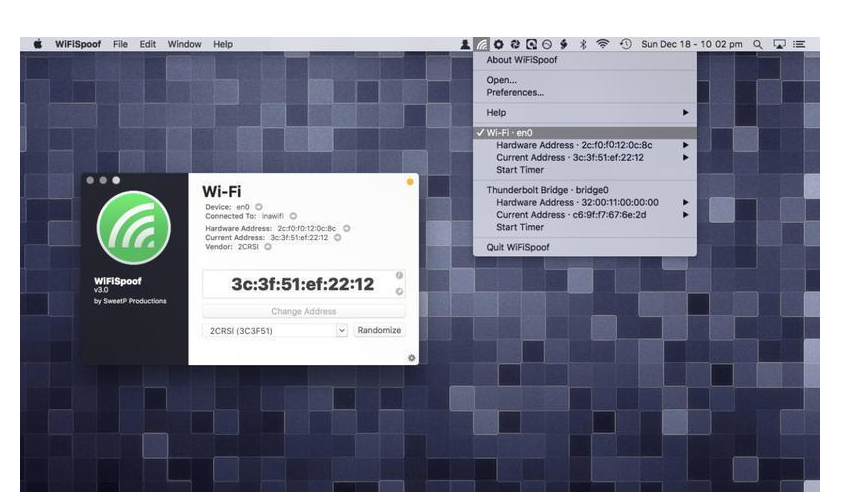
Installation activation method
3.x.x
Direct installation
2.x.x
Will WiFiSpoof.app Drag to application directory
Open WiFiSpoof 2.x [SP].app,choose /Applications/WiFiSpoof.app,activation
statement:All articles on this site,If there is no special instructions or markings,All are originally published by this site。any person or organization,Without the consent of this website,Reproduction prohibited、Misappropriate、collection、Publish content from this site to any website、Books and other media platforms。If the content on this site infringes upon the legitimate rights and interests of the original author,You can contact us for processing。
Can free downloads or VIP membership resources be used directly for commercial use?
The copyright of all resources on this site belongs to the original author,The resources provided here are for reference and study purposes only.,Please do not use it directly for commercial use。If copyright disputes arise due to commercial use,All responsibility lies with the user。For more instructions, please refer to VIP introduction。
It prompts that the download is complete but cannot be decompressed or opened?
The most common situation is an incomplete download: You can compare the capacity of the downloaded compressed package with the capacity on the network disk,If it is less than the capacity prompted by the network disk, this is the reason。This is a browser download bug,It is recommended to download using Baidu Netdisk software or Thunder。 If this situation is excluded,You can leave a message at the bottom of the corresponding resource,or contact us。
Can't find the sample image in the material resource introduction article?
For members only、Whole site source code、Program plug-in、website template、Web page templates and other types of materials,The pictures used for introduction in the article are usually not included in the corresponding downloadable material package.。These related commercial images need to be purchased separately,And this site is not responsible for(There is no way)find source。 The same is true for some font files,However, some materials will have a list of font download links in the material package.。
The download address cannot be displayed or the content cannot be viewed after payment?
If you have successfully paid but the website does not pop up a success prompt,Please contact the webmaster to provide payment information for you to process
After purchasing this resource,Can I get a refund?
Source code materials are virtual goods,replicable,Transmissibility,once granted,No refunds of any kind will be accepted、Exchange request。Please confirm before purchasing to obtain the resources you need.
Comments (0)
Note: Please be respectful and civil in your comments Cancel reply
Alfred is an app called a Mac productivity tool,With Alfred, you can perform various operations without even using a mouse.,Its UI interface is easy to use,And it is not achieved through commands,It is an artifact for developers and keyboard hackers.,Compared with the previous similar software - Pack and Power, it is completely a flash sale.。 This is the most basic,After option+space is activated,Enter keywords to start searching,By default, it will match installed applications,I also set up Search Safari bookmarks。If cannot match,Then there will be options such as searching google,Directly trigger opening of browser to search engine。 Different from Spotlight’s direct search of various types,Alfred needs to type an extra space or single quote to instruct it to search for file names.。In actual use,I think this is more convenient and faster,Alfred gets results almost instantly,While spotlight quickly feeds back the results,,There is a gradual increase process。As far as the actual search effect of files is concerned,,alfred's fuzzy search for file names is OK,But it’s not as powerful as Devonthink, which kills even the contents of files.。certainly,DT's strength is also the result after you index it.,Everyone has their own expertise。Spotlight feels centered,Support file content search,But still not as thorough as DT。By the way,DT is on sale these days,You can see it here。 I guess there are many so-called geeks in the keyboard stream.,So alfred supports a direct ">"back,Open the terminal and execute the command line。 Alfred also thoughtfully supports the integration with 1password。 Installation activation method Other Install V3.x directly Use CORE Keygen.app or keygen.app to activate V2.x Drag Alfred.app to the /Applications folder Open Alfred 2 2.x [SP].app,Select /Applications/Alfred.app to activate successfully。
MacCleaner Pro is a professional Mac cleaning tool suite software,Keep your Mac fast、clean and orderly,Helps you see what's taking up the most space on your Mac,Unnecessary files found,and reclaim hard drive space。It can clean junk files in one click、Optimize RAM、Manage extensions and fix issues,Make your Mac run faster。MacCleaner Pro is packed with features,For example cleaning invalid RAM memory、Disable startup programs、Reindex Spotlight and Mail、Remove unnecessary plugins and extensions、Close memory-intensive apps、clear cache、Delete installation files and unnecessary localization files, etc.。also,MacCleaner Pro also offers several additional tools,Such as App Cleaner & Uninstaller、Duplicate File Finder和Disk Space Analyzer,Help you perform deep cleaning。MacCleaner Pro user feedback is positive,Recommended by many users。
Friends who are new to macOS or running the App after updating a certain system version will be prompted with the message [xxx is damaged],Can't open,You should move it to the Trash Solution]、【Cannot open xxx,Because it comes from an unidentified developer],【Cannot open xxxx,Because Apple can't check whether it contains malware] and other tips,Below I will teach you how to fix it。 Several common errors: xxx is damaged,Can't open,You should move it to the Trash Solution Can't open xxx,Can't open xxxx because it comes from an unidentified developer,Because Apple cannot check whether it contains malware, it will prompt a loading failure during installation! Why does it happen? This is a problem with new security mechanisms enabled in macOS。 By default, Apple only allows the installation of apps from its own [App Store].,If you want to install third-party applications,Then you need to go to [System Preferences -> Security & Privacy -> Select the [App Store and Recognized Developers] option in General。Approved developers need to purchase Apple’s enterprise certificate to sign their applications.,Then submit it to Apple for review,This is very unrealistic for cracking applications,Because cracking the application will definitely modify the application's files, causing the signature to become invalid and the running display will be "Corrupted"。In addition, some open source free applications have no income (it is too difficult for users to actively reward),Therefore, developers generally do not purchase certificate signatures.。 The solution is to enable the [Any Source] option.,However, macOS hides this setting by default.,The user needs to manually execute the command line code through the terminal to enable it.。 Let’s teach you how to use command line code to open any hidden source options.。 To open any source (primary) first open System Preferences -> Security & Privacy -> General tab,Check if the Any source option is enabled。 If this option is not available,Copy the following command:...
SuperDuper is a data recovery and backup tool on the Mac OS X platform,It can help you recover accidentally deleted files on your computer,Even restore data you lost after formatting。 SuperDuper! Ability to back up system partition or single/multiple files under Mac OS X system,Partition files backed up by it can be started directly by booting。 Take advantage of SuperDuper! The advantage of a backup system is that it only copies the files in the system partition rather than copying the free space along with it.,This is just compared to the backup of ghost,Dramatically reduces backup file size。 If you want to transfer your Mac data from one computer to another or just make a simple backup,SuperDuper can come in handy。It can directly copy or "clone" files,Provide data recovery,Even if the operation is wrong,You can also get back to work immediately。It can also help recover accidentally deleted files,Even data lost after formatting can be retrieved with help~~ Activation method Use CORE Keygen.app or CRACK.app or SN.txt to activate
MacBook battery usage guide and battery health check method MacBook is loved by users for its excellent performance and convenient portability。To extend battery life and ensure optimal performance of your device,It is important to use batteries correctly and check battery health regularly。Let’s take a look at how to use the MacBook battery and how to check the health of the battery。 one、MacBook Battery Instructions 1. Avoid complete discharge •Avoid frequently draining the battery to 0%,Try to start charging when the battery is low。 2. Maintain the right temperature •Use your MacBook at room temperature,Avoid extreme temperatures,Especially in high temperature environments,Will adversely affect the battery。 3. Calibrate the battery regularly •Calibrate the battery at least once a month,That is, after it is fully charged, the battery will be used up until it shuts down.,Then fully charge。This helps maintain battery accuracy。 4. Use battery saver mode moderately •When battery power is low,Enable battery saver mode to extend battery life。 5. Try to use original chargers •Use original or Apple-certified chargers,Ensure charging safety and battery life。 two、How to check MacBook battery health 1. Check through System Information • Click the Apple logo in the upper left corner of the screen,Select "About This Mac"。 •In the pop-up window,Click "System Report"。 •In system reports,Find and click the "Power" option on the left。Battery details will be displayed here,Includes battery cycle count and battery health status。 2. Check via the battery status menu •Hold the "Option" key,Simultaneously tap the battery icon in the upper right corner of the screen。 •In the pop-up menu,You can see the battery status。If it says "normal",Indicates that the battery is in good health;If "Replace battery" is displayed,It means you need to consider replacing the battery。 3. Use third-party software •Some third-party software can also be used,Such as CoconutBattery,to learn more about battery health status。These software can often provide more battery information,Such as battery capacity、Temperature etc.。 three、Tips to extend battery life 1. Avoid using it plugged in for long periods of time •Using it plugged in for a long time may put stress on the battery,It is recommended to use battery power when appropriate。 2. Close unnecessary background apps •Close apps and services you don’t use,Can reduce battery consumption。 3. Lower the screen brightness •Adjust the screen brightness appropriately,Helps extend battery life。 Through the above methods and suggestions,You can better manage and maintain your MacBook battery,Keep your equipment in top condition。
Adobe Photoshop 2020 is Adobe in 2019 Important releases at the end of the year,Marks Photoshop’s official farewell to the “CC” naming system,Comprehensive shift to modern workflows based on artificial intelligence (AI) and cloud services。This version is available in image selector、Editing efficiency、Cross-platform collaboration and user interface have been significantly improved.。 one、AI-driven intelligent image processing One-click subject selection (Subject Selection) Automatically identify and select people in photos through AI、animal or subject,Supports fine edges (such as hair),Complete cutout with one click 。 Content-Aware Fill Enhancement You can fill different areas multiple times in the "Content-Aware Fill" workspace,No need to open tools again 。 Support sampling pixels from all visible layers,Improve filling naturalness 。 Automatic coloring and restoration can automatically colorize old black and white photos,Powered by Adobe Sensei AI 。 Delete unwanted objects (such as wires) with one click、pedestrian),And intelligently fill the background 。 Skin Smoothing provides AI-driven beauty features,Automatically recognizes faces and smoothes skin,Support slider to adjust intensity 。 two、Selection and Masking Tool Optimization Object Selection Tool (Object Selection...
iMazing 3 is the ultimate iPhone management software trusted since 2008,Supports Mac and PC platforms,Provides fast transfer including、Seamless backup and recovery、A powerful set of features including efficient media and information management。Users can quickly transfer files from computers to iOS/iPadOS apps through drag-and-drop operations,Achieve faster speeds than file sharing or AirDrop,Also supports scheduled automatic backup,As well as store backups on any local storage device。 iMazing also specially optimizes the management of media files and information,Not only supports copying between music files in various formats,Quickly export and import photos,Save or share important conversations。For business users and legal professionals,iMazing provides services such as configuring and deploying Apple mobile devices、Automatically back up device data、Install and manage applications and other automated and scaled device management solutions。With its user-friendly interface、High security standards and comprehensive management capabilities,iMazing has won the trust and praise of millions of users around the world。 Use iMazing,Users can use simple drag-and-drop operations,Quickly transfer files from computer to iOS/iPadOS apps,Even faster than file sharing or AirDrop。It also allows users to automatically back up their devices on a scheduled basis,Connect via Wi-Fi or USB,Store backups on any local storage device,Includes external hard drives and NAS。 iMazing is also particularly good at managing media files and information.,Supports copying music files between any Apple device and computer,Supports all media types,Includes FLAC format;Quickly export and import photos,Save or share important conversations,Includes iMessage、SMS and WhatsApp messages。
1. Quickly hide and show the Dock using the shortcut Command + Option + D,Easily hide or show the application icon bar below the desktop。 2. Invert screen colors using shortcut Command + Option + Control + 8,Switch the screen's color for a better nighttime experience or to accommodate visually impaired users。 3. Quickly view and manage running applications Command-click Tab,Ability to quickly scroll through currently running applications。at the same time,Use Command + Q Quickly exit the current application,Use Command + H Minimize application window。 4. To display the Apple logo, hold down Option in any application + Shift + K,You can type Apple Logo characters。 5. Quickly manage the Trash using Command...
on Mac,Safari’s caching feature speeds up web page loading,But sometimes you may need to clear these caches to resolve browsing issues or free up storage space。Here are the steps to clear Safari browser cache: How to clear Safari cache 1. Open the Safari browser Launch the Safari browser。 2. Access Preferences in the upper left corner of the screen,Click on the "Safari" menu,Then select "Preferences"。 3. Go to Privacy settings in the Preferences window,Click the "Privacy" tab at the top。 4. Manage website data in the Privacy tab,Click "Manage website data"。 5.Clear cache in the pop-up window,Click the "Remove All" button,to clear all cached data in Safari。 After completing the above steps,Safari cache data will be cleared,This may help resolve loading issues or free up storage space。
You can use keyboard shortcuts in Sketch to speed up your design process。To use keyboard shortcuts,Please press all the keys in the following list at the same time。Some commands are only enabled based on what you are doing or what you selected,All the commands are divided into the following different parts。 Commonly used shortcuts ⌘ C copy ⌘ + Zoom in ⌘ – Zoom out ⌃ R Show/hide rulers ⌃ P Show/hide pixels...
Excel 2019 for Mac is a powerful spreadsheet software,Mastering these keyboard shortcuts can significantly improve your work efficiency: 1. F2 / Control + U: Enter the cell editing state (touch bar Mac needs to adjust the fn function commonly used) 2. Command + C: Copy selected content 3. Command + V: Paste copied content 4. Command + X: Cut selected content 5. Command + Z: Undo the previous action 6. Command + A: Select all content in the current worksheet 7. Shift + click: Continuously select data within a range 8. Command + click: Radio select the cell clicked 9. Command...
Disk Drill is one of the few data recovery software available on Mac OS X,Support NTFS, HFS+, FAT32 and other modes,Supports hard drives and USB disks,Provides deep scan and quick scan capabilities。 Disk Drill is one of the few data recovery software available on Mac OS X,Specially designed to rescue files accidentally deleted by hand。 DiskDrill is quite powerful:Support NTFS, HFS+, FAT32 and other modes,Supports hard drives and USB disks,Provides deep scan and quick scan capabilities。A simple boot tutorial is provided when the software is started for the first time.。 A killer feature is,DiskDrill provides Recovery Vault function,Improved data protection features for HFS/HFS+ and FAT32,Improve your chances of recovering your files Tips: No data recovery software can ensure 100%...
Comments (0)

