

Screen Studio is a screen recording software for macOS,Helps you create high-quality videos easily。
Screen Studio has various built-in templates and effects,Make your videos more engaging,No manual editing required。Key features include auto-scaling、Vertical export mode、Manual scaling、Easy to edit、Professional appearance and more。You can also customize your video style and add branding elements。
Recording,Screen Studio can record your computer screen or a connected device,and supports adding cameras、Microphone and system audio。
The software also provides simple editing functions,Convenient for you to cut、Cut or speed up a recording clip。

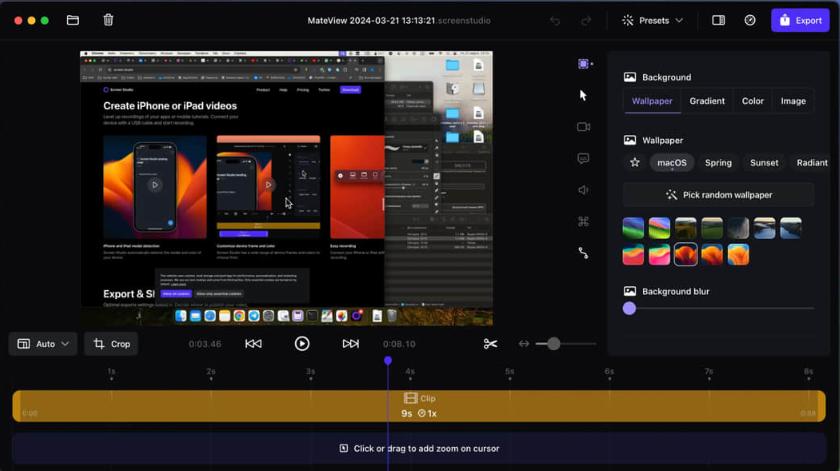
Screen Studio makes your mouse movements smoother,Automatically enlarge the clicked area,Apply a cinematic motion blur effect to all animations,and add a beautiful background around your recording。Turn your recording into a high-quality promotional video in just one minute。

feature
High quality video - no editing skills required
In Screen Studio,Everything you have to do in video software is done automatically。
Smooth cursor movement
All jitter of the mouse cursor is eliminated,Instantly delivers studio-level quality。
Zoom and follow mouse clicks
Select the mouse movement part of the video you want to focus on,Screen Studio will create all animations。
Cinematic motion blur
Every moving part in the animation will have motion blur applied,Make videos feel smoother,Higher perceived frame rate。
wallpaper and window frames
Background padding can add width to your video。When posting to social media,Video will feel less busy and noisy。
Change layout and cursor。
Record the iPhone Simulator on your Mac and crop it - all animations will be automatically adjusted。Change cursor,Your mobile app demo is ready。
Selfie camera support
Screen Studio will automatically animate the position and size of your webcam video。For example,when zooming,It moves slightly away to avoid covering the mouse pointer。
The downloaded compressed package contains DMG files suitable for both ARM and INTEL platforms.。请
下载压缩包后解压根据自己Mac系统选择对应DMG安装。
Detailed instructions for installing Screen Studio 3.6.0
1.Download ready installation package
➡️ Installation package download:First download the Screen_Studio_v3.6.0-4214_macOS.dmg file to your Mac,Usually found in the "Downloads" folder。
➡️ Make sure the file is not damaged,The sizes are almost right (don’t let the lower half break)。
➡️ Double-click to open the DMG file above,The following window appears,Click the Screen Studio v3.6.0-4214 macOS button on the left to enter the Screen Studio v3.6.0-4214 macOS folder,There are several DMG files in it,Note that if your MAC computer uses an M series chip,Please select Screen Studio v3.6.0-4214 Apple Silicon.dmg file;If your computer uses an Intel chip,Please select Screen Studio v3.6.0-4214 Intel.dmg file。
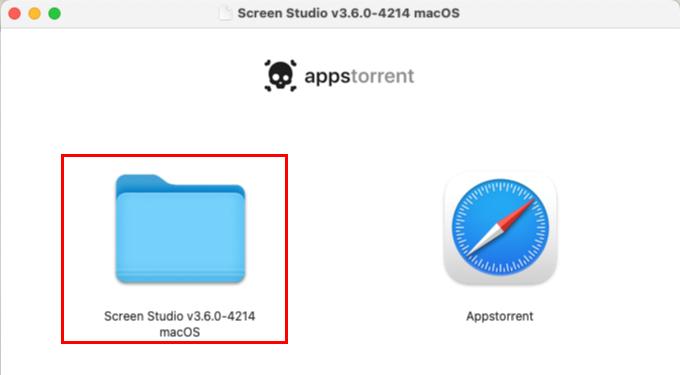
2.Start installation
➡️ Double-click to open the .dmg file,Find your Screen Studio v3.6.0-4214 Apple Silicon.dmg file or Screen Studio v3.6.0-4214 Intel.dmg file,double click on it,A window will pop up,There is usually a Screen Studio icon and an "Applications" folder icon.。
➡️ Drag the Screen Studio icon into Applications,Put the Screen Studio on the left icon (or other icon that displays Screen Studio),Use mouse directlyDrag and drop to the “Applications” folder icon on the right,Just like putting a file into a folder。👉 This step is equivalent to installing the software into your computer。
(If a pop-up prompt says "Unable to verify developer",Don't panic,Continue reading below)
➡️ Handling "Cannot verify developer" prompt (common situation)macOS may pop up a window saying that this app is not from the App Store,not safe,Asking if you want to open it。You can do this:
FirstHold down the Control key,Then click on that Screen Studio icon,Select"Open";
Or go[System Settings]→[Privacy and Security]→[Security]There,You will see a prompt saying that an app is blocked,Click"Still open" That’s OK。
➡️ Wait for copy to complete,After dragging it over,The system will automatically copy the software to your application folder,Just wait until the progress bar runs out or the prompt is complete.。
3.Screen Studio 3.6.0 does not require activation,Use it directly after installation。
Most of the download resources on this site are collected from the Internet,Only for learning and communication purposes,Copyright belongs to the original author。If you need to use non-free software or services,Please purchase genuine licenses and use them legally。If the content published on this site infringes upon your rights,Please contact the webmaster to delete,We will handle it promptly。
If the download address is invalid,You can leave me a message,The editor saw the news,Will update the link as soon as possible! Thanks!


