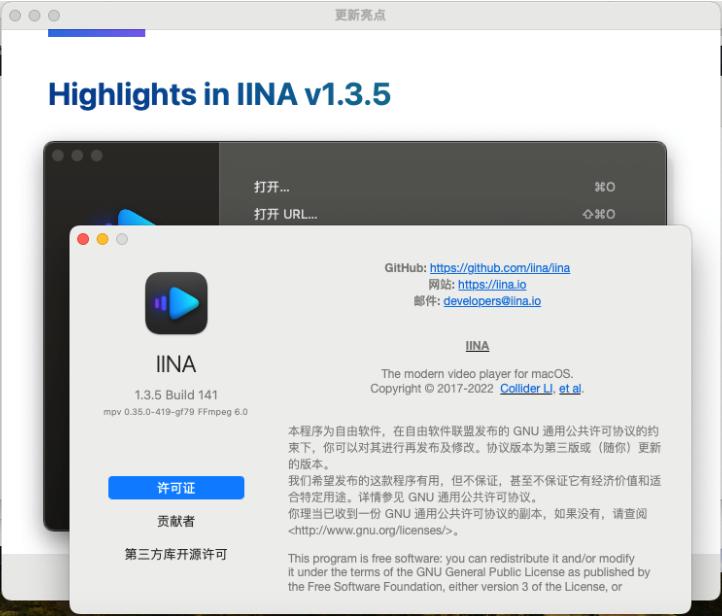
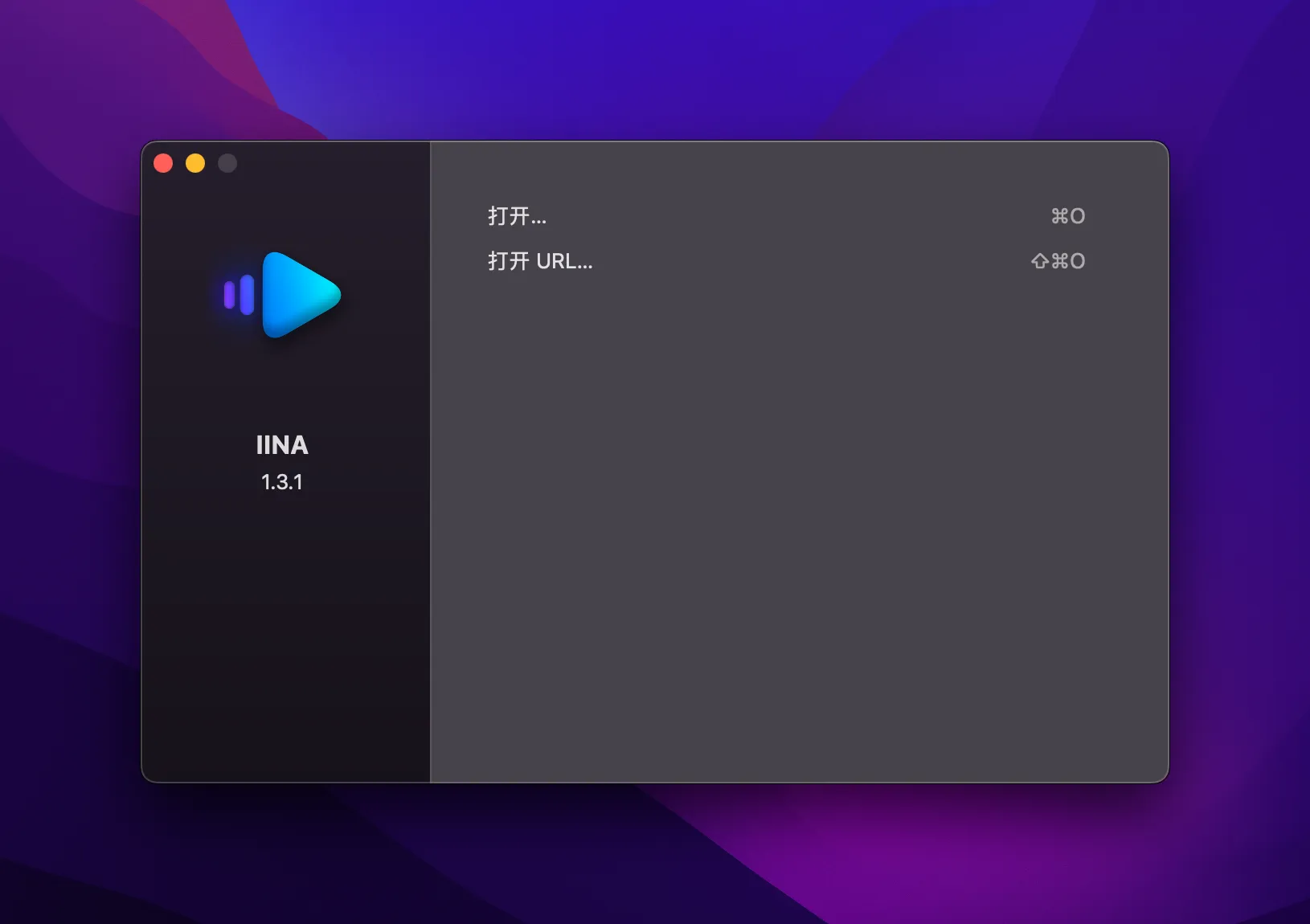
IINA is an online mac video player with modern design and streamlined features,Can watch video,Manage playlists,Process media content or load subtitles for movies and more。IINA mac can load local files or provide video URLs,IINA mac can use all popular media formats。And you can quickly change the interface theme,Adjust default behavior and user interface,Decide whether to load subtitles automatically,Configure new keybindings, etc.。This is a Github open source application,Thanks to the developers for their hard work。
statement:All articles on this site,If there is no special instructions or markings,All are originally published by this site。any person or organization,Without the consent of this website,Reproduction prohibited、Misappropriate、collection、Publish content from this site to any website、Books and other media platforms。If the content on this site infringes upon the legitimate rights and interests of the original author,You can contact us for processing。
Can free downloads or VIP membership resources be used directly for commercial use?
The copyright of all resources on this site belongs to the original author,The resources provided here are for reference and study purposes only.,Please do not use it directly for commercial use。If copyright disputes arise due to commercial use,All responsibility lies with the user。For more instructions, please refer to VIP introduction。
It prompts that the download is complete but cannot be decompressed or opened?
The most common situation is an incomplete download: You can compare the capacity of the downloaded compressed package with the capacity on the network disk,If it is less than the capacity prompted by the network disk, this is the reason。This is a browser download bug,It is recommended to download using Baidu Netdisk software or Thunder。 If this situation is excluded,You can leave a message at the bottom of the corresponding resource,or contact us。
Can't find the sample image in the material resource introduction article?
For members only、Whole site source code、Program plug-in、website template、Web page templates and other types of materials,The pictures used for introduction in the article are usually not included in the corresponding downloadable material package.。These related commercial images need to be purchased separately,And this site is not responsible for(There is no way)find source。 The same is true for some font files,However, some materials will have a list of font download links in the material package.。
The download address cannot be displayed or the content cannot be viewed after payment?
If you have successfully paid but the website does not pop up a success prompt,Please contact the webmaster to provide payment information for you to process
After purchasing this resource,Can I get a refund?
Source code materials are virtual goods,replicable,Transmissibility,once granted,No refunds of any kind will be accepted、Exchange request。Please confirm before purchasing to obtain the resources you need.
Comments (0)
Note: Please be respectful and civil in your comments Cancel reply
Logic Pro for Mac is a powerful, full-featured music app,Comes with all the tools you need to create professional-quality music。you can record、Arrange and edit audio and MIDI regions,Add high-quality effects,Mix music into stereo or surround sound,The final mix is then exported to various formats for distribution。 You can create many different types of projects using Logic Pro,Suitable for everything from simple music to complex ensemble arrangements。Logic Pro for Mac gives you the flexibility to customize the app to fit the way you work。 Functions that Logic Pro can implement include: Record vocals、Instruments or any sound that can be captured by a microphone,Includes recorded footage and composition。 Use a USB keyboard or other MIDI controller,Play and record software instruments included with Logic Pro for Mac。You can also play and record third-party audio unit software instruments。 Add virtual drummer to project,to create detailed、Realistic virtual drum performance,and according to genre、Dynamically adjust project content and other parameters。 Add Apple Loops and other media files to your project。 Arrange regions containing musical material in the Tracks area。You can also define parts of your project and use arrangement markers to quickly rearrange them。 Use a set of editors optimized for different tasks and clip types,Edit audio and MIDI regions。 Edit audio clip、single note、Timing and pitch of chords and sounds。 Mix your project in the mixer,where you can view and edit channel strip controls,Custom sending options,and add and edit plugins。 Using Holistic Recovery Mix Automation,make mix、Effect and plug-in settings change automatically over time。You can record automation changes in real time,and edit them later。 Controls include speed、Transposition and global settings including time signature and key signature to adjust the entire project。Use markers to define and quickly move to different parts of your project。 View MIDI regions in your project as scores,Add and edit notes and other musical symbols,and print the finished score as well as individual parts。
In Mac system,You can easily unzip ZIP files,But for other compression formats such as RAR,The system cannot decompress directly by default。Here's how to unzip RAR on Mac、Methods for files in various formats such as ZIP: Decompress files such as RAR and ZIP Method 1:Using "The Unarchiver" software 1. Download and install "The Unarchiver" Open the App Store,Type "The Unarchiver" into the search box,Click "Get" and install the software。(if already installed,button says "Open") 2. Open The Unarchiver after installation is complete,You can find The Unarchiver icon in the Dock。Click to open the software。 3. Set up file associations after starting The Unarchiver,You can view supported compressed file formats in the app。You can also set The Unarchiver as the default decompression tool。 4.Unzip the file Find the RAR or ZIP file that needs to be unzipped,Right click on the file,Select "Open with",Then select "The Unarchiver"。The software will automatically start decompression。 5. View decompression results After decompression is complete,You can find the extracted files in the same location as the file。The contents of the folder will be displayed where the original file is located。 Method two:Through other decompression tools except The Unarchiver,You can also use other third-party decompression tools,Such as Keka or WinZip for Mac。These tools also support multiple compression formats,And the operation method is similar: 1. Download and install the required tools. Download and install the required decompression tools from the App Store or official website.。 2. Unzip the file using the tool Launch the tool,Usually you just drag and drop the compressed file into the tool window,Or right-click the file and select the appropriate tool to decompress it。 Through the above methods,You can easily unzip RAR on Mac、ZIP and other compressed files,Manage files conveniently and efficiently。
Many users who are new to macOS may find that their operating habits are different from those they used to do with Windows.。Understand and become proficient in using the following commonly used macOS keyboard shortcuts,Can help you improve work efficiency: cut、Copy and paste •Command-X:Cut selected items and copy to clipboard。 •Command-C:Copy selected items to clipboard。 •Command-V:Paste the contents of the clipboard into the current document or application。 •Command-Z:Undo the previous command,Can be redone using Shift-Command-Z。 •Command-A:Select all。 •Command-F:Find an item in a document or open a Find window。 Window Management •Command-M:Minimize the frontmost window to the Dock。 •Command-W:Close the frontmost window。 •Command-Tab:Switch between open applications。 Screen capture and recording •Shift-Command-5:In macOS Mojave or later,Take a screenshot or record your screen。 •Shift-Command-3:Take a screenshot of the entire screen。 •Shift-Command-4:Take a screenshot of the selected area。 File manipulation and navigation •Command-N:Open a new window or tab。 •Command-Delete:Move selected items to Trash。 •Command-D:Copy selected files or folders。 System Operations •Command-Q:Exit current application。 •Option-Command-Esc:Force quit current application。 •Control-Command-Q:Lock screen now。 View and adjust •Command-Spacebar:Show or hide the focused search bar。 •Command-comma (,):Open the preferences for the front application。 •Command – dispatch center:Show desktop。 Text Editing and Formatting •Command-B:Bold selected text。...
Comments (0)